Chapter 9: Qualification Study
ValProbe RT User Manual 84
Connecting to Base Station
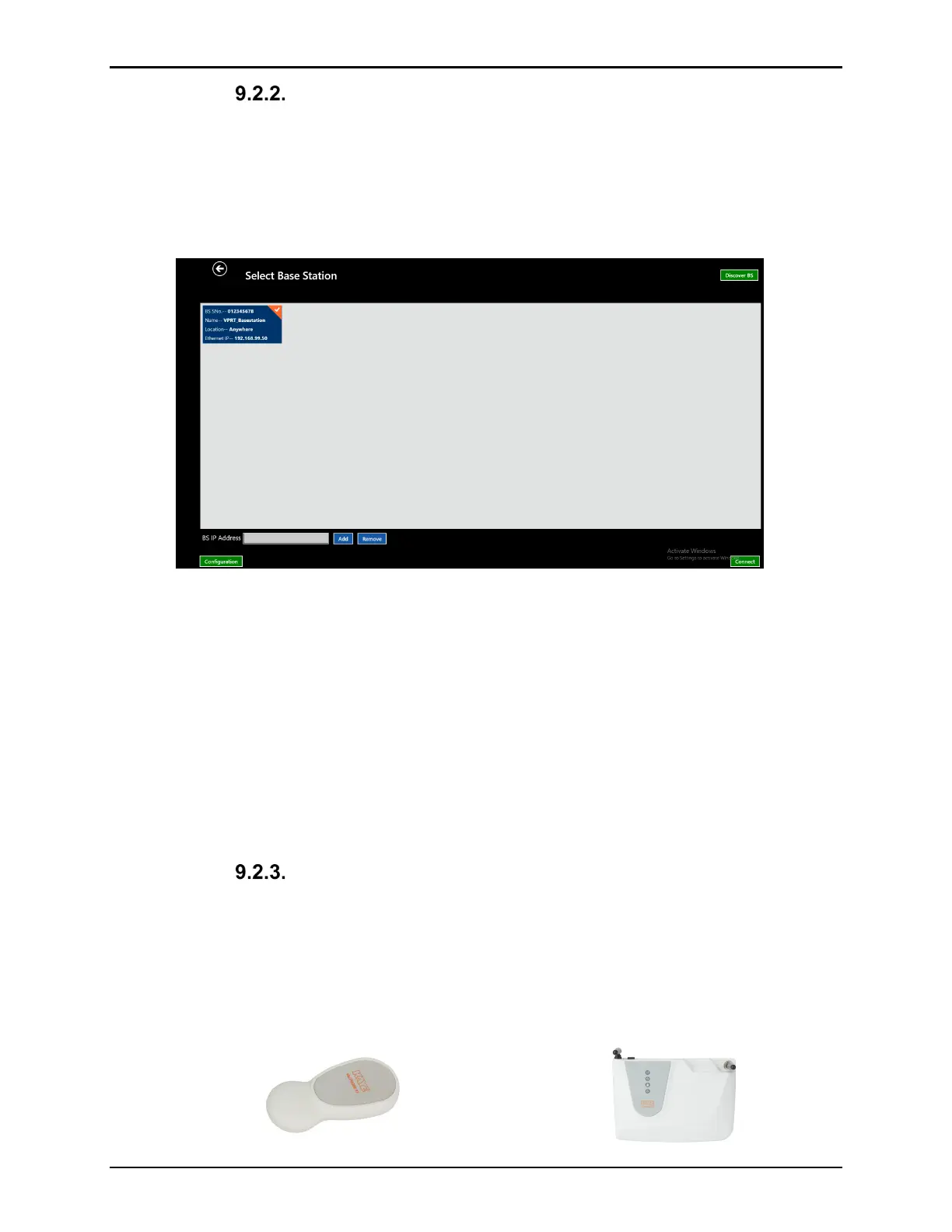
From the Select Base Station screen select Discover to search for all available connected
Base Stations.
Note: If connected via Static IP only one Base Station should appear. If connected via
Network DHCP all Base Stations which can be seen on the Network will appear. Only
one Base Station can be connected during the Qualification study.
Figure 107: Select Base Station
Select the Base Station to be used for the Qualification study and select Connect. The
software will connect to the Base Station, load the selected Setup, and move to the move to
the Select Loggers screen
Note: If the Base Station fails to connect, select the Base Station, and select Configure and
then select Set Base Station to Idle. This resets Base Station and Loggers to Idle
mode. Select Connect to connect to the Base Station.
Each Base Station firmware version is compatible with a specific Logger firmware
version. The software checks for Base Station and Logger firmware compatibility and
warns or blocks user action if they are incompatible with a message window.
Selecting and Connecting to Loggers
If the Loggers are not running a Verification or Qualification they are placed in Idle mode and
then, after 15 min of no communications, in Sleep mode to preserve battery. To connect to the
Loggers, they need to be awakened. The Loggers internally contain a magnetic switch which
is only used to awaken the Loggers.
Note: To wake Loggers, swipe the supplied Wakeup Device over the base of each Logger, or
swipe the base of each Logger over the Kaye Logo on the Base Station LED panel.
Figure 108 Wakeup Device & Base Station



 To Next Page