Chapter 4: Initial ValProbe RT Software Setup
ValProbe RT User Manual 50
4.3. Setting Preferences
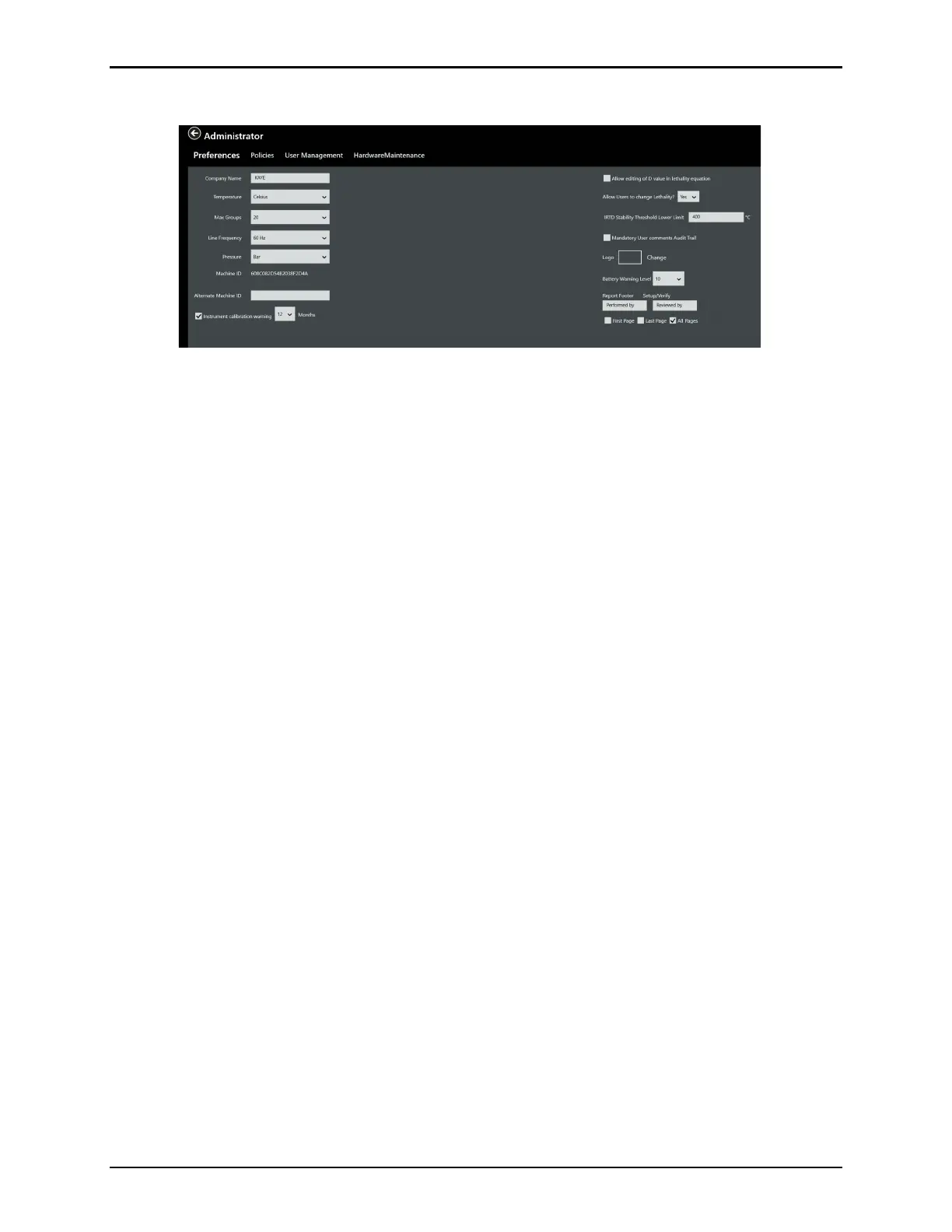
Figure 65: Preferences Tab in Administrator Menu
Changing system Preferences is an Administrator task and requires an Administrator account
to edit the above defaults. Any edited settings become effective immediately after selecting the
Save button. The following preferences are available to be set:
• Company Name: Enter a company name to display in report headers.
• Temperature: Temperature units are set to Celsius only. All calculations are performed in the
temperature unit specified here.
• Max Groups: Use the dropdown to select a maximum number of groups for a setup.
• Line Frequency: Use the dropdown to select a line frequency, 60 Hertz or 50 Hertz depending
on your environment.
• Pressure: Use the dropdown to select the absolute pressure units for saturated steam
calculations.
• Alternative Machine ID: If required, enter an alternate machine identification number, which
appears in the audit trail as additional identification.
• Instrument calibration warning: Sends a user a warning after a set amount of time, using the
dropdown, when calibration is required.
• Allow editing of D value in lethality equation: Allows the user to edit the D value in the
lethality equation.
• Allow Users to change Lethality: Use the dropdown to decide if the User should be able to
change lethality, Yes or No.
• IRTD Stability Threshold Lower Limit: Enter the lower limit for IRTD stability (from 250 to
400°C or 482 to 750°F). The IRTD stability is fixed to 0.012°C, but for high temperatures which
threshold limit is set with this value, or temperatures below 0°C, the IRTD stability value
becomes editable in the setup.
• Mandatory User Comments in Audit Trail: When enabled/checked, user comments are
mandated when user credentials are validated to log the audit entries.
• Logo: Select Change to browse to a location to add a logo to display in report headers. Use any
bitmap for the graphic, with a preferable size of 90 x 30 pixels. Other formats are downsized.
• Logger Battery Warning Threshold: Set at what battery percentage a warning displays, default
is 10% and can be set between10%-40%.
• Report Footer: Set if signature fields are applied on the first/last/every page for Setup and
Sensor Verification reports. Note, this is set directly in the reporting tool for qualification reports
such as Detailed, Summary, and Pass / Fail.
• Data Directory: Displays the path and folder of the Data Directory.



 To Next Page