Chapter 4: Initial ValProbe RT Software Setup
ValProbe RT User Manual 49
Select the desired group from your defined company domain.
Select or type the Title for the group.
Select the User Type dropdown.
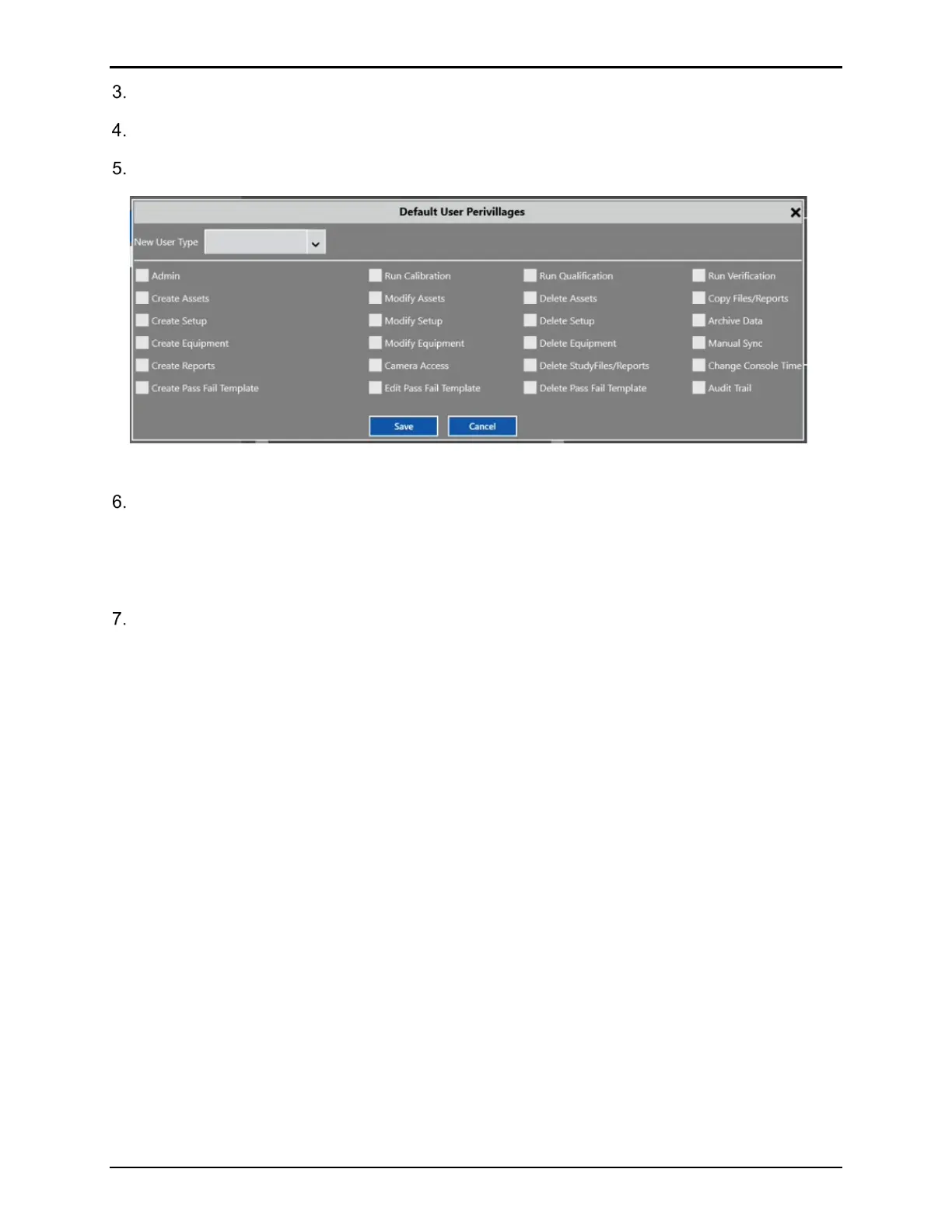
Figure 64: Default User Privileges Window
Use the User Type dropdown to select from previously created user types or create a new
User Type by typing in a new name over the previously created one in the dropdown.
Select which privileges to add or remove for the new User type by selecting or deselecting
the checkboxes and select Save. To return to the User management screen and not save
your changes, select X or Cancel.
Once saved, the new User Type is displayed in the User Type dropdown on the User
Management screen.
Note: If a user is in multiple Active Directory™* groups and there are changes to their user
type in multiple groups, the last group updated is saved. For example, if a User is in
both group A and group B as an operator user type, and someone makes a change for
that user in group B, for example, to make them a System Administrator, they become
a System Administrator in both groups.



 To Next Page