Chapter 4: Initial ValProbe RT Software Setup
ValProbe RT User Manual 47
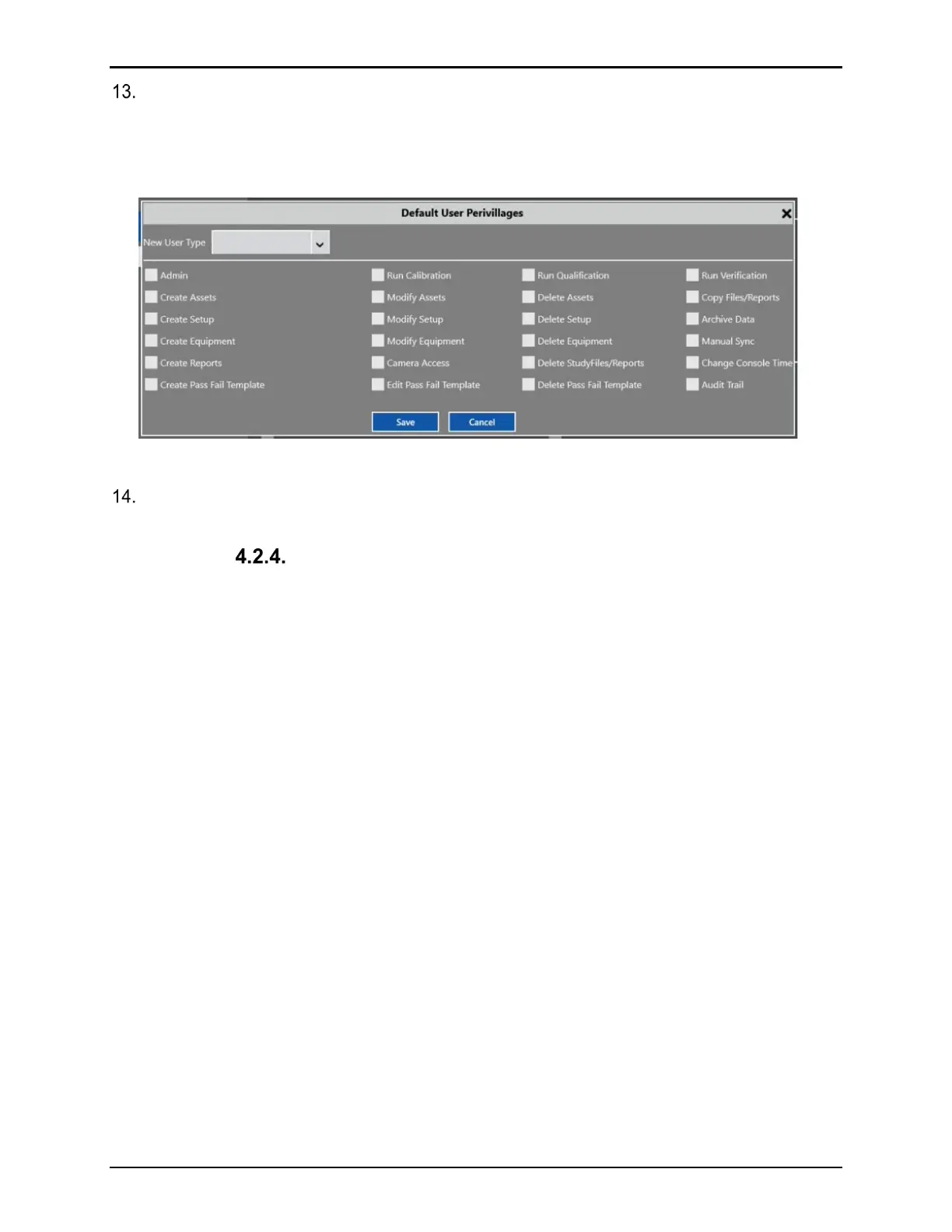
Select the User Type dropdown to select from previously created user types or create a
new User Type by typing in a new name over the previously created one in the dropdown.
Select which privileges to add or remove for the new User type by selecting or deselecting
the checkboxes and select Save. To return to the User management screen and not save
your changes, select the black X or Cancel.
Figure 61: Default User Privileges Window
Once saved, the new User Type is displayed in the User Type dropdown on the User
Management screen.
Deleting and Disabling Local Security User Accounts
There are two additional states for a User:
Disabled User
A User may be disabled by an Administrator or automatically disabled after a certain amount
of consecutive login failures (3-10) if enabled in Policies (see Section 4.2 for details). A
disabled User account is marked in red in the User list. The disabled state is set with the
checkbox Disabled User Account in User Information. An Administrator can re-enable the User
account by unchecking Disabled User Account checkbox.
Deleted User
If a user account needs to be removed, an Administrator can delete it by selecting Delete at
the bottom of the screen. To prevent discrepancies in the audit trail, the deleted User ID is
blocked for further usage. The deleted User is removed from the User list, but the User’s
information remains accessible via the User list printout.
Users List
The Users List generates a .pdf report that lists all active, disabled, and deleted User
information.
User Search
A search field that filters for Username. As an example, if “B” is entered all usernames starting
with “B” are listed.
Note: All Users are listed in alphabetic order.



 To Next Page