Chapter 4: Initial ValProbe RT Software Setup
ValProbe RT User Manual 39
4.2. Initial Log in as a Default System Administrator
When the Console is initially powered on, it automatically boots into the Kaye Operator
Windows account. Inside the Start Menu, navigate to, and start the ValProbe RT software, the
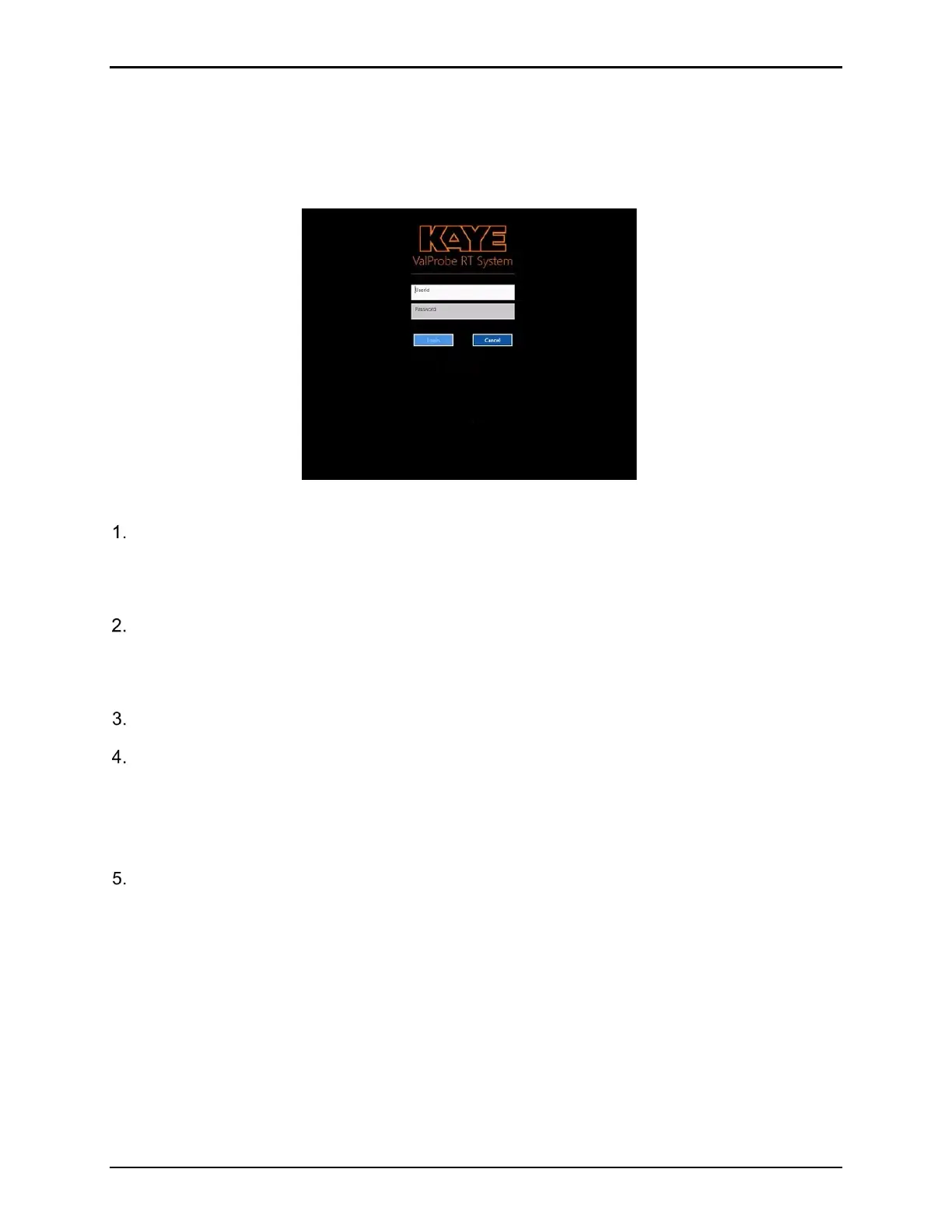
Login screen appears as displayed below:
Figure 52: Login Screen
Enter the one time default User ID“Kaye” in the User ID textbox.
Note: “Kaye” is the default System Administrator User ID, and the User ID textbox is case
sensitive. Please ensure that the default User ID is entered exactly as it appears above.
Enter the one-time default System Administrator password “411” in the Password textbox.
IMPORTANT: The default User ID and password are as follows, “Kaye” and “411”
respectively.
Select Login.
Once logged in, the Policies screen opens.
The Policies screen is used to define if the Security and sign in for the ValProbe RT software
utilizes Active Directory
™* for sign in or the local security and policies of the ValProbe RT
software.
If utilizing Local Security and Policies proceed to Section 4.2.1. If planning to utilize Active
Directory™* proceed to Section 4.2.2.



 To Next Page