Chapter 9: Qualification Study
ValProbe RT User Manual 85
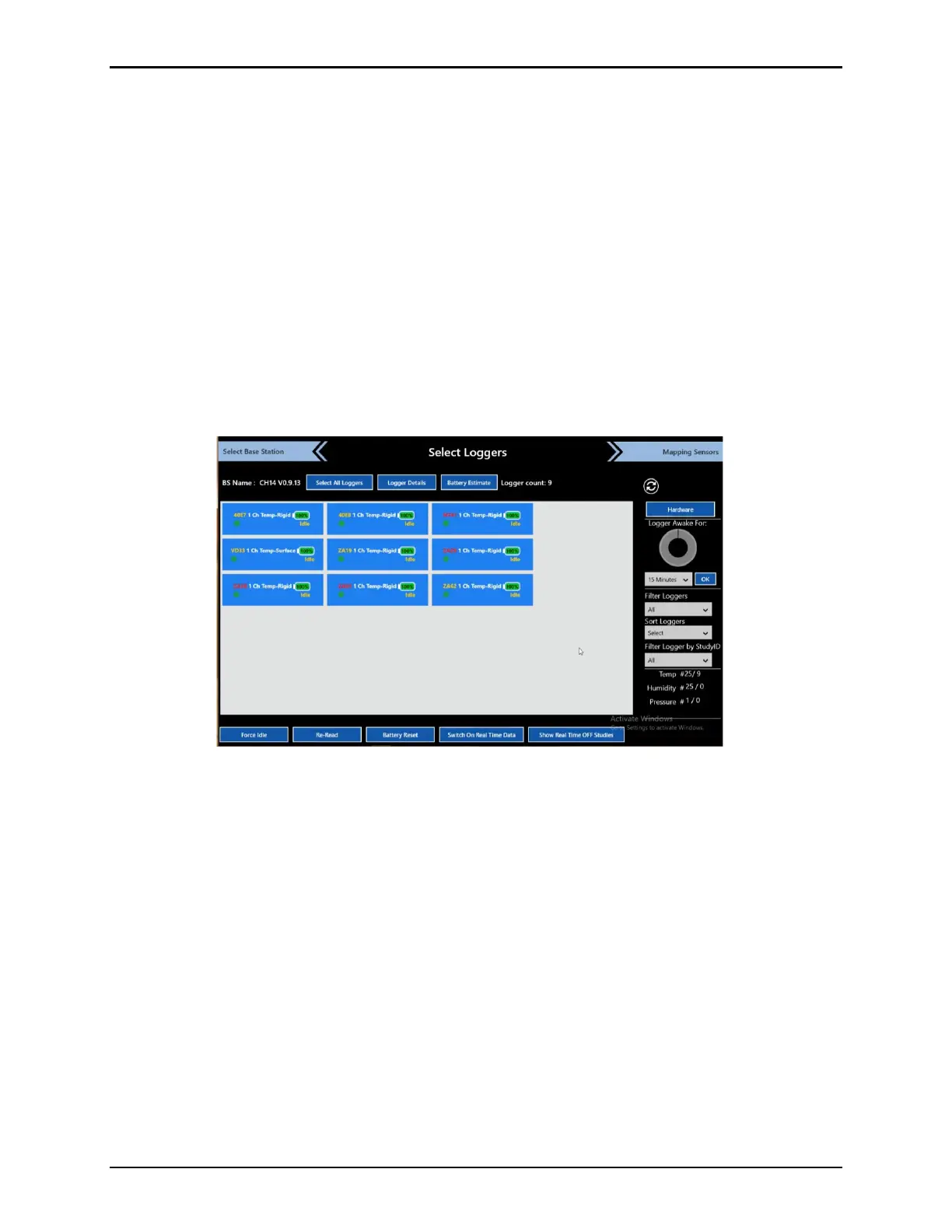
As each Logger is awakened, a long beep is audible from the Base Station and the Logger tile
appears with the serial #, Logger type, battery indication, mode, and a green dot specifying the
number of sensors in the Logger. The bottom right of the screen displays the number of
sensors that are configured in the Setup for the study.
Note: If any Loggers fail to awake and cannot be detected, place the Logger on the Wakeup
device for 30 second. The Logger initiates a reset and moves to Idle mode and try to
awake the Logger again. If the Logger still does not awaken the battery may need to be
changed.
Once all Logger have been awakened, select which Loggers to use in the study by selecting
them individually or by pressing Select All Loggers.
Note: When using more than 25 Loggers, ensure that the transmission rate is equal or
greater than the sampling rate. If not, a message displays a warning that you cannot
move forward. Modify the setup and the transmission/sampling rates before proceeding
with 25 or more Loggers.
Figure 109: Select Loggers
Select the Logger Details button to display detailed information about each Logger.
Information includes Type, Serial #, Battery %, Battery Reset Date, RF Link, Study Stop
Reason, FW Version, the last manufacturing Cal date, and the last User Verification date.
Select Live Loggers to return to the previous screen.
Note: The Loggers Detail screen provides an easy way to check that each Logger has the
appropriate amount of battery life for the upcoming Qualification study. If a Logger
needs to be replaced prior to the study, see Chapter 2 to manually replace the battery.
From the Select Loggers screen select the involved Logger and select Battery Reset to
reset battery odometer.
Select the Sorted button to sort Loggers by Serial#, Battery %, and Signal Strength. Select
the Filtered button to filter by Logger type to provide an easier analysis of selected Loggers.
The “Logger Awake For” and the dropdown below it, display the amount of time Loggers will
remain awake before starting the Qualification then go back to Sleep. The awake time
dropdown includes times up to an hour.



 To Next Page