Chapter 4: Initial ValProbe RT Software Setup
ValProbe RT User Manual 44
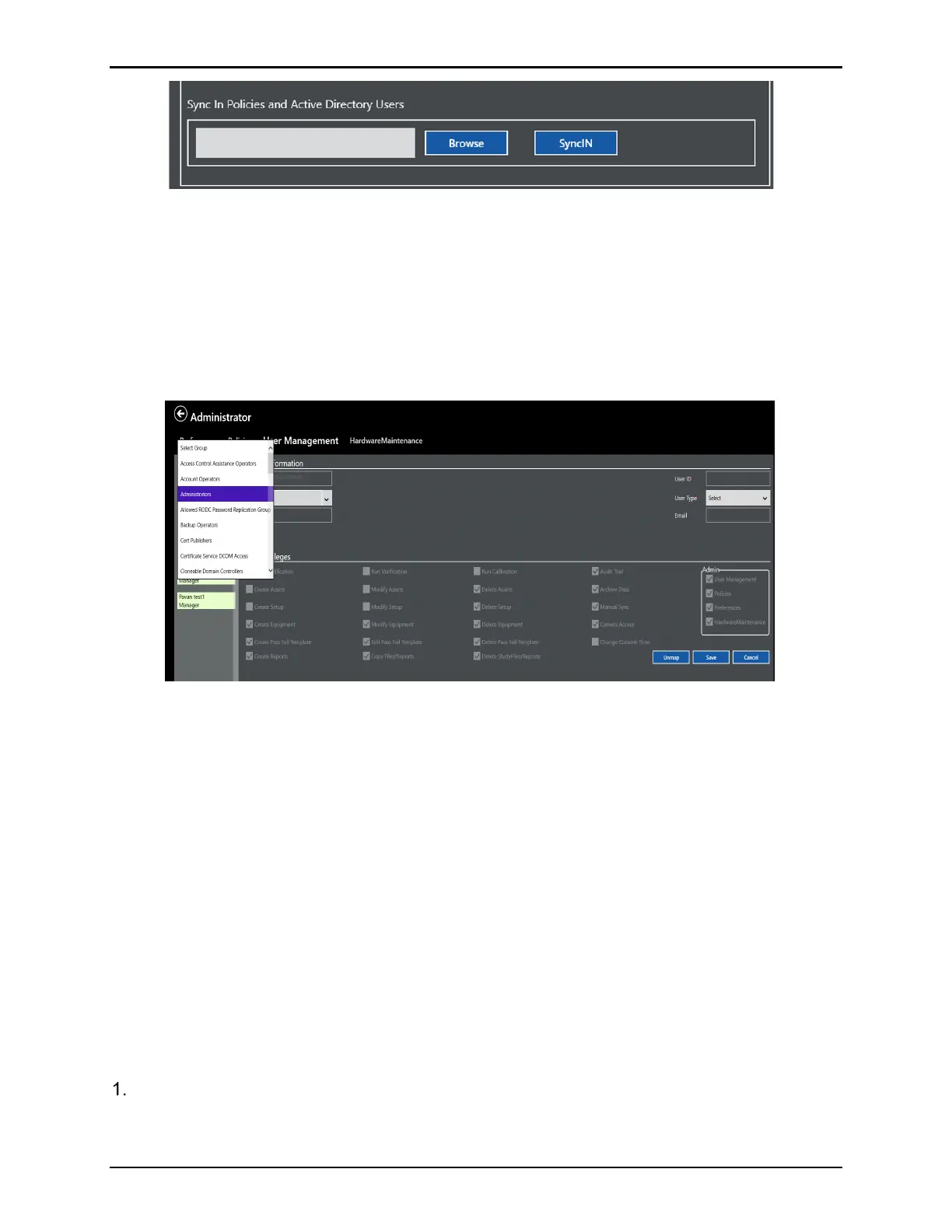
Figure 58: Sync In Active Directory* Users and Policies
The Active Directory* setup window has a feature that allows locally saved policies,
parameters, and User Management definition to be Synced-In to other ValProbe RT Consoles
to avoid having to reconfigure them individually. From the Console with the configured Policies
and User Management, open the Main screen>File Management>SyncOut. Define the path
(USB, Folder on Domain) and then select Users>Audit>SyncOut. On the other ValProbe RT
Console, open the Admin>Policies screen and enter the path where the Users and Audit were
stored and select SyncIn.
Figure 59: Active Directory User Management Screen
If the Active Directory™* configuration and connection were successfully established in the
Policies screen, when entering the User Management screen, a complete list of all active
Groups within the defined domain is displayed.
Important: Prior to defining the User Management screen, it is necessary for the Validation
Manager to work with their IT department to define and configure on the defined
domain, the various Groups and people within each group who need access to the
ValProbe RT system. Each Group can be assigned a User Type which defines
what permissions are granted for each member of the group.
Important: For the ValProbe RT system to operate their must always be an Administrator
defined group. Upon first time startup of the system, the Administrator must define
and set permissions for an Administrator Group. Once completed the Default User
ID and Password are deleted and the system reboots.
To map the predefined Administrator Group:
Select the domain group to assign as Administrators. In the Title box use the dropdown to
define the User title. If the desired title is not listed, press Select and type in the desired
title, the title appears in the active group users listed below the Username.



 To Next Page