3-8 Basic faxing
Basic transmission settings
NOTE
You can change the default settings, as necessary. For details, see “Address book
destinations” (page 7-2).
Setting the resolution
You can set the resolution to scan with according to the document.
Normal:
Fine:
Super Fine:
Photo:
Background:
Select to scan a document with normal text.
Select to scan a document with small text, such as a newspaper.
Select to scan a document with detailed illustrations or fine text.
Select this to scan photos.
Select this to scan while erasing the background (background pattern) of the
document.
1
Load the document.
2
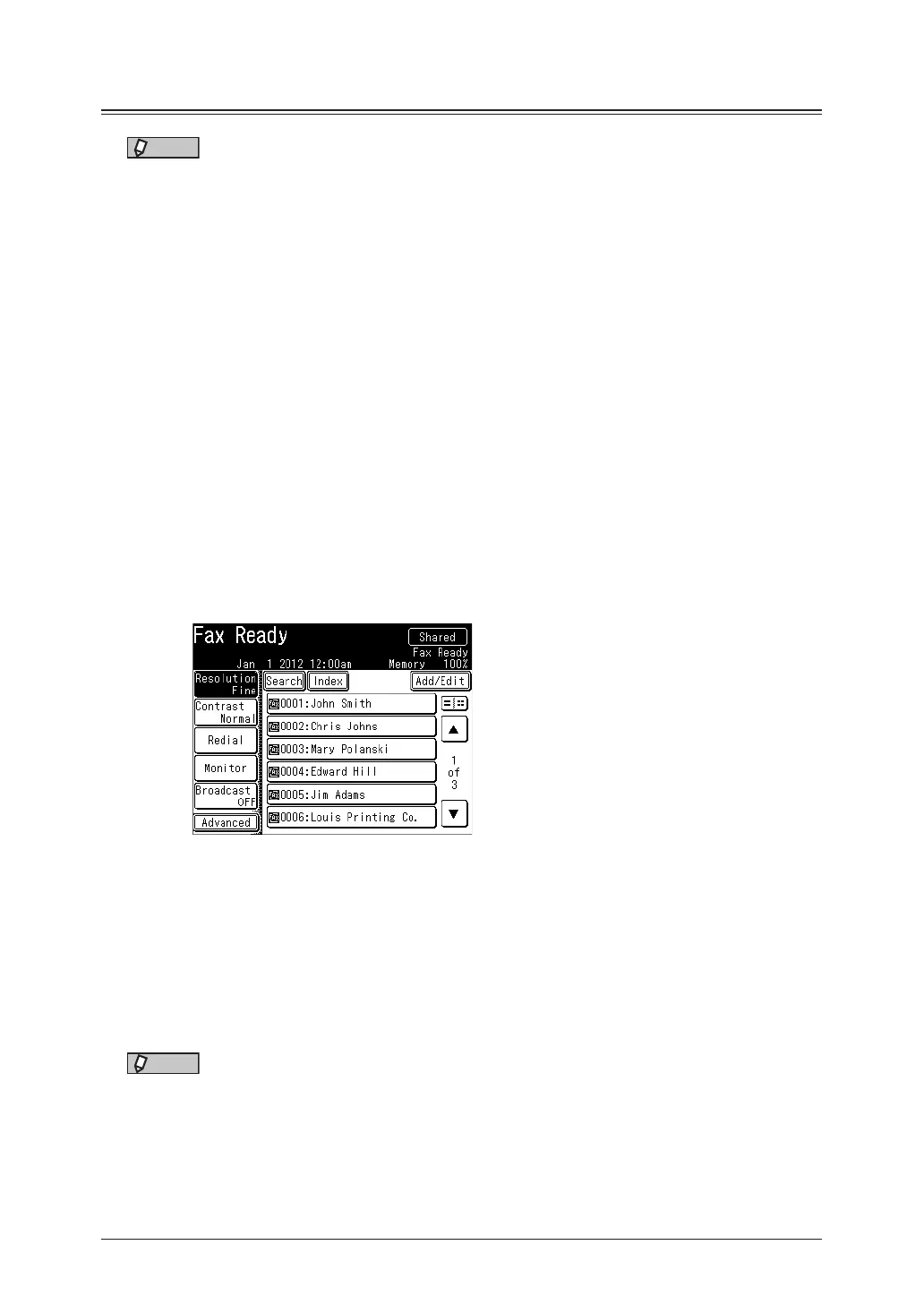
Press [Fax] on My MFP Menu screen.
If My MFP Menu screen is not displayed, press <Mode> repeatedly until “Fax Ready” screen is
displayed.
3
Press [Resolution].
If [Resolution] is not displayed, press [Advanced] and then [Resolution].
4
Select the desired resolution, and press [Enter].
5
Specify the destinations, and press <Start>.
•For details on specifying the destinations, see “Specifying destinations” (page 5-2).
•If you loaded the document in the automatic document feeder, this concludes the procedure.
•If you loaded the document on the document glass, the message “Set next document.” is
displayed when the loaded documents have been scanned. Load the next document, and
press [Next Doc]. Press [Tx Start] to start transmission.
NOTE
•The “Super Fine” mode may not be supported by the destination machine. In this
case, the optimal resolution will be automatically selected.
•The communication time differs according to the selected resolution.



 To Next Page