1
2
3
4
5
6
7
Registering destinations 7-13
Machine settings
Registering / Editing folder shortcuts
Up to 300 frequently used shared folders can be registered as shortcuts.
NOTE
•The folder to register must have shared folder settings specified on the computer
you are using in advance.
•You can register personal folder shortcuts. For details on registering personal
settings, see chapter 1, “Using personal settings” in the Administrator’s Guide.
Registering / Editing
The following items can be registered for each folder shortcut.
Item Description
Shortcut Name
This is the button name displayed on the screen. Up to 24
characters can be entered.
If you do not register a name, the link will be displayed on the
shortcut key. When the link is too long to be displayed on the key,
it will be omitted at the center with “.” and only the beginning and
ending of the link will be displayed.
Link To specify the link to the folder, enter the link manually, or browse
to the desired folder. The link must be registered.
Up to 128 characters can be entered.
User Name Register a user name when it is required to access the folder.
Up to 64 characters can be entered.
Password Register a password when it is required to access the folder. Up to
28 characters can be entered. Only ASCII characters are available.
Automatic Network Login You can set whether to perform a user login when using shortcuts.
This section describes the procedure for registering folder shortcuts. When editing, select
the folder shortcut you want to edit in step 4, and press [Edit]. Select the item you want
to edit.
1
Press [Setting] on My MFP Menu screen.
If My MFP Menu screen is not displayed, press <Mode> repeatedly until My MFP menu
screen is displayed.
2
Press [Register].
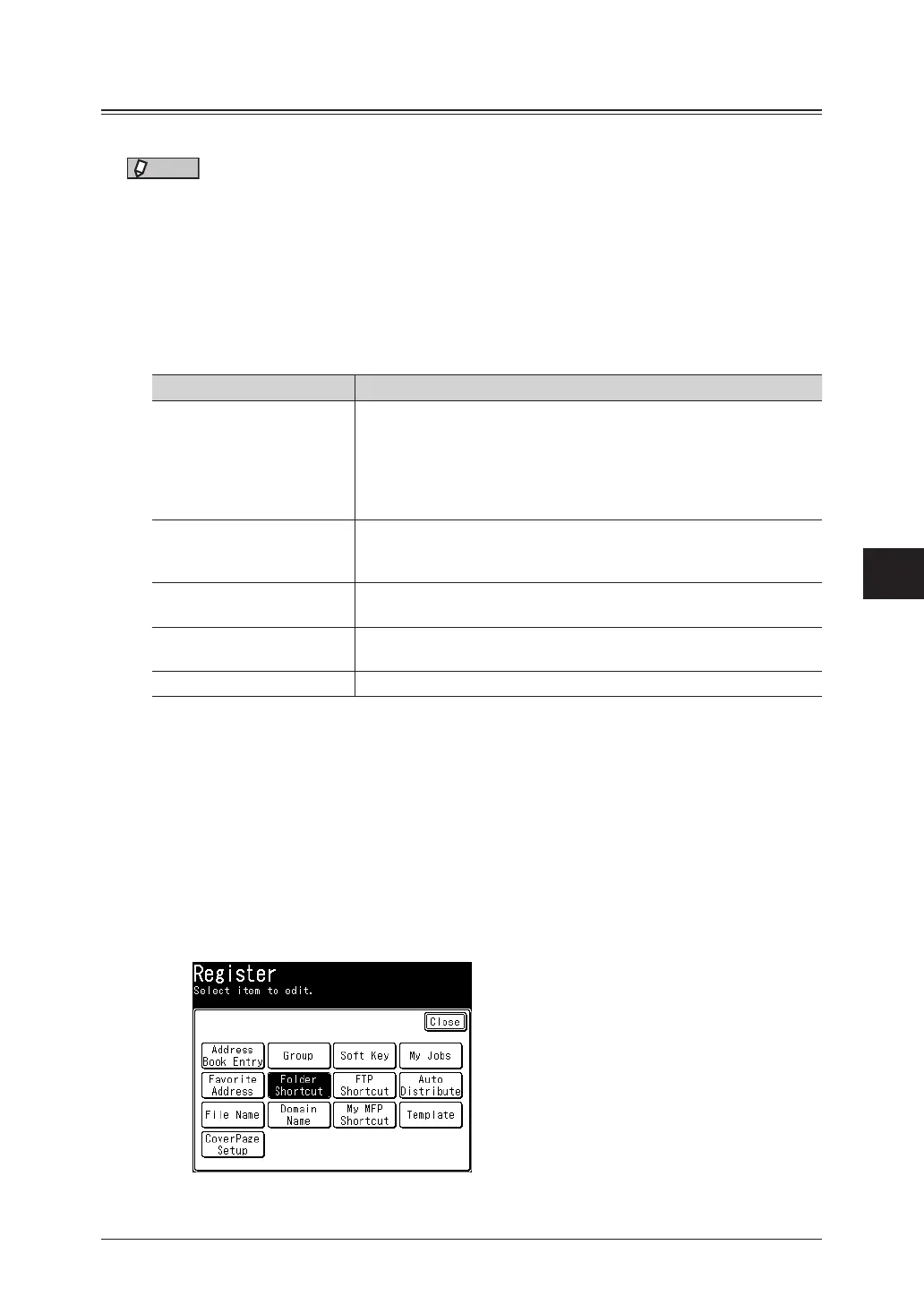
3
Press [Folder Shortcut].



 To Next Page