1
2
3
4
5
6
7
8
Troubleshooting 8-7
Troubleshooting
Troubleshooting
Read this section if trouble occurs with the machine. Contact your local technical
representative if the following steps do not solve the problem.
Cannot transmit faxes
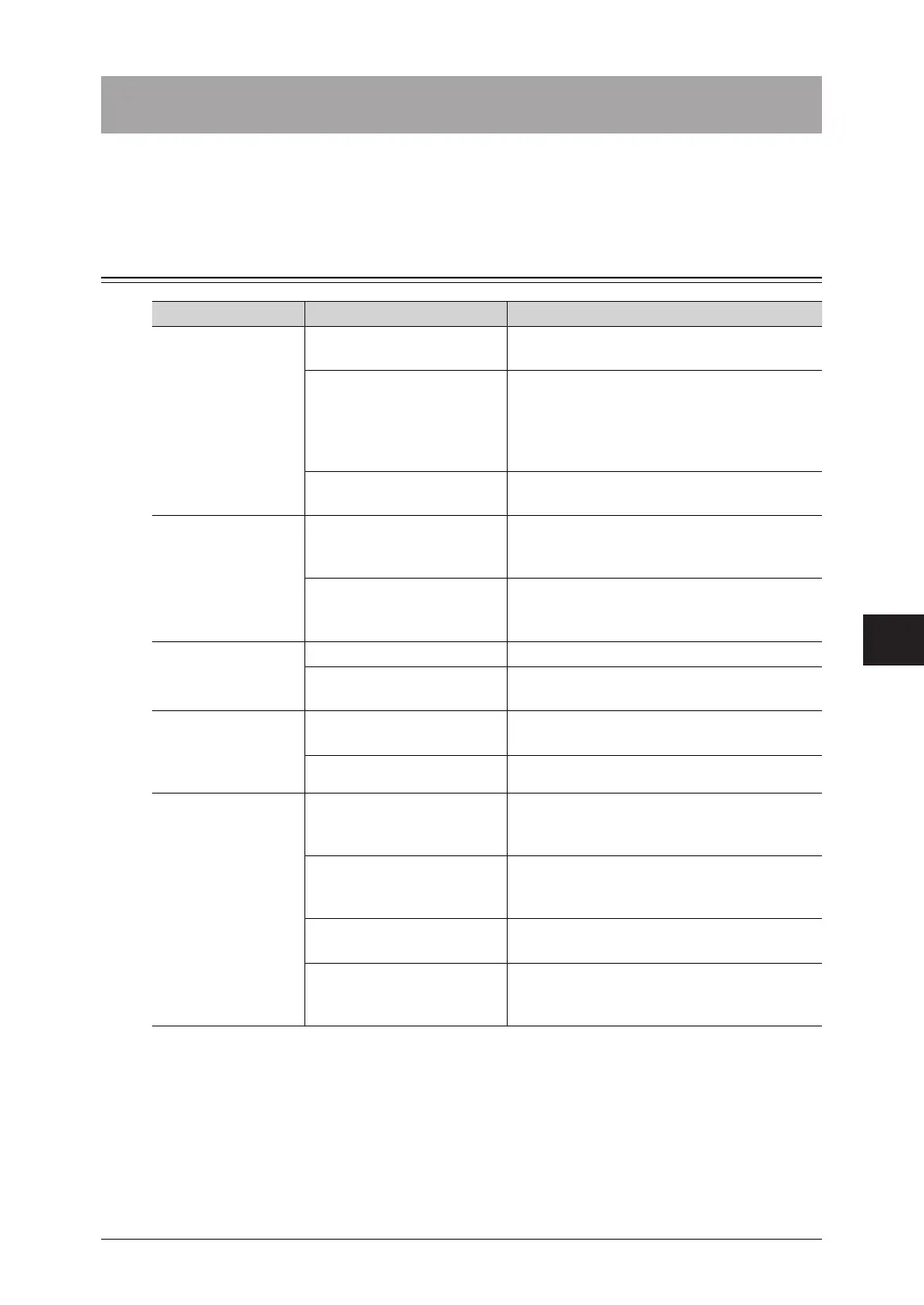
Status Things to check Countermeasure
Cannot transmit Is your transmission
procedure correct?
Check the procedure and try again.
For details, see “Basic faxing”(page 3-2).
Is the destination fax
number correct?
If you are using an address book destination,
make sure the number is registered correctly
by printing out the list. For details, see
“Printing the address book destination
list”(page 7-9).
Is there something wrong
with the remote machine?
Ask the other party to prepare the machine
for reception. (Power, paper, etc.)
Documents are
not transmitted
continuously
Are the documents loaded
with the edges of the paper
all lined up?
Reload the documents.
Do the loaded documents
include pages smaller than
the minimum width (4.7")?
These pages should be loaded on the
document glass and kept separate from the
other pages.
Cannot transmit
even though the
number is dialed
Is the fax number correct? Dial the correct fax number.
Is the other party’s line
busy?
Wait until the line is available and try again.
The document
cannot be scanned
when using memory
transmission
Is the document loaded
correctly?
Load the document correctly.
Is the memory full? Check the memory.
Cannot transmit a
document created in
an application on a
computer
Have you checked the
network environment?
For details, see chapter 4, “Cannot connect
to the network” in “Troubleshooting” in the
Administrator’s Guide.
Is “Muratec Direct Fax”
installed?
Install “Muratec Direct Fax”. For details,
see chapter 1, “Installing to Windows” in the
Printer Guide.
Is “Muratec Direct Fax”
selected as the printer?
Select “Muratec Direct Fax” as the printer in
the print menu of the application.
Is the port setting of
“Muratec Direct Fax”
incorrect?
Check that the port is correct.



 To Next Page