4-12 Transmission related settings
5
Enter a message, and press [Enter].
•Up to 120 characters can be entered. For details on entering the characters, see chapter 1,
“Entering characters” in the Administrator’s Guide.
•To insert a line break, press . A line break is counted as two characters.
•You can check the entered message by pressing [ViewText]. After checking, press [Edit] to
return to the entry screen.
6
Press [Close].
Printing the cover page
To confirm that the cover page is set correctly, print a sample cover page from your
machine.
1
Press [Setting] on My MFP Menu screen.
If My MFP Menu screen is not displayed, press <Mode> repeatedly until My MFP menu
screen is displayed.
2
Press [List].
3
Press [Cover Page].
4
Select a document number you want to print.
5
Press [Yes].
Select [ON] to enable duplex printing, or [OFF] to disable it.
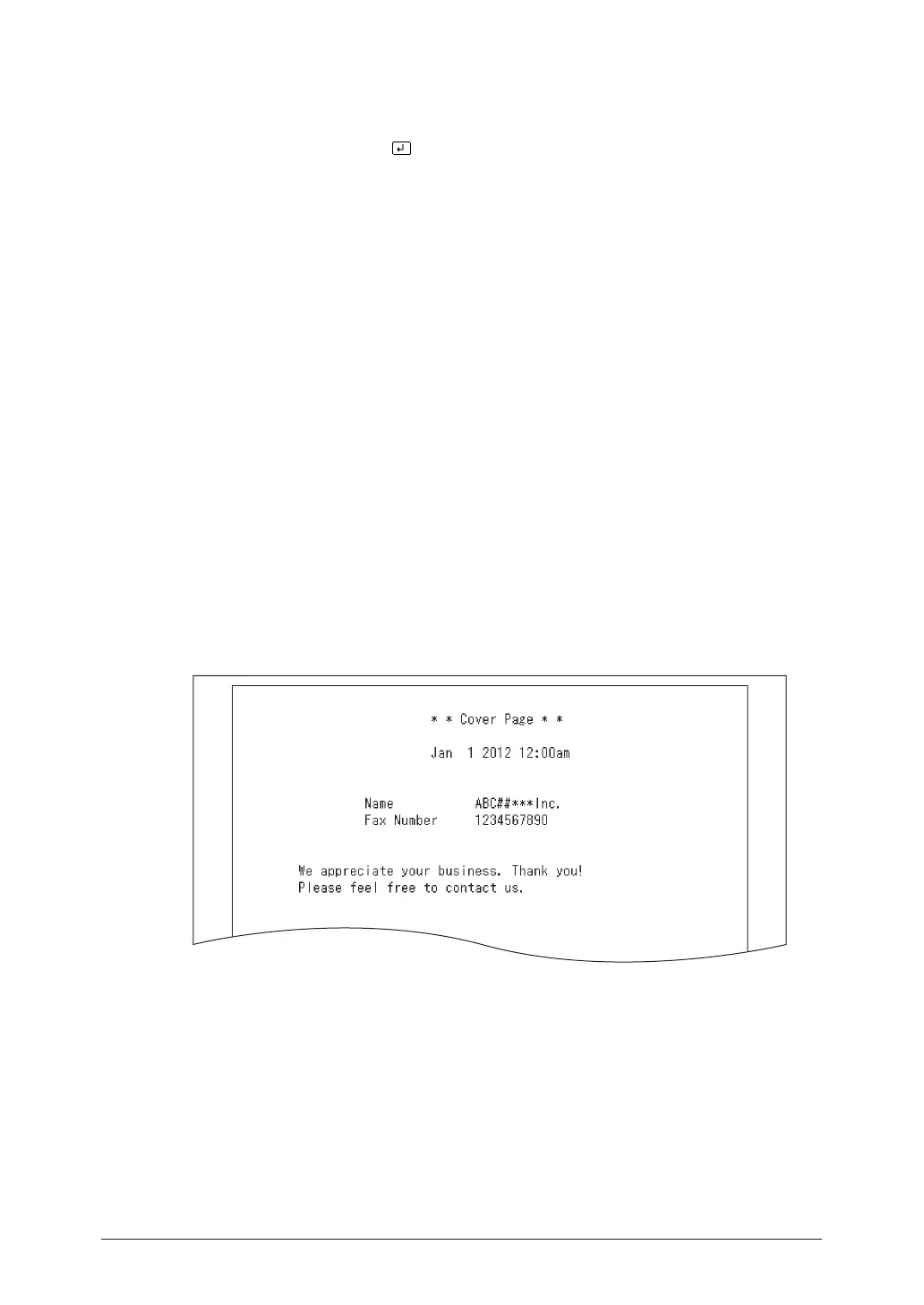
Printout sample
The name and fax number that are registered in the initial setup will be printed.
For details on the initial setup, see “Initial setup (User Install)” (page 7-22).



 To Next Page