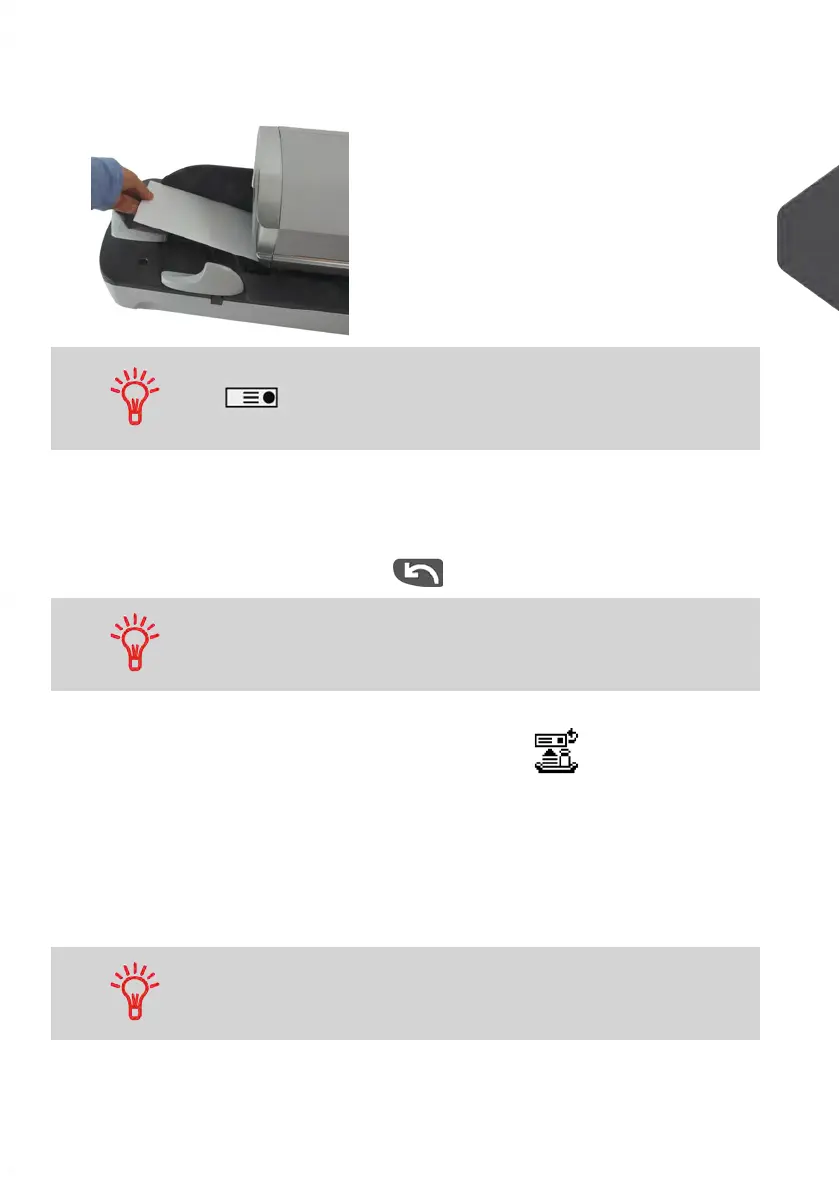
3. To print the impression, insert the mail piece into the base against the rear-guide wall,
with the side to be printed facing upwards.
If a mail piece is bigger than mail path maximum thickness, press
to print a label.The label is printed.To know the maximum
thickness, see Mail Specifications on page 237.
4. The Mailing System applies postage and the mail piece (or label) is sent to the catch
tray.
5. Repeat the previous step for each piece of mail.
To quit the process at any time, press .
When you remove the last object from the Weighing Platform,
the Mailing System will ask if you want to print it.You can answer
Yes or No.
In optional mode Differential Weighing Automatic Label ( ):
From the [Standard] home screen:
1. Place the stack of mail you to process on the weighing platform, and then follow the
instructions on the screen or the steps below.
2. Withdraw the first mail piece from the top of the stack.The Mailing System displays
weight and postage on the home screen, starts motors and prints the label
automatically.
If you inadvertently remove more than one item from the WP,
replace removed items on WP before weight stabilization to
avoid printing label (about 1.5 seconds).
3
Processing Mail
43
| Page 43 | Jan-13-2017 10:45 |


 To Next Page