106 • S-Mode Programming SAM4s ER-900 Series Operator's & Programming Manual v.1.28
Load/Save Receipt Images
You can load a preamble and postamble image for your ER-900 receipt. Before loading, the
images must be converted by the PC Utility to .img format. After conversion, they can be
loaded directly by connecting a PC to the ER-900 or by copying the images to a SD card and
loading (or saving the image) using the SD utility program described here.
Note that after loading the images, you must set Print Options #21 and #22 to activate
the image printing.
1. Preparing a Graphic Logo Bitmap for an ER-900 Series
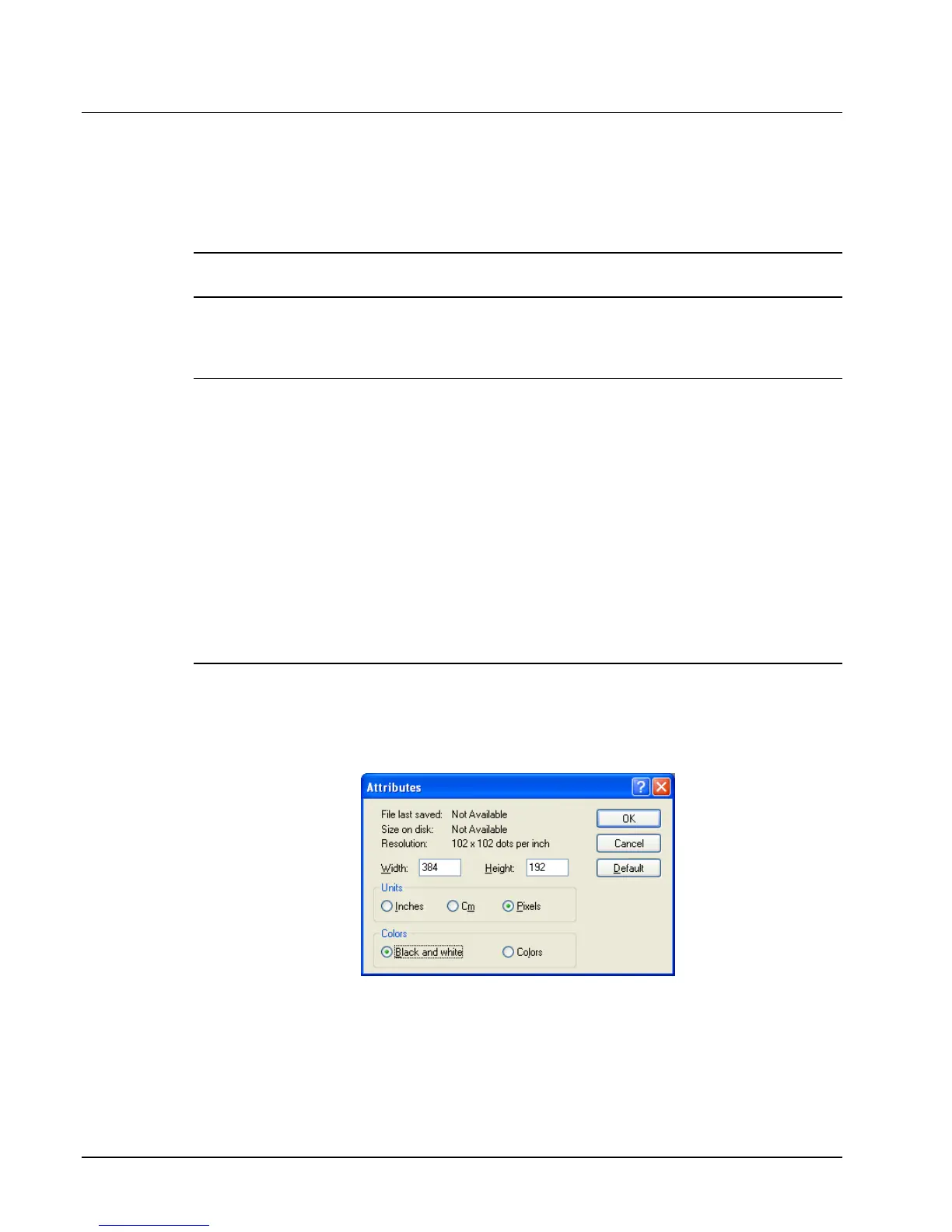
The image must be black/white, 384 x 192 pixels, and 10 Kbytes or less in size.
If your image does not meet this specification, you will need to use a graphic program to
resize it, convert it to a black/white image and save it as a bitmap (.bmp). The MS Paint
graphic program provided in a Windows™ environment can be used. The instructions
here use Paint in a Windows™ XP system. Depending upon your system, Paint may
operate differently. Also be aware that color or gray-scale images may not convert
effectively to black/white. Simple images work best. If you have difficulty, consult with
a graphic program specialist.
Black and white will be inverted when printed on an ER-900 series printer. If you are
using Paint to prepare you image, you may wish to choose Invert Colors from the Image
menu if you wish your image to appear as black on a white background rather than
white on a black background.
1. Open MS Paint (Window™ XP).
2. Open the image file you wish to use.
3. Choose Attributes from the Image menu. The Attributes dialog box displays.
4. The image dimensions must be no larger than 384 pixels wide by 192 pixels high. If
the image size in pixels is greater than the maximum, you must resize your image.
a. Click OK to exit the Attributes dialog.
b. Select your image. (Choose Select All from the Edit menu.)


 To Next Page