136 CHAPTER 3 J-Link software and documentation package
J-Link / J-Trace (UM08001) ©
2004-2017 SEGGER Microcontroller GmbH & Co. KG
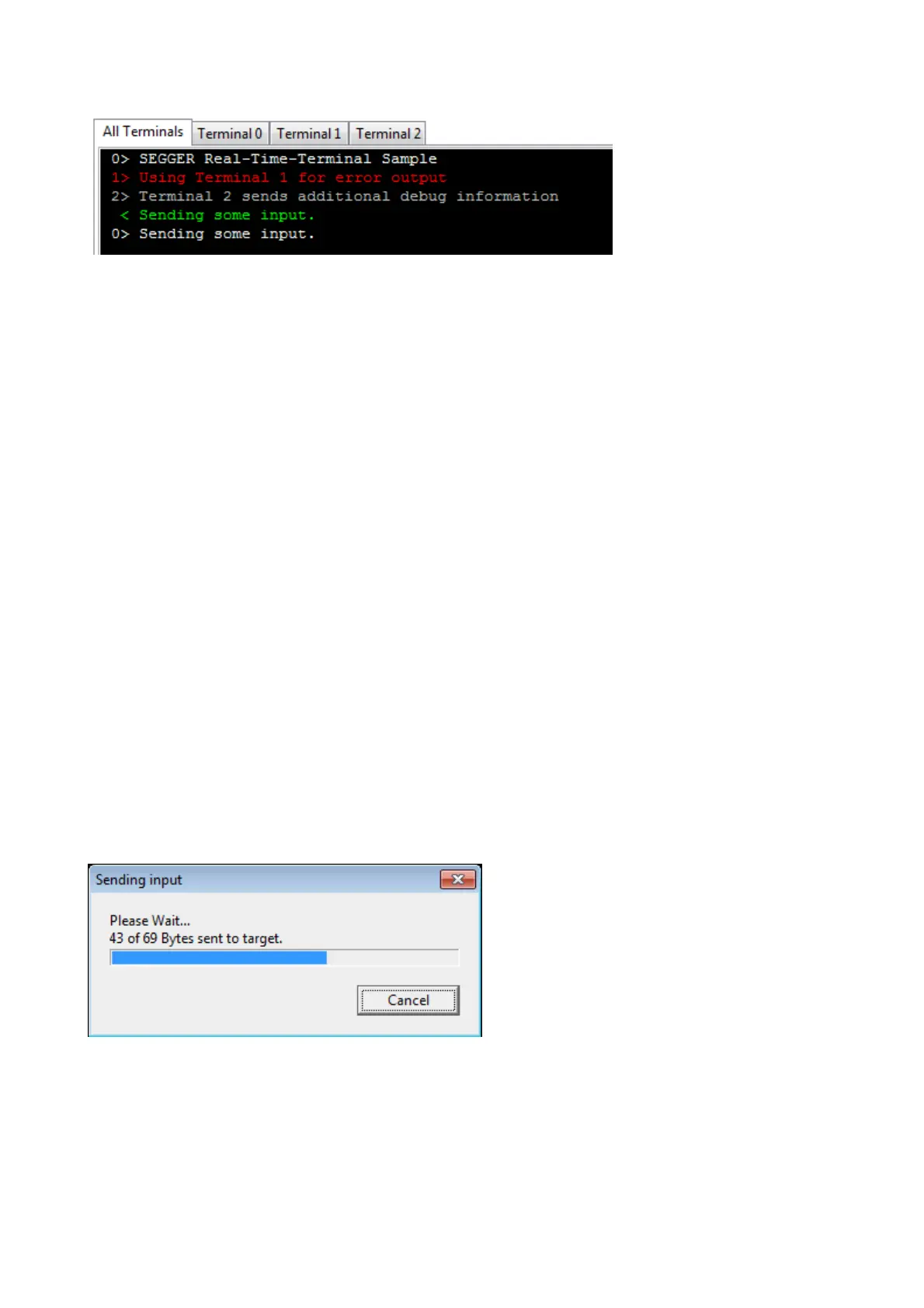
RTT Viewer displays the Terminals in different tabs.
All Terminals
The All Terminals tab displays the complete output of RTT Channel 0 and can display
the user input (Check Input -> Echo input... -> Echo to "All Terminals").
Each output line is prefixed by the Terminal it has been sent to. Additionally, output
on Terminal 1 is shown in red, output on Terminals 2 - 15 in gray.
Terminal 0 - 15
Each tab Terminal 0 - Terminal 15 displays the output which has been sent to this
Terminal. The Terminal tabs interpret and display Text Control Codes as sent by the
application to show colored text or erase the screen.
By default, if the RTT application does not set a Terminal Id, the output is displayed
in Terminal 0.
The Terminal 0 tab can additionally display the user input. (Check Input -> Echo
input... -> Echo to "Terminal 0")
Each Terminal tab can be shown or hidden via the menu Terminals -> Terminals... or
their respective shortcuts as described below.
3.7.4 Sending Input
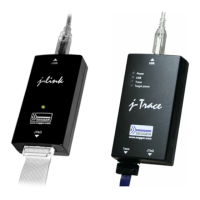
RTT Viewer supports sending user input to RTT Down Channel 0 which can be read by
the target application with SEGGER_RTT_GetKey() and SEGGER_RTT_Read().
Input can be entered in the text box below the Terminal Tabs.
RTT Viewer can be configured to directly send each character while typing or buffer it
until Enter is pressed (Menu Input -> Sending...).
In stand-alone mode RTT Viewer can retry to send input, in case the target input
buffer is full, until all data could be sent to the target via Input -> Sending... ->
Block if FIFO full.
3.7.5 Logging Terminal output
The output of Channel 0 can be logged into a text file. The format is the same as
used in the All Terminals tab.
Terminal Logging can be started via Logging -> Start Terminal Logging...


 To Next Page