Note: Turning BroadShield OFF and Auto Sync Control ON is an invalid
setting and will cause a "Failed to connect to the unit..." error.
3.
In the BroadShield Web UI on the right, navigate to SETTINGS > ALGORITHMS, and
ensure that Jamming and/or Spoofing detection are enabled.
Configuring BroadShield
To configure BroadShield:
1.
Navigate to MONITORING > BroadShield. (If you cannot see the MONITORING button
in the Primary Navigation Bar of the HOMEscreen, this license is not present.) The
embedded Broadshield Web UI will open.
2.
Click SETTINGS to open the following sub-menus:
BROADSIGHT
BroadSight is a service that allows collection of data from multiple BroadShield units and
provides a dashboard view of the data.
Note: BroadSight for VersaSync is currently not supported.
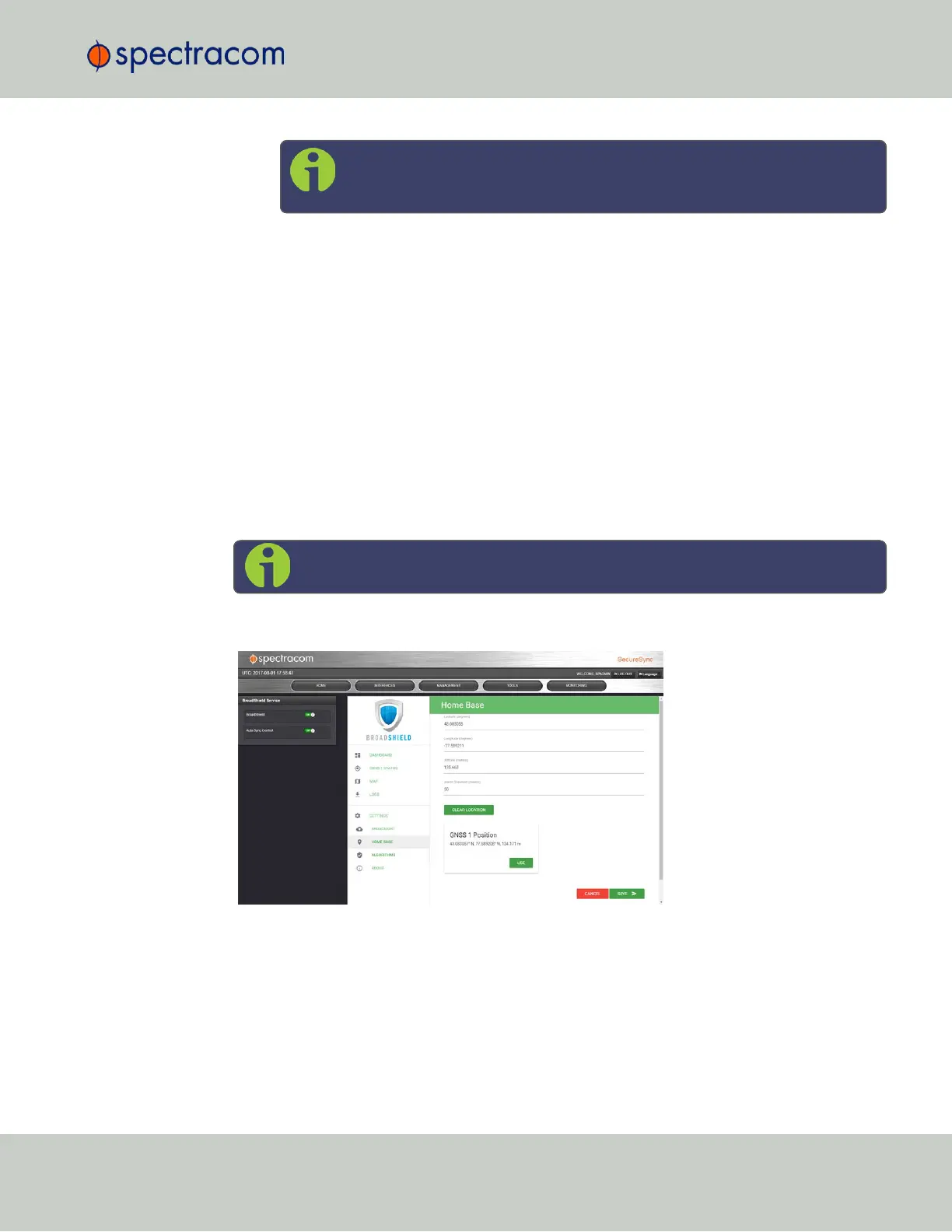
HOME BASE
By setting the HOMEBASE position you allow BroadShield to use this location as a reference
position for spoofing detection: Should BroadShield detect that the geographic position repor-
ted by VersaSync's GPS receiver seems to move beyond the set Alarm Threshold (even though
VersaSync does not move), an alarm will be triggered.
The standard use case is to make your GNSS 1 Position your HOME BASE:
3.3 Managing References
CHAPTER 3 • VersaSync User Manual Rev. 6.0
141


 To Next Page