1.
Should the position fields be populated (other than the Alarm Threshold), click
CLEARLOCATION (this will prevent BroadShield from issuing an alarm once you SAVEd
the new position.)
2.
Click USE in the GNSS 1 Position box to apply the settings.
3.
The default Alarm Threshold is 50 m, i.e. any detected position shift beyond a 50-m circle
around the HOMEBASE position will cause an alarm. You can change this setting to
adjust the sensitivity.
4.
Click SAVE to accept the entered values.
A less common use case may be that you want to pre-set the unit's position for later use e.g., if
the VersaSync unit will be deployed in a different location: Set a position manually by entering
lat/long (format: xx.xxxxxx degrees) and alt. Note, however, that this may cause a spoofing
alarm, since BroadShield detects a difference between the HOME BASE position and the
GNSS position.
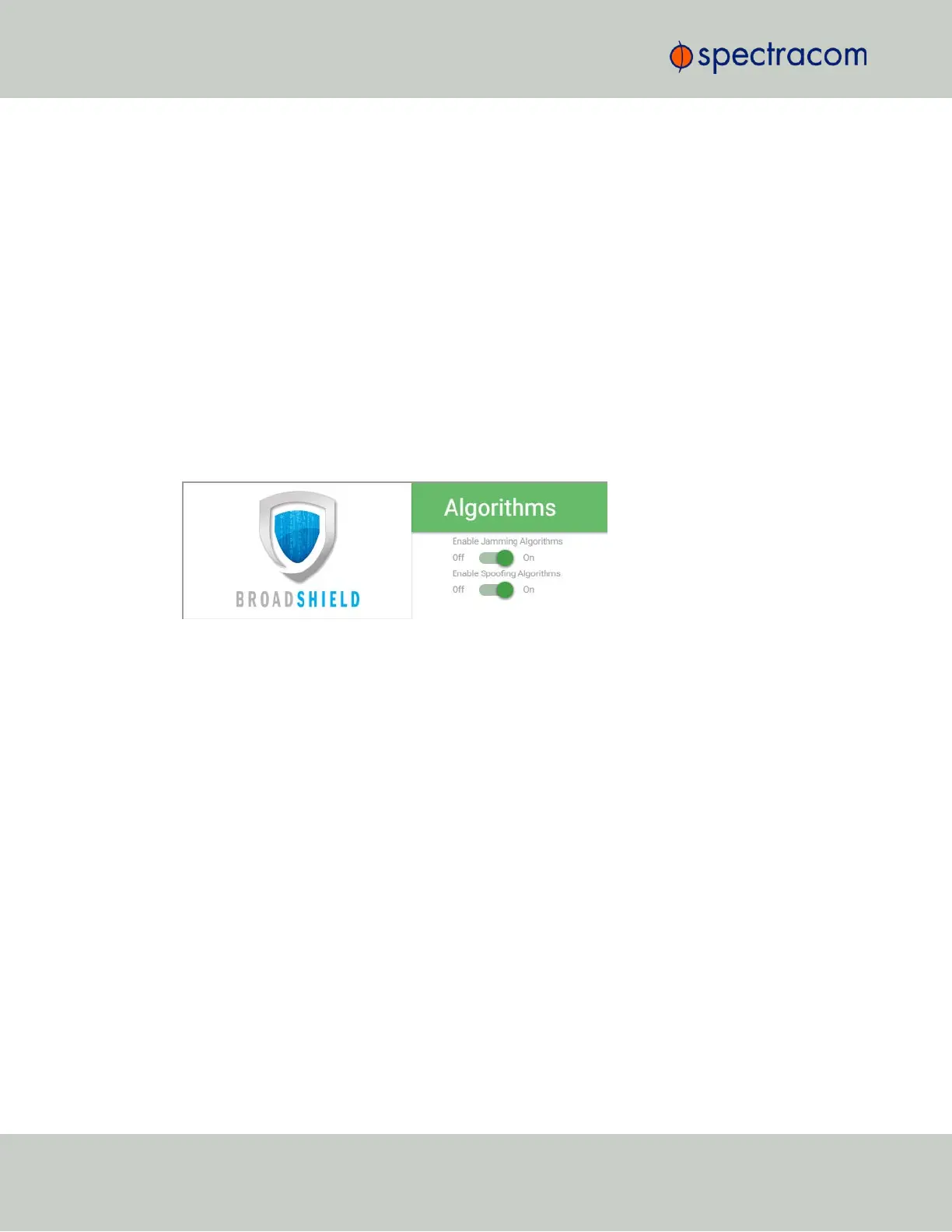
ALGORITHMS
This menu option allows you to disaable/enable Jamming or Spoofing. Spoofing refers to
impersonating the live-sky GNSS signal, thus "deceiving" the GNSSreceiver, while Jamming
refers to interference of the signal, i.e. making the live-sky GNSS signal unusable. Per default,
both are Enabled.
ABOUT
The About menu displays Version and Build Date of the BroadShield software. Periodic
updates are released with VersaSync system software updates, as they become available.
Monitoring BroadShield
You can use the BroadShield Web UI to monitor the jamming/spoofing status, or the Ver-
saSync Web UI. In the latter case, you will be informed of a Major Alarm, as described below:
BroadShield Alarm
If BroadShield detects a jamming or spoofing event, VersaSync will emit a
BroadShield Crit-
ical, Major Alarm
(see illustration below). VersaSync will go into Holdover (yellow HOLD status
light) and – depending on the BroadShield Service setting (see "Enabling/Disabling the
BroadShield Service" on page140) and your VersaSync settings – will either remain in sync
(green SYNC status light), i.e. it will continue to output time and frequency signals considered
valid, or it will go out of sync (red SYNC light).
142
CHAPTER 3 • VersaSync User Manual Rev. 6.0
3.3 Managing References


 To Next Page