Depending on where your GNSS antenna is installed and thus, how good the reception is, the
self survey may be adequate for most applications.
Setting a Manual Position, however, i.e. manually applying your current geographic position
data (Latitude, Longitude, and Altitude) may be necessary if your GNSSreceiver could not com-
plete its survey due to poor reception.
In some cases, setting the position manually may also help to reduce the amount of time needed
for the initial position "fix", i.e. for VersaSync to synchronize with the satellites in view.
Note that this position will also be used if Apply A-GPS Data is checked.
To manually set your position:
1.
Determine your geographic position. For more information, see "Determining Your Pos-
ition" below.
2.
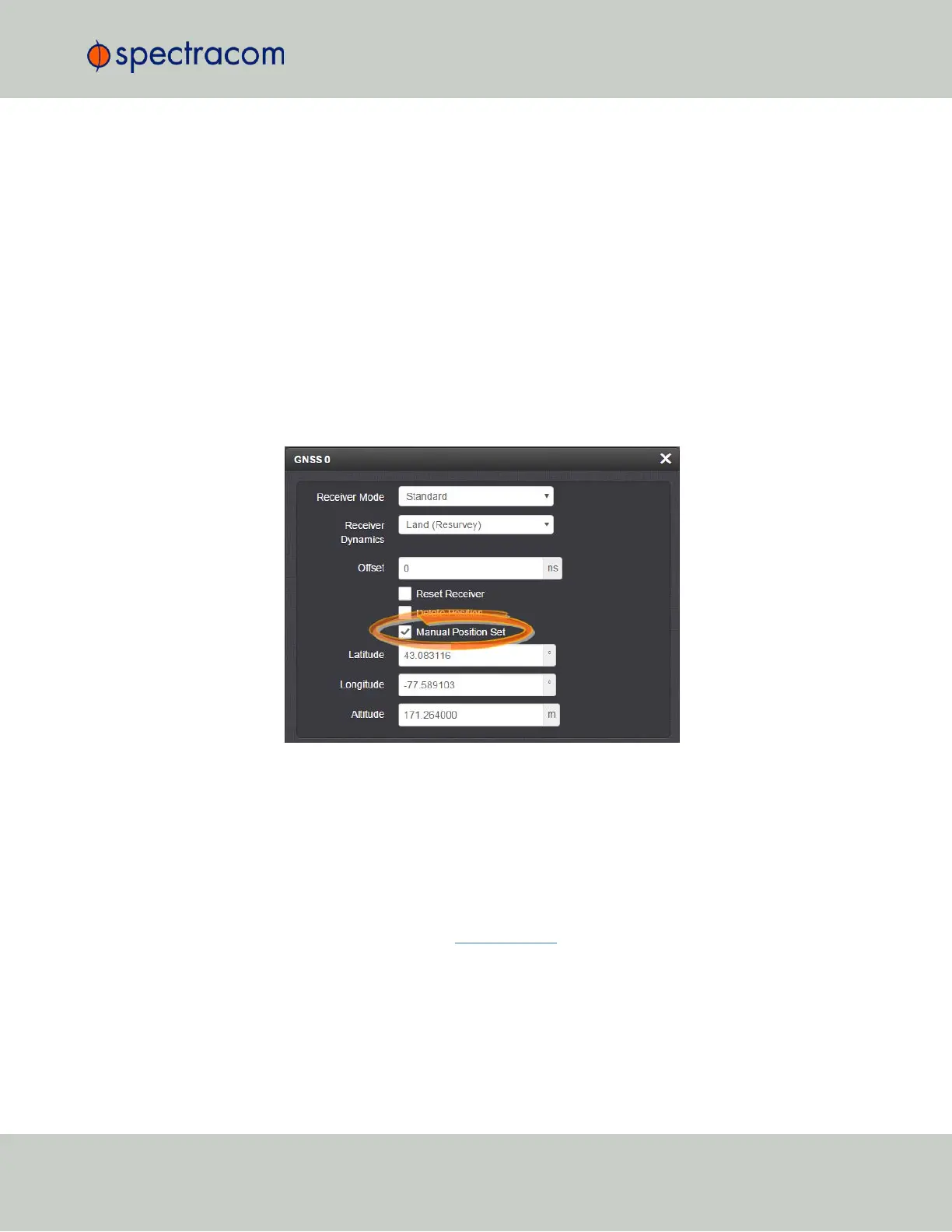
Navigate to INTERFACES > REFERENCES: GNSS0. In the GNSS0 status window, click
Edit in the lower left corner. The GNSS0 window will open:
3.
Under Manual Position Set accurately enter latitude, longitude (both in decimal degrees),
and altitude (in meters [WGS84]) of your GNSS antenna, VersaSync can use this data
during the satellite tracking/adjustment process, which typically leads to a quicker "fix".
It is recommended to enter the position as accurately as possible.
Determining Your Position
To determine your GNSS position, using Google Maps™:
1. On your computer, open Google Maps.
2.
In Google Maps, locate your building, and the location of your antenna.
3.
Right-click on the location. Select What's here? At the bottom, you will see a card with
the coordinates.
4.
Take note of your decimal position (e.g., 43.083191, -77.589718).
3.3 Managing References
CHAPTER 3 • VersaSync User Manual Rev. 6.0
163


 To Next Page