80 User Interface
2006792 Rev B – 200228
• Hold Date Value: Will continue to print the current date value, rather than
automatically updating it. For example, if a massive number of items were all
produced on the same day, and all of them will expire in 30 days, they can be printed
on over a period of several days with the “Day Offset” at 30 and the Hold Date Value
box checked on the first day of printing, so that they all have the same expiration
date.
• Time Format: Shows how the time will appear when printed.
• Time Offset: Number of hours that the desired time should be from the print time.
For example, if an item expires in 30 days and 6 hours, the “Day Offset” would be 30
and the “Time Offset” would be 6 hours.
• Hold Time Value: Will continue to print the current time value, rather than
automatically updating it constantly.
Shift
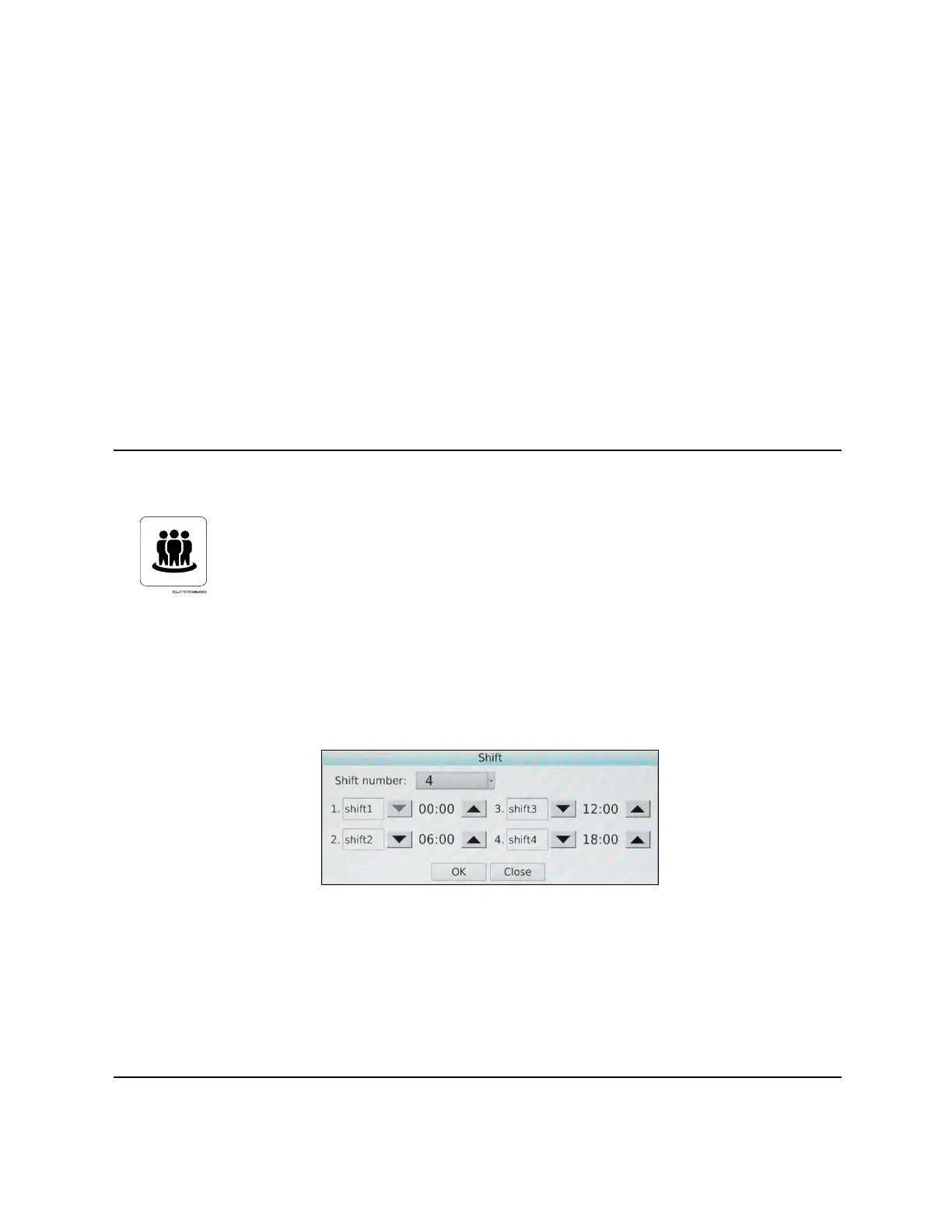
A “Shift” object is a dynamic (updates automatically) object that indicates during which work
shift the printing is taking place. This can be useful for quality-tracking and efficiency-
tracking purposes. Inputting start times for each shift and then adding a Shift object to the
Message Area makes the JetStream automatically update the shift number when a new shift
starts. Up to 4 shifts can be programmed.
• Shift Number: Selects the total number of work shifts.
• 1: Allows input of a name for the first shift. This name will be printed. The same is
true for 2, 3. and 4.
• 00:00: Allows input of the start time for a given work shift. Use the arrows to select
the correct start times.


 To Next Page