Chapter 6
77
UM10350_PCNC770_Manual_0916A
PathPilot Interface
Paern DROs
Hole Locaon Table – This table should be used for making a list of X and Y locaons for each hole
using the same tool, Z, and common DRO entries (see Figure 6.25). To create holes using dierent
tools or other parameters, post the rst group, clear the table, enter the next group of locaons and
other parameters, then append the new list to the exisng posted le.
Holes in a list are completed in order from top to boom. You can rearrange the row order by using
the Raise and Lower buons. To move a row, rst acvate it by clicking anywhere on the desired
row, which highlights it in blue, then select either Raise or Lower. To edit an X or Y cell, click on the
desired row, then click the desired cell. An acve cell shows up as a white box with a cursor marker
(which looks like | ) on a blue row. If there is already a number in the selected cell, it is blocked in
blue and is replaced with any number typed in.
To edit an exisng number, click on the number unl a cursor appears. The Clear All buon clears
all entries in the table. Leaving a cell checks the entry to see if it is a valid number. If not, the entry
is erased and an error shows up in the Status tab. Rows are checked when Post to File is clicked.
Any missing entries (an X without a Y, a Y without an X, or an empty row before the last row with an
entry) stop the posng and insert the text “??” in the cells with missing entries. Fill in the missing
entries, delete any “??” entries and Lower any empty rows past the last row with an entry, then try
posng again.
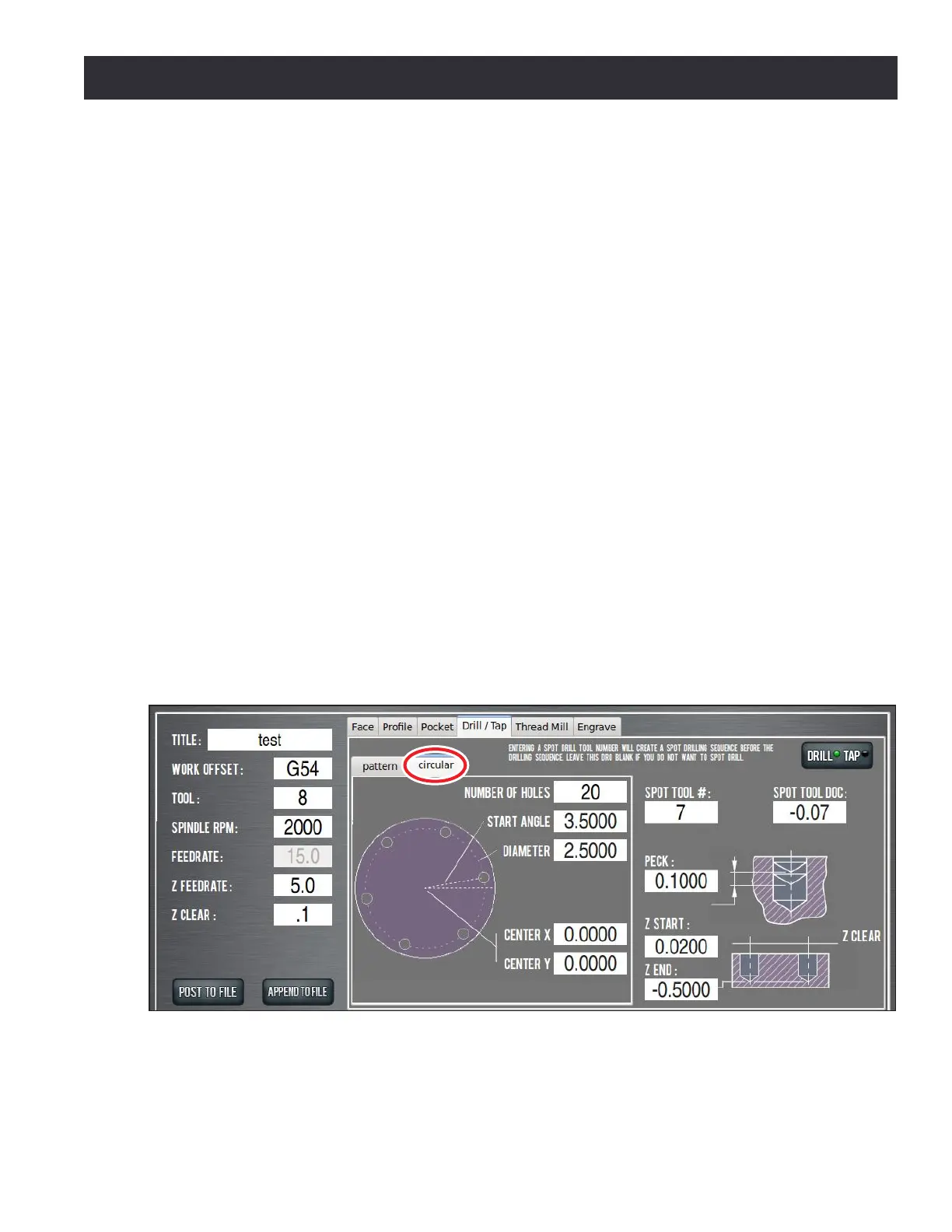
The Circular tab creates a specic hole paern of evenly spaced holes around a circumference, also
know as a bolt paern (see Figure 6.26). As with the Paern tab, all features and corresponding
DROs, like Spot and Peck, are retained.
Figure 6.26


 To Next Page