UTT Technologies Hardware Installation
http://www.uttglobal.com Page 5
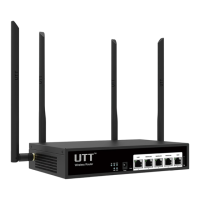
LAN Port
These interfaces provide a LAN connection to network devices, such as PCs
or switches.
WAN Port
The WAN interface is connected to your Internet devices, such as PCs or
switches. The number of WAN ports depends on the device model.
TF Connect TF card for data sharing.
USB Plug in a USB storage for specific features.
Console
An RS-232 DB9 Male port is used for connections to the Device to manage
the router.
Some products support configurable LAN/WAN, so the corresponding ports can be
configured as LAN port or WAN port (such as WAN4/LAN2, WAN3/LAN3, and
WAN2/LAN4).
Table 1-2 Interface Description
Reset
Reset current settings to the factory default settings. When the Device is
powered on, use a pin or paperclip to press and hold the Reset button for
more than 5 seconds, and then release the button. After that, the Device will
restart with the factory default settings.
Turbo Amplify wireless transmitting power.
The reset operation will clear all the settings and preferences that you have configured.
You can also recover the Device 's factory configuration on the
page.
Table 1-3 Button Description
1.2 Installation Guideline
When determining where to place the Device, please observe these guidelines:
Make sure that your workbench or standard rack is level and stable.
Do not place heavy objects on the Device!



 To Next Page