UTT Technologies Advanced Menu
http://www.uttglobal.com Page 78
7.3.1 Policy Routing List
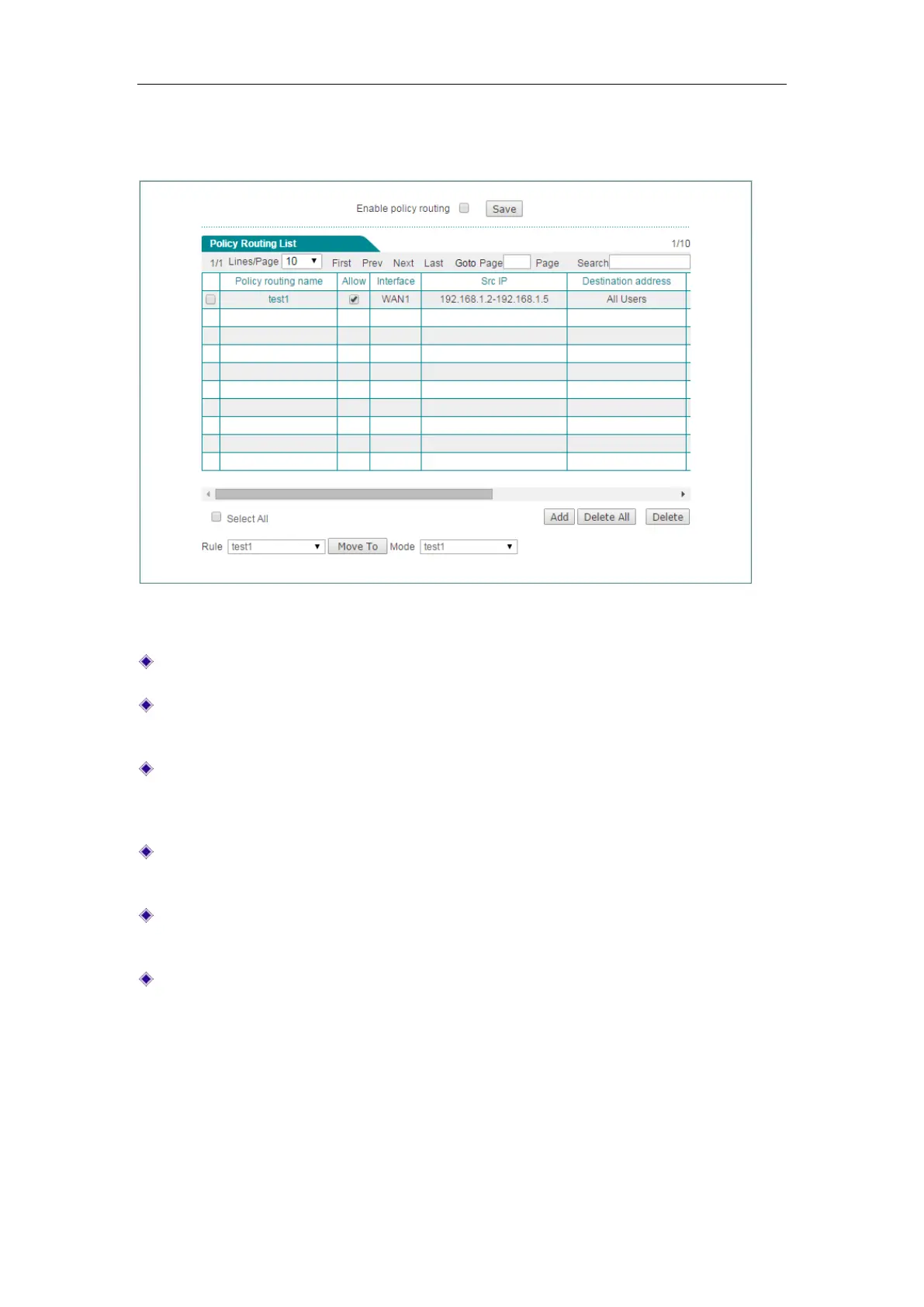
Figure 7-15 Policy Routing List
Enable policy routing: Select to enable Policy Routing.
Add a Policy Routing Entry: Click the Add button, then setup it, lastly click the
Save button.
Allow a PBR Entry: Select the Allow check box to enable the corresponding
Policy Routing entry. If you want to disable the Policy Routing entry temporarily
instead of deleting it, please clear the check mark.
Edit a Policy Routing Entry: Click its Edit hyperlink, the related information will be
displayed on the setup page. Then modify it, and click the
Save button.
Delete Policy Routing Entry(s): Select the leftmost check boxes of them, and then
click the
Delete button.
Move a Policy Routing Entry: The operation of moving a Policy Routing entry to
the front of another entry is as follows: Select the name of a Policy Routing entry
from the
Rule drop-down list, and another entry’s ID from the Mode drop-down list,
lastly click the
Move TO button.



 To Next Page