UTT Technologies Logging to the Device
http://www.uttglobal.com Page 9
An unsuccessful ping will look like this:
If the Ping command is successful, the
connection between the computer and the
Device is working properly. If the Ping command fails, please do the following:
1) Check physical connection: Verify that the LAN LED on the Device and the LED
on your computer’s network card are lit.
2) Check TCP/IP settings: Verify that your computer is on the same subnet as the
Device’s LAN interface. E.g., if the Device’s LAN IP address is 192.168.1.1
(default), the computer’s IP address must be an unused IP address in the
192.168.1.0/24 subnet.
2.2 Logging to the Device
No matter what operating system is installed on your computer, such as, MS Windows,
Macintosh, UNIX, or Linux, and so on, you can configure the Device through the Web
browser (e.g., Internet Explorer, Firefox).
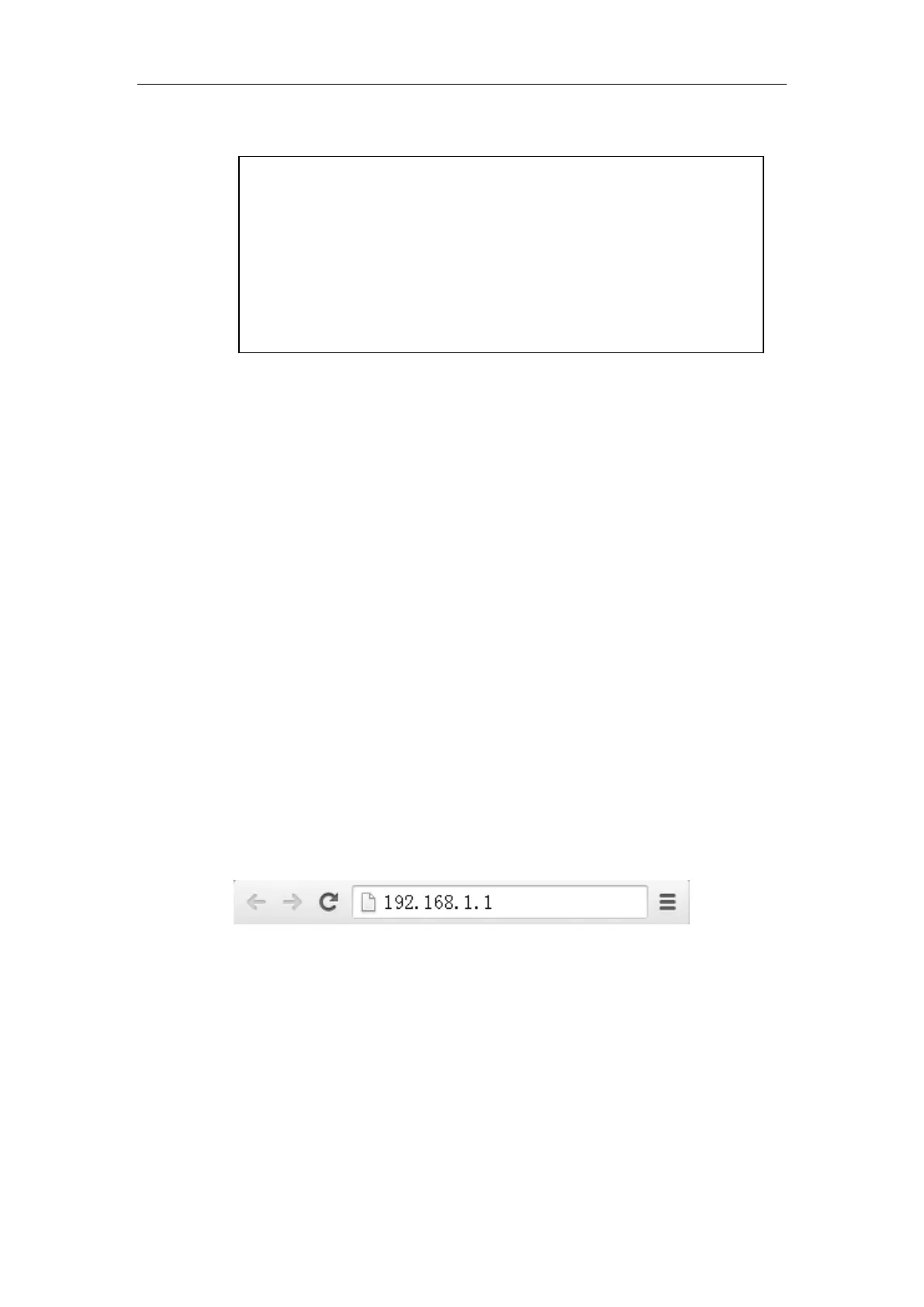
Step 1: For local access to the Device’s web-based utility, launch your web browser,
and enter the Device’s default IP address:
192.168.1.1, in the URL field. Then press
the Enter key.
Figure 2-1 Address Bar
Step 2: A login screen prompts you for your Username and Password. Enter admin
(case sensitive) in the Username field, and enter admin in the Password field. Then
click
Log In.
Pinging 192.168.1.1 with 32 bytes of data:
Request timed out.
Request timed out.
Request timed out.
Request timed out.
Ping statistics for 192.168.1.1:
Packets: Sent = 4, Received = 0, Lost = 4 (100% loss),



 To Next Page