MODULE 5: RESULT HANDLING
5-16 AEROSET
®
Customer Training Guide
94858-103 — July 2003
PRINTING RESULTS
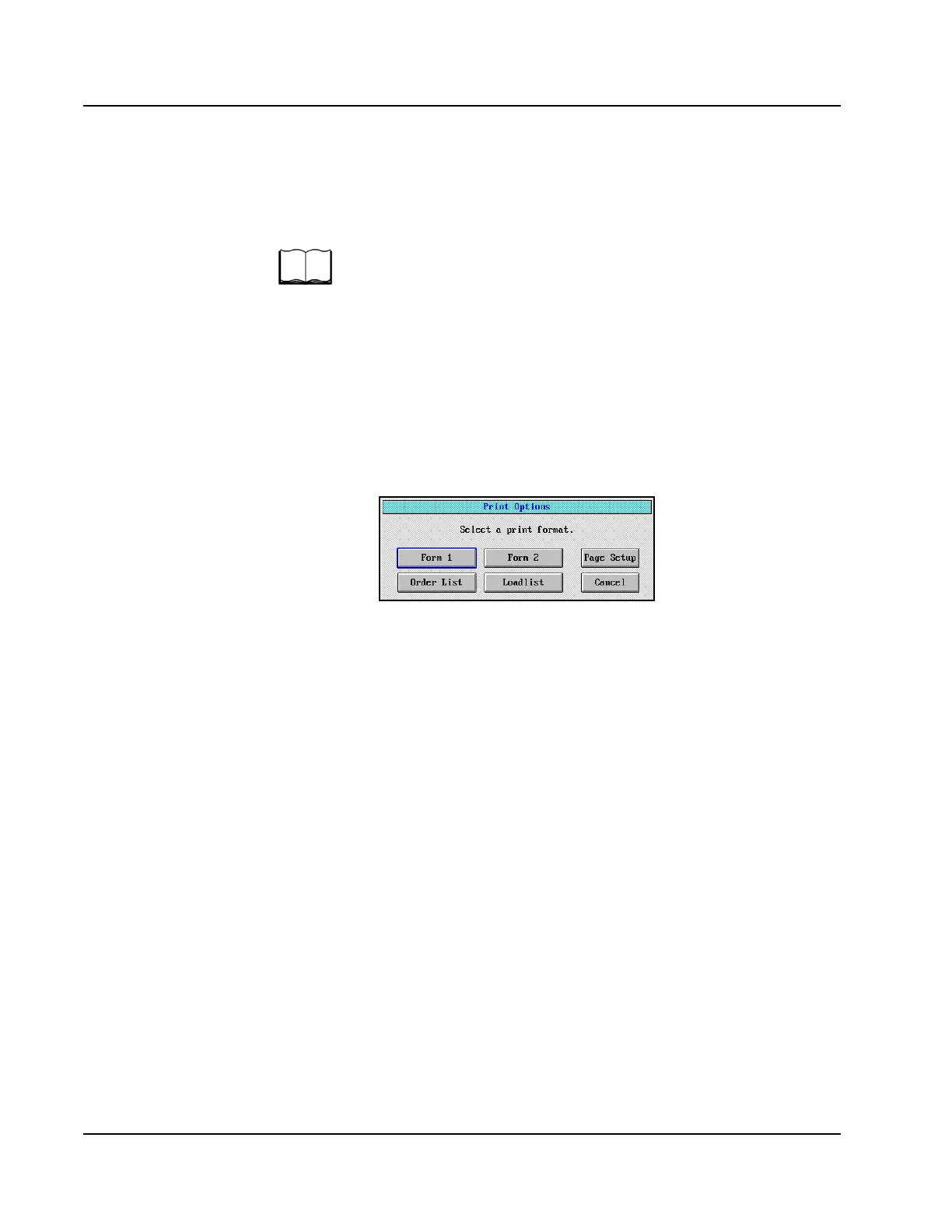
Two forms may be printed, Form 1 and Form 2.
Refer to Appendix B of the AEROSET System Operations Manual for
details.
Printing a Single Result Report from the DATABASE Screen
1. Select <Database> in the Information Access Area, if the screen is
not currently displayed.
2. Select the sample to be printed.
3. Select <Print> in the right-hand column of the DATABASE
screen. The Print Options screen is displayed.
4. Select <Form 1> or <Form 2>. A confirmation dialog window is
displayed.
5. Select <OK>.
Printing Multiple Result Reports from the DATABASE Screen
1. Select <Database> in the Information Access Area, if the screen is
not currently displayed.
2. Select the samples to be printed.
• To highlight multiple consecutive samples in a list, select the
first sample in the list then highlight the remaining samples by
holding [Shift] and pressing [↓] on the keyboard.
• To highlight multiple random samples, hold down [Ctrl] while
selecting the samples on the screen.
3. Select <Print> in the right-hand column of the DATABASE
screen. The Print Options screen is displayed.
4. Select <Form 1> or <Form 2>. A confirmation dialog window is
displayed.
5. Select <OK>.



 To Next Page