MODULE 1: SYSTEM TOUR
1-34 AEROSET
®
Customer Training Guide
94858-103 — July 2003
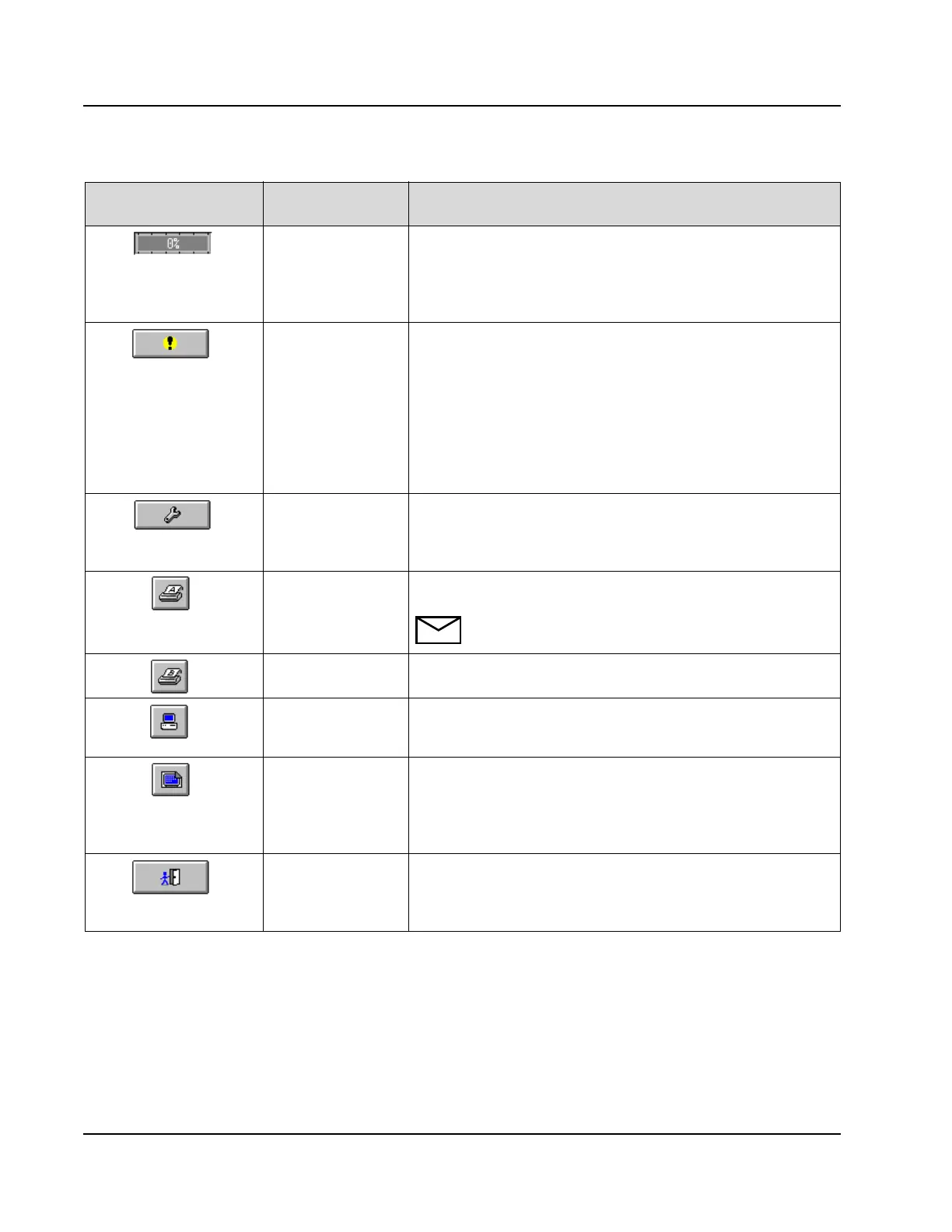
Process progress
display
This cannot be selected to perform an action, but instead displays
the progress of processes, such as, when multiple reports have been
selected to print, or multiple samples are being sent to the Host
computer. This button displays a green bar and the percent
completed.
Review the
Error Log
When selected, displays the Error Message Log. The background
color of the Error icon changes to indicate that an error has
occurred and indicates the error level.
• Yellow - Low level error
• Pink - Medium level error
• Red - High level error
The System can also be configured to generate an audible alarm
when an error occurs.
To perform
Maintenance Utilities
When selected, displays the MAINTENANCE UTILITIES
screens in which components can be moved (using the
Touchscreen) for maintenance and troubleshooting purposes. These
screens also allow software Backup and Restore features.
Define options for
Printer A
When selected, allows clearing of the printer buffer and defines the
automatic report printing options.
NOTE: The format of the Patient Reports is configured in
the DATABASE screen.
Define options for
Printer B
When selected, allows most of the same options as Printer A.
Define options for
the Host interface
connections
When selected, allows access to the Host interface functions. The
Operator has the ability to enable, disable, and configure the
communications with the laboratory Host computer.
Print a copy of the
screen
When selected, prints a copy of the currently displayed screen. The
Print Screen function is only allowed when the System Status is
READY. The Print Screen icon is disabled when the System is in
RUN, SAMPLING END, PAUSE, CUVETTE FILL, and
SUSPEND status.
Exit the System
software
When selected, exits the System software and returns to the Log
On dialog window. The Log On dialog window can be used to shut
down the System software prior to Powering OFF or prior to Log
On with another Password.
Press this Button…
To Perform this
Action
Description



 To Next Page