Exporting Results to a Floppy Disk
AEROSET
®
Customer Training Guide 5-35
94858-103 — July 2003
EXPORTING RESULTS TO A FLOPPY DISK
Sample information and results can be exported from the DATABASE
screen to a floppy disk. The information is saved in a .CSV format on the
disk. A file in this format can be opened and viewed using most
commercially available PC spreadsheet programs (Microsoft
®
Excel,
Lotus
®
1-2-3, etc.). Exported results cannot be imported back to the
database.
To transfer result records from the AEROSET System to a floppy disk,
perform the following procedure:
NOTE: Use a formatted floppy disk. The disk can be formatted
on the System Control Center. If an alternate format is used, the
format must be Windows
®
95 or DOS 5.0 (or higher).
1. Insert a disk into the floppy disk drive of the SCC computer.
2. Select <Database> in the Information Access Area, if the screen is
not currently displayed.
3. Select the sample(s) to be exported:
• To highlight multiple consecutive samples in a list, select the
first sample in the list then highlight the remaining samples by
holding [Shift] and pressing [↓] on the keyboard.
• To highlight multiple random samples, hold down [Ctrl] while
selecting the samples on the screen.
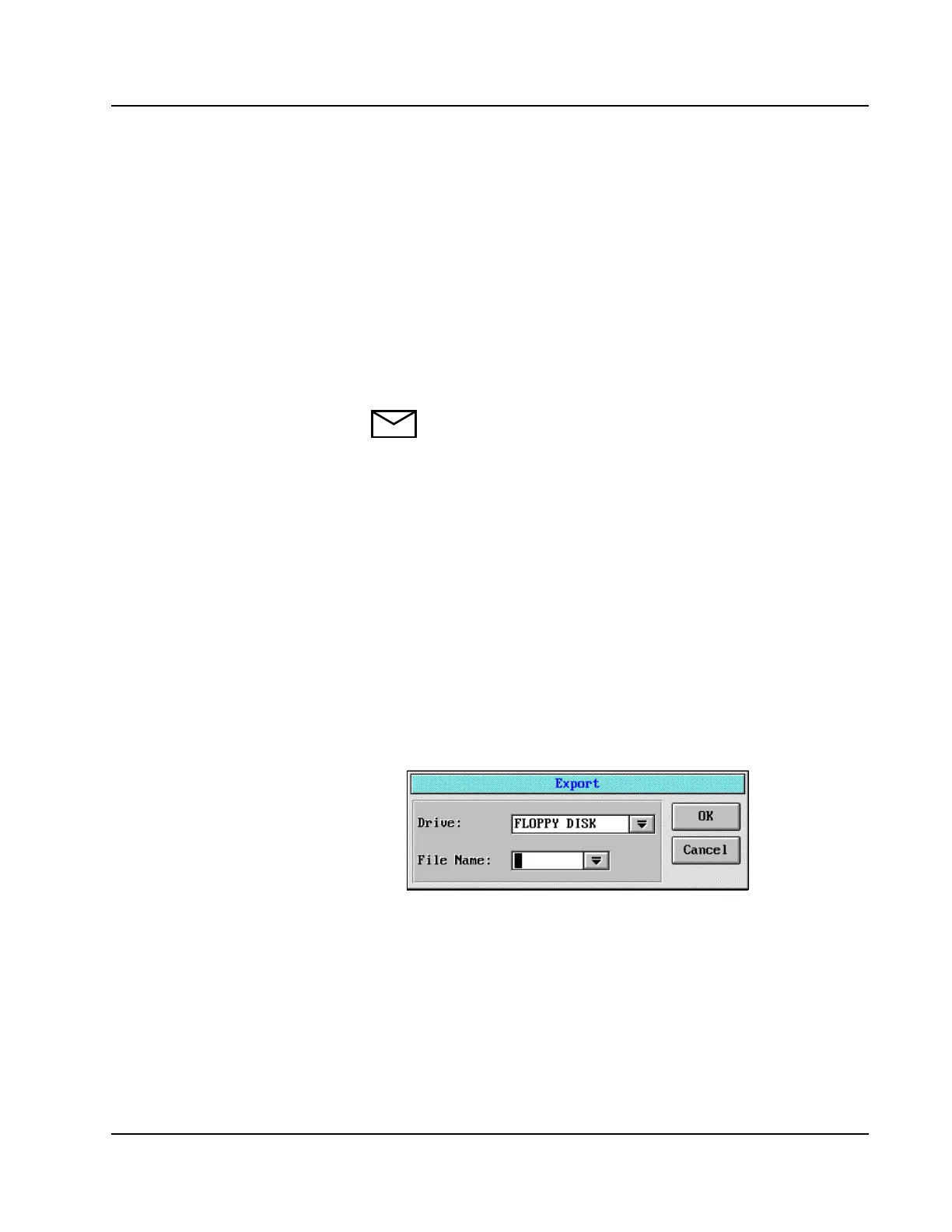
4. Select <Export> in the right-hand column. The Export dialog
window is displayed.
Figure 5.22: Export Dialog Window
5. Enter a file name (up to 8 characters).
• Exported results can be
imported into a spread sheet
program on an external PC.
You cannot import them
back onto the AEROSET for
viewing.
• The spreadsheet program
need not be a Windows
®
95
or DOS 5.0 (or higher) based
application.



 To Next Page