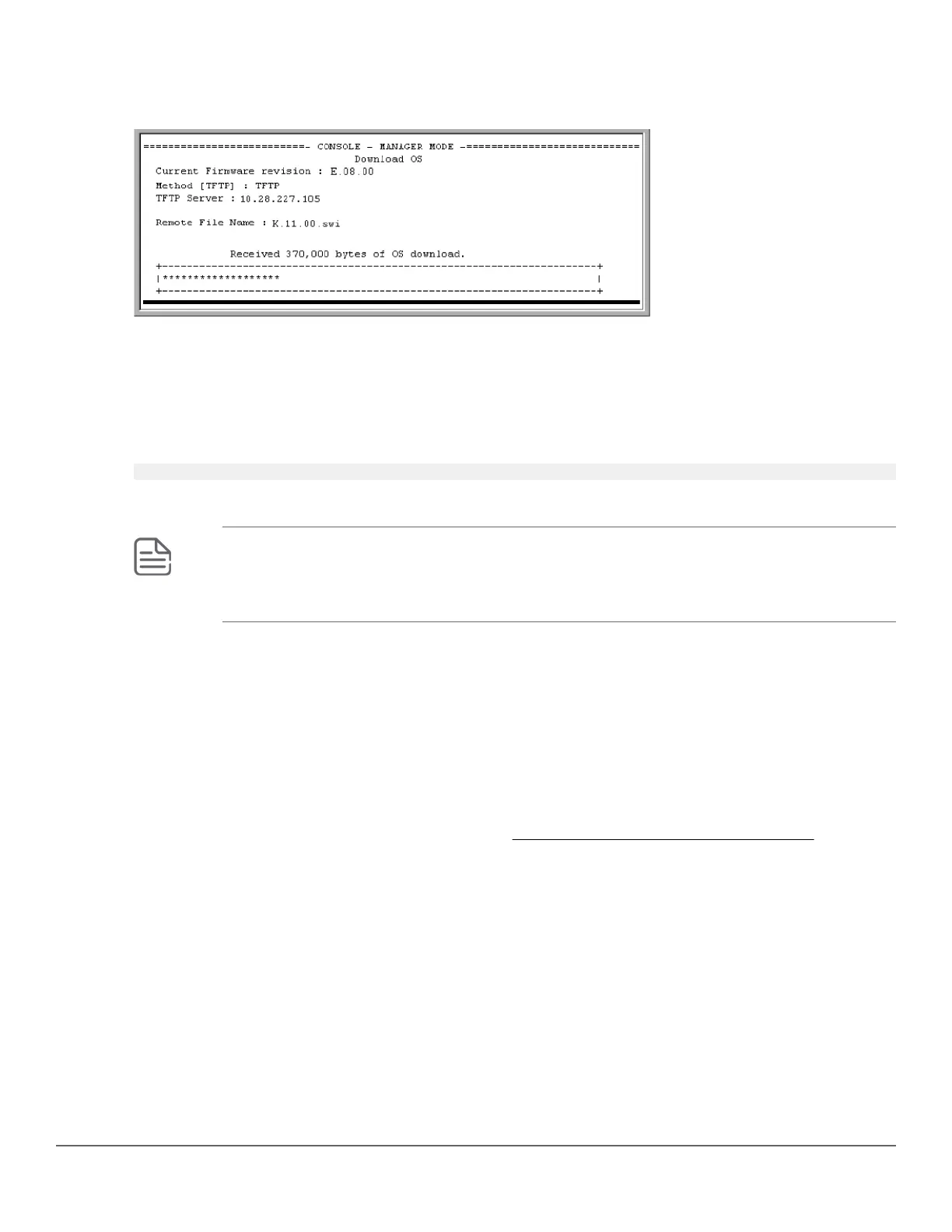
The following screen appears:
Figure 38: Example: of the download OS (software) screen during a download
A "progress" bar indicates the progress of the download. When the entire software file has been received, all
activity on the switch halts and you will see Validating and writing system software to FLASH...
7. After the primary flash memory is updated with the new software, you must reboot the switch to implement the
newly downloaded software. Return to the Main Menu and press [6] (for Reboot Switch ).
You will see this prompt:
Continue reboot of system? : No
Press the space bar once to change No to Yes, then press [Enter] to begin the reboot.
NOTE: When you use the menu interface to download a switch software, the new image is
always stored in primary flash. Also, using the Reboot Switch command in the Main Menu
always reboots the switch from primary flash. Rebooting the switch from the CLI provides more
options. See "Rebooting the Switch" in the basic operation guide.
8. After you reboot the switch, confirm that the software downloaded correctly:
a. From the Main Menu, select
2. Switch Configuration...
2. Port/Trunk Settings
b. Check the Firmware revision line.
For troubleshooting information on download failures, see Troubleshooting TFTP download failures on page
263.
262 Aruba 2530 Management and Configuration Guide for
ArubaOS-Switch 16.05




 To Next Page