• Obtain the IP address of the TFTP server in which the software file has been stored.
• If VLANs are configured on the switch, determine the name of the VLAN in which the TFTP server is operating.
• Determine the name of the software file stored in the TFTP server for the switch (For example, E0820.swi).
NOTE:
If your TFTP server is a UNIX workstation, ensure that the case (upper or lower) that you specify for
the filename is the same case as the characters in the software filenames on the server.
Downloading from a server to primary flash using TFTP (Menu)
Note that the menu interface accesses only the primary flash.
Procedure
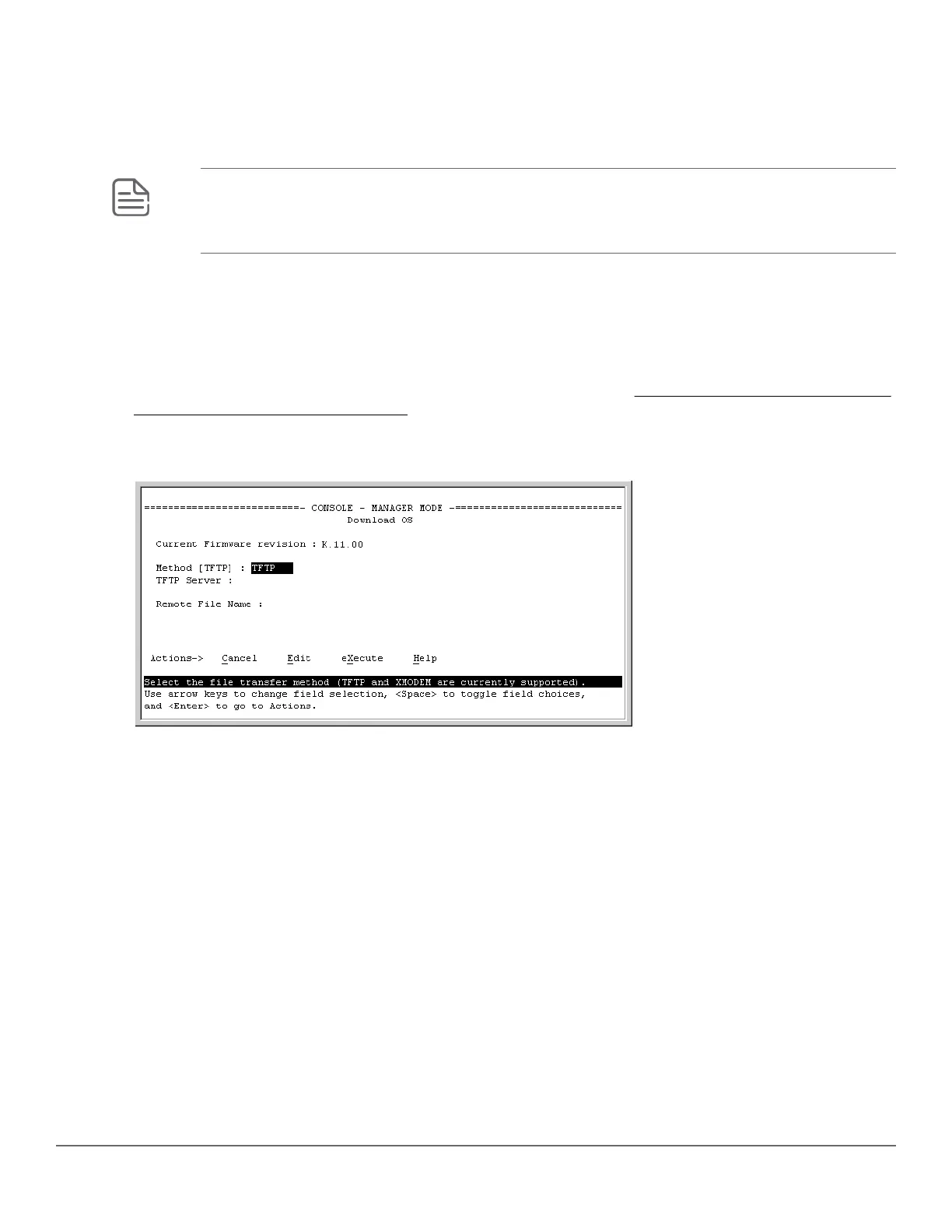
1. In the console Main Menu, select Download OS to display the screen in Figure 37: Example: of a download
OS (software) screen (default values) on page 261. (The term "OS" or "operating system" refers to the
switch software):
Figure 37: Example: of a download OS (software) screen (default values)
2. Press [E] (for Edit ).
3. Ensure that the Method field is set to TFTP (the default).
4. In the TFTP Server field, enter the IP address of the TFTP server in which the software file has been stored.
5. In the Remote File Name field, enter the name of the software file (if you are using a UNIX system, remember
that the filename is case-sensitive).
6. Press [Enter], then [X] (for eXecute ) to begin the software download.
Chapter 14 File Transfers 261




 To Next Page