CHAPTER 4 REFERENCE GUIDE
Page 4-38
091-00019-001 REV B
EFD1000 C3 Pro PFD Pilot’s Guide
4.4.6. Auto Course
The pilot can either use the Auto Course (AUTOCRS) or manually set a CRS value. By
default, AUTOCRS is enabled. When the selected CDI Navigation Source is a connected
GPS receiver and AUTOCRS is enabled, CRS is not adjustable (current course value
is automatically slewed and controlled by the desired track from the GPS). When
AUTOCRS is enabled, the CDI navigation source is a GPS, and that system is congured
for automatic waypoint sequencing (i.e., not OBS or HOLD modes) then Auto Course
Select is active.
Enable Auto Course
1. Press the MENU Button.
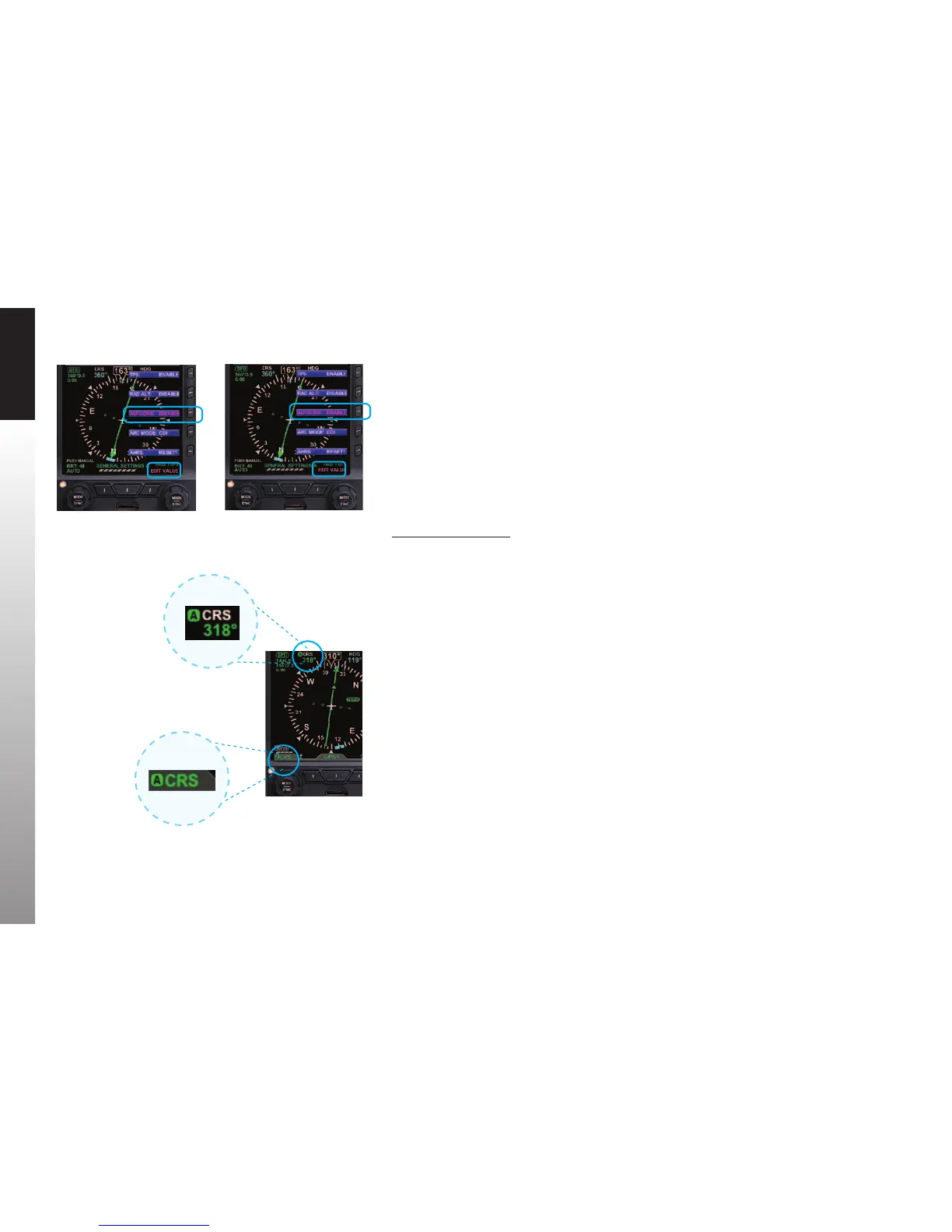
2. Rotate the Right Knob to the GENERAL SETTINGS A page (Figure 4-68).
3. Press the AUTOCRS Menu Key.
The Menu label turns magenta, and the EDIT VALUE label displays above the Right Knob
(Figure 4-69).
4. Rotate the Right Knob to select ENABLE (Figure 4-70).
5. Press the MENU Button to exit.
When AUTOCRS is enabled, the CRS value is set to the desired track output from the CDI
Navigation Source. The CRS value is shown in the upper left of the lower display area
in green under the CRS label. Additionally, an inverse green A is shown beside the CRS
label in the upper left of the lower display area and in the legend above the Left Knob.
This indicates that the course is being automatically adjusted (Figure 4-71).
Figure 4-69
Editing AUTOCRS
Figure 4-70
AUTOCRS Enabled
Figure 4-71
AUTOCRS Enabled


 To Next Page