Using Stick Beams for Fixtures in
BTWYSIWYG
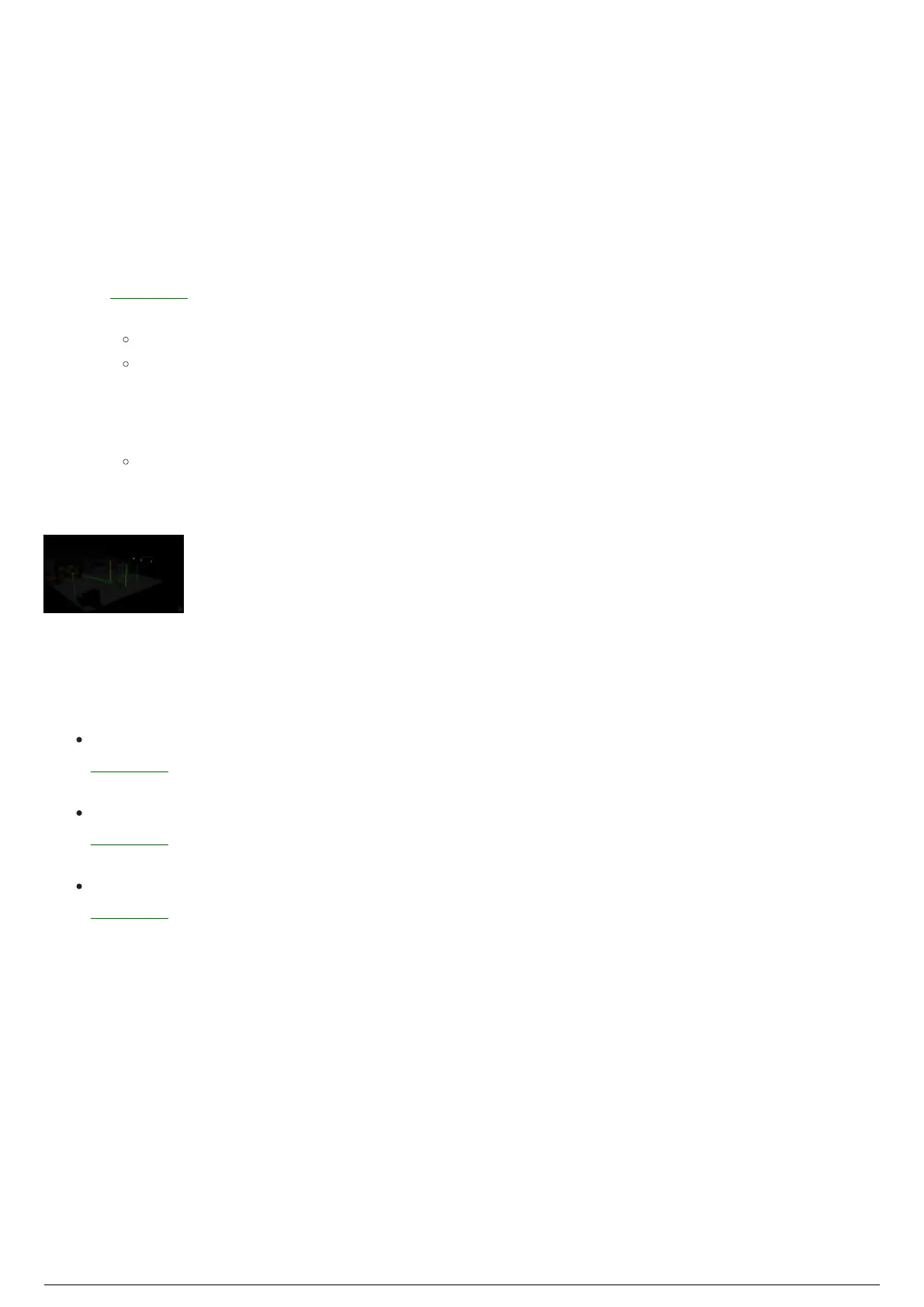
When you visualize in BTWYSIWYG, stick beams can represent the beams of light produced by fixtures.
This reduces clutter and confusion in the visualization and helps determine where fixtures are aiming and
which fixtures are selected.
To use fixture stick beams in BTWYSIWYG
In BlackTrax, open the BlackTrax project file.1.
In BTWYSIWYG LIVE mode, go to the BlackTrax panel.2.
Note: To open the BlackTrax panel if closed, from the Live menu, choose BlackTrax Panel.
Result: The BlackTrax panel appears on the right side of the BTWYSIWYG window.
Select the BTX Mode checkbox.3.
Click Connect.4.
Select the Show Beams With Stick checkbox.5.
Result: Fixture beams will be represented as sticks in BTWYSIWYG.
To toggle specific stick beams on or off, clear the checkbox next to the desired stick beam status6.
(Currently Tracking (Green), Currently Standby (Blue), or Unassigned (Yellow)).
Understanding Stick Beam Colors
The color of a stick beam communicates information about the parent fixture at a glance.
A Green stick beam means a fixture is connected to the system, there is a chapter created in
BlackTrax where it follows a Trackable and it is currently following a Trackable - Currently Tracking
(Green).
A Blue stick beam means a fixture is connected to the system, there is a chapter created in
BlackTrax where it follows a Trackable, but it currently is not set to follow a Trackable - Currently
Standby (Blue).
A Yellow stick beam means that a fixture is connected to the system, but there is no chapter in
BlackTrax where that fixture is told to follow Trackables - Unassigned (Yellow).



 To Next Page