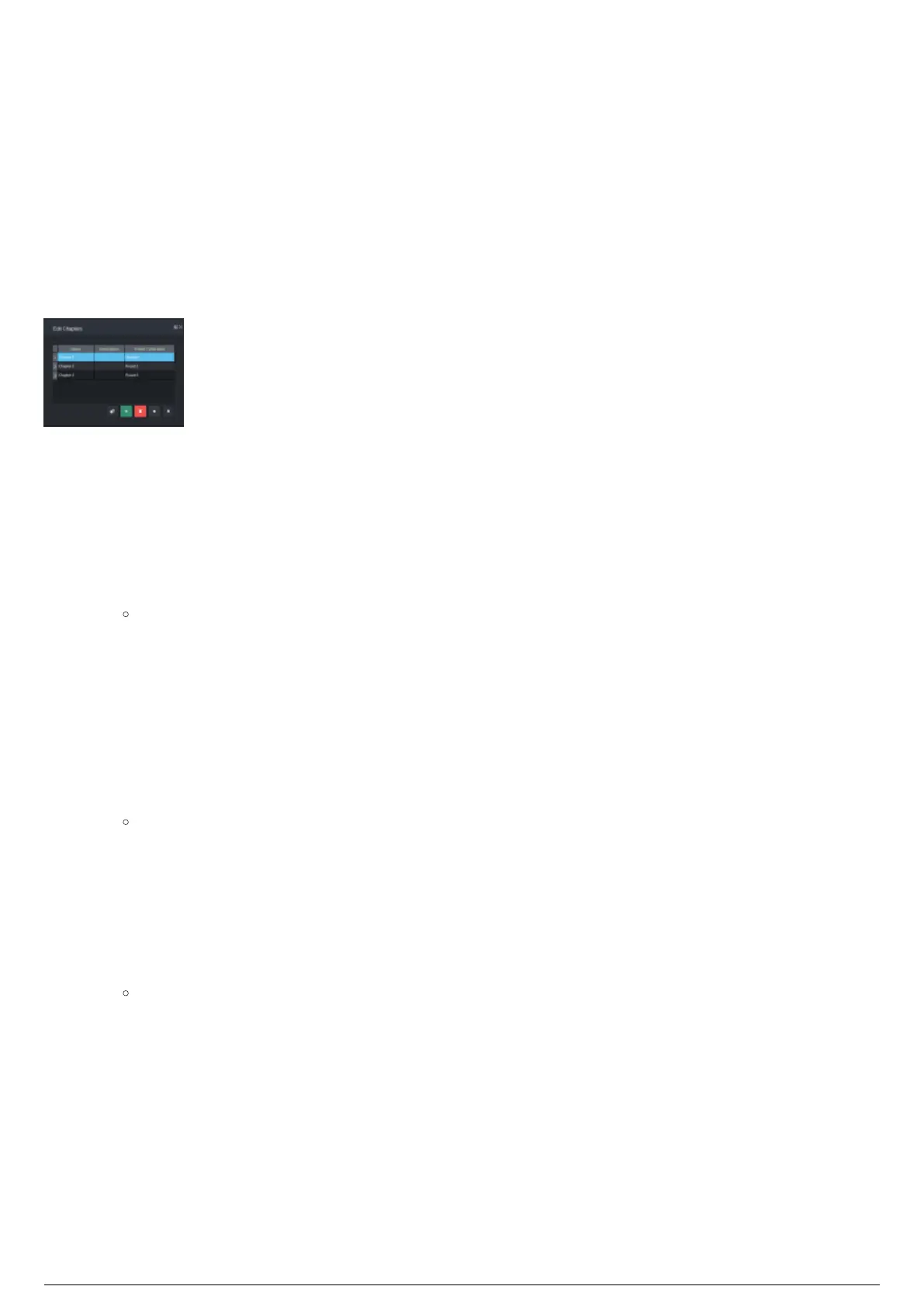
Edit Chapters Widget
Overview
The Edit Chapters widget is where Chapters are created, removed, and re-ordered. The selected chapter
or chapters in this widget define what is displayed in the central pane of the Edit View, in Single Chapter,
or Several Chapters mode.
The Edit Chapters widget is where Preset Calibrations are displayed, recalled and selected for each
Chapter.
Edit Chapters Widget
Functionality
The following actions can be performed in the Edit Chapters widget:
To create a new chapter
In the Edit Chapters widget, click the Plus button.1.
Result: A blank chapter is created in the chapter list below the currently selected chapter.
For the changes to take effect, click Apply Changes.2.
To create a copy of an existing chapter
Copying a chapter will copy all aspects of the selected chapter, including fixture and Trackable
relationships.
In the Edit Chapters widget, select the chapter you want to copy.1.
Click the Copy selected chapter button.2.
Result: A copy of the chapter is created in the chapter list below the currently selected
chapter.
For the changes to take effect, click Apply Changes.3.
To delete a chapter
In the Edit Chapters widget, select the chapter you want to delete.1.
Click the Delete button.2.
Result: A dialog box appears asking if you really want to delete the chapter.
To confirm deletion, click Yes.3.
For the changes to take effect, click Apply Changes.4.
To move chapters in the chapter list
In the Edit Chapters widget, select the chapter you want to move.1.
Click the Up Arrow or Down Arrow button to move the selected chapters up or down.2.
For the changes to take effect, click Apply Changes.3.
To name a chapter
In the Edit Chapters widget, in the Name field of the chapter, double-click to enable editing.1.



 To Next Page