Enter the name of the chapter in the Name field.2.
For the changes to take effect, click Apply Changes.3.
To write a description of a chapter
In the Edit Chapters widget, in the Description field of the chapter, double-click to enable editing.1.
Enter the chapter description in the Description field.2.
For the changes to take effect, click Apply Changes.3.
To select a preset calibration for a chapter
In the Edit Chapters widget, highlight the row to select a Chapter.1.
In the highlighted Chapter row, double-click on the Preset Calibration field.2.
Select the preset from the Preset Calibration drop-down.3.
Result: The fixture calibration data collected under the selected preset is applied to the
selected Chapter.
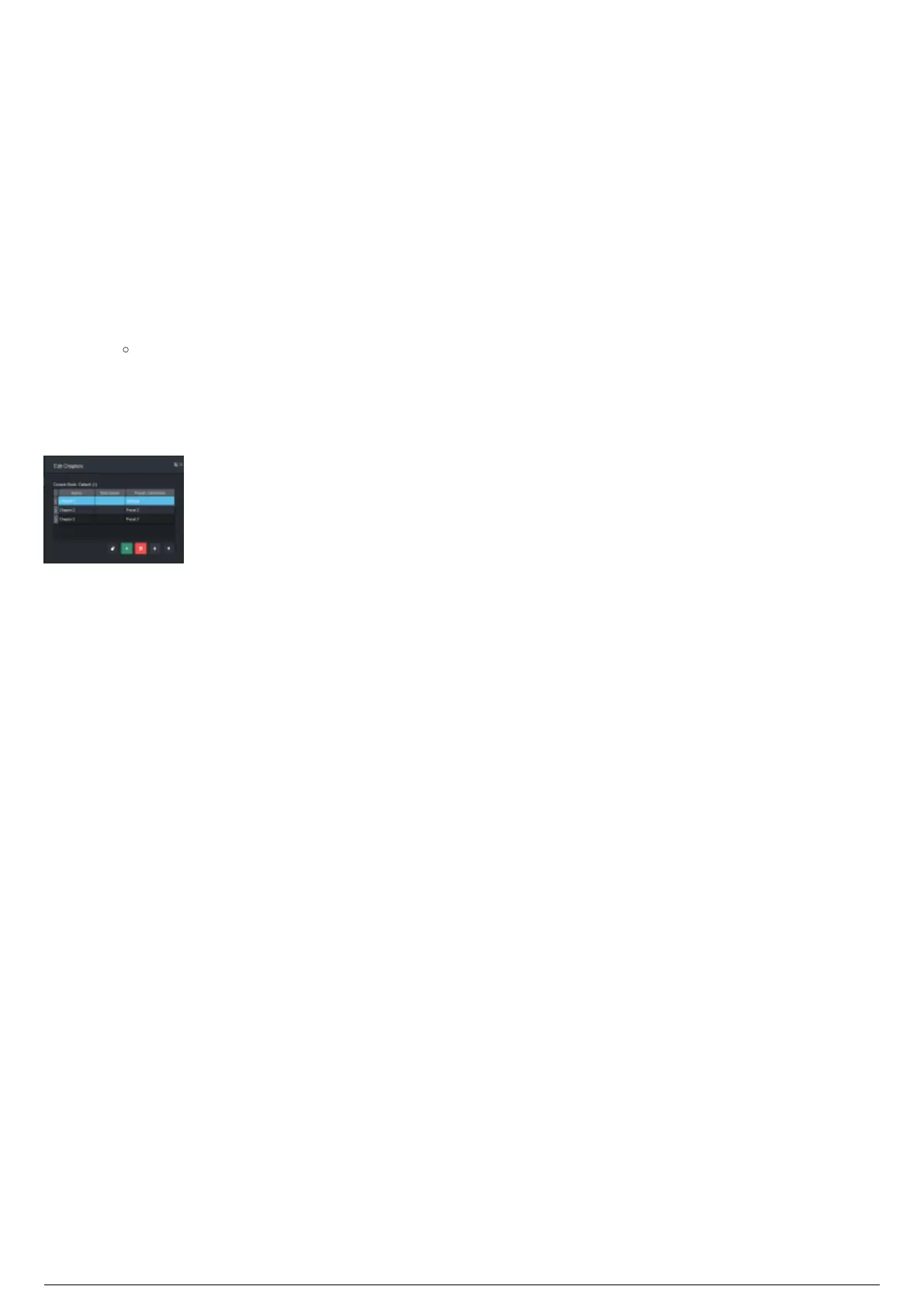
Edit Chapters Widget in Multi Book Mode
Edit Chapters Widget
In Extended Chapters (with Books) mode, the Edit Chapters Widget displays the name of the selected
Book where the current selected Chapter is accessed. See Edit Books Widget.



 To Next Page