BTSensor Calibration Settings
After BTSensors are placed and orientated with overlapping views around the Space, BlackTrax requires
that all BTSensors be calibrated. Calibration enables BlackTrax to know BTSensor positions relative to
each other and the floor. This spatial awareness of the Space is required for tracking to be accurate.
Before BTSensor calibration can occur, certain settings in Motive must be configured.
Motive 2
In Motive, calibration data for each BTSensor position, orientation and lens parameters are saved as
standalone calibration CAL (.cal) file format which can be exported to a desired location for later use.
See To export a calibration CAL file below.
Motive can be set for Continuous Calibration where the system continuously monitors BTSensor
movements and readjusts the BTSensor calibration accordingly. See To configure Motive for continuous
calibration below.
To configure BTSensors for calibration
In Motive, change the layout to Calibration preset. From the Layout menu, choose Calibration.1.
Tip: You may click the drop-down box at the right-hand side of the main toolbar and click
Calibration from the drop-down menu of layout presets.
Go to the Devices window.2.
Note: To quickly configure a BTSensor for calibration, change the preset setting of the
BTSensor to Tracking then proceed to Step 7 in this section.
In the Devices window, select the camera group by clicking on the group name. 3.
While the sensor group is still selected, click the Properties section for the sensor group.4.
Click the Camera Settings section and set the Video Type field to Object Mode for tracking and5.
calibration.
Set the Filter Switch field to Visible Spectrum.6.
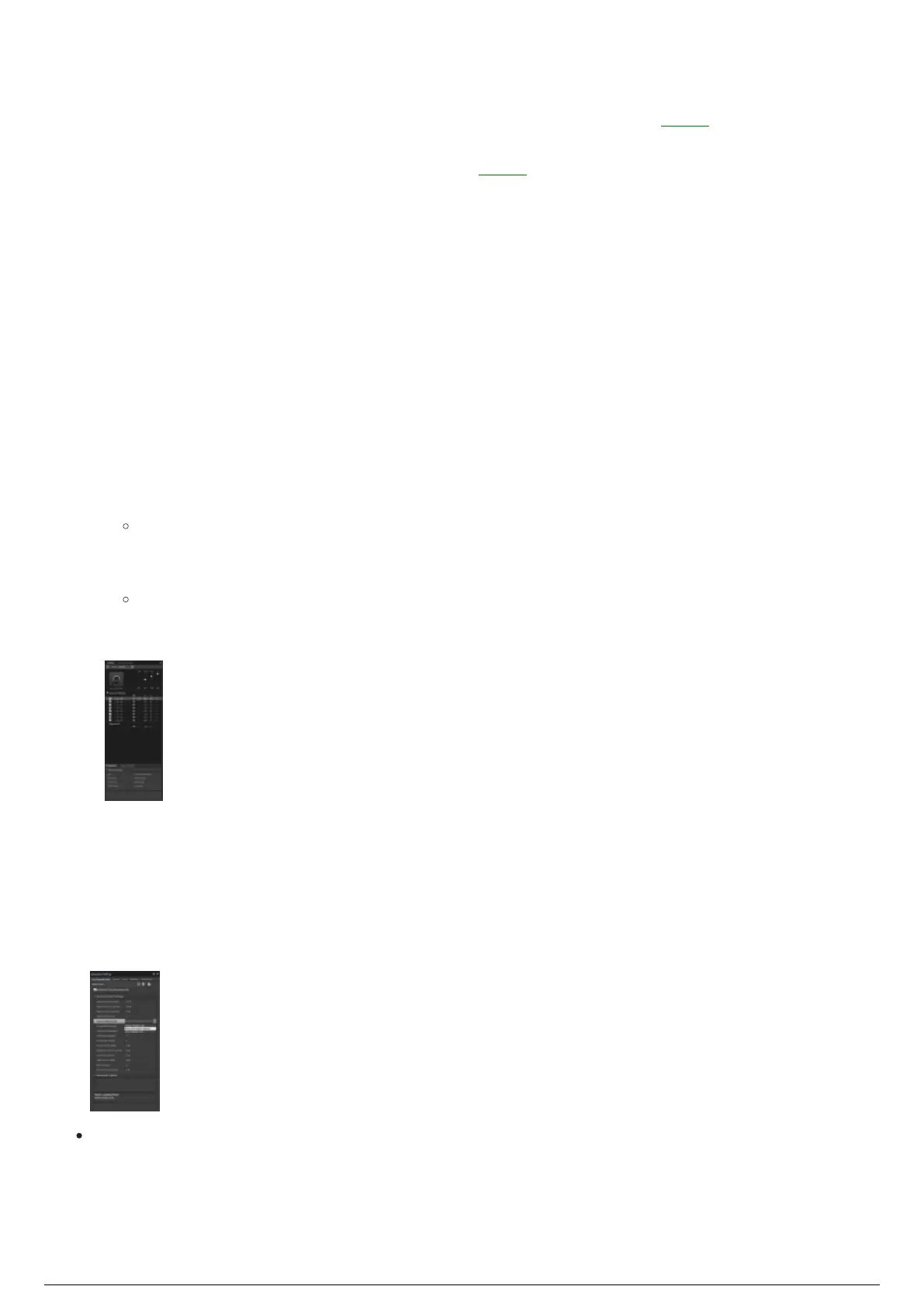
Go to the Application Settings window and click the Live Reconstruction tab.7.
On the Live Reconstruction tab, click the Marker Labelling Mode drop-down box and select Active8.
and Passive Markers or Passive Markers Only to set for calibration.
Note: Select Active Markers Only or Active and Passive Markers to set for tracking.
To configure Motive for continuous calibration
BTSensors must have already been calibrated if Continuous Calibration will be used.
In the Calibration preset layout, go to the Application Settings window.1.



 To Next Page