On the Application Settings window, click the Live Reconstruction tab.2.
On the Live Reconstruction tab, click Continuous Calibration.3.
On the Continuous Calibration drop-down menu, select Continuous.4.
Result: Motive will continuously monitor and update the BTSensor calibration.
To export a calibration CAL file
In the Calibration preset layout, click the File menu.1.
From the File menu, choose Export Camera Calibration.2.
Result: The Export Camera Calibration window appears.
Navigate to the location where the calibration file will be saved.3.
In the File name field, type the name of the calibration .cal file.4.
Click the Export button.5.
Result: The calibration results are preserved as a .cal file which can be loaded into Motive.
To open and restore a calibration CAL file
In Motive, from the File menu, choose Open.1.
Result: The Open window appears.
Navigate and select the .cal file you wish to open and restore.2.
Click Open.3.
Result: The saved calibration data will be restored in Motive.
Motive 1.10 or lower
To configure BTSensors for calibration
Change the Motive layout to Calibration (found under Layout > Calibration).1.
Go to the Cameras window.2.
Note: To quickly configure a BTSensor for calibration, change the preset setting of the
BTSensor to Tracking, then proceed to Step 6 in this section.
In the Cameras window, select the sensor group by clicking on the group name. 3.
While the sensor group is still selected, look below to the Property section for the sensor group.4.
Under the Camera Settings heading, set the Video Type field to Precision Mode/Object Mode.
Set the Filter Type Switch field to Infrared Spectrum.5.
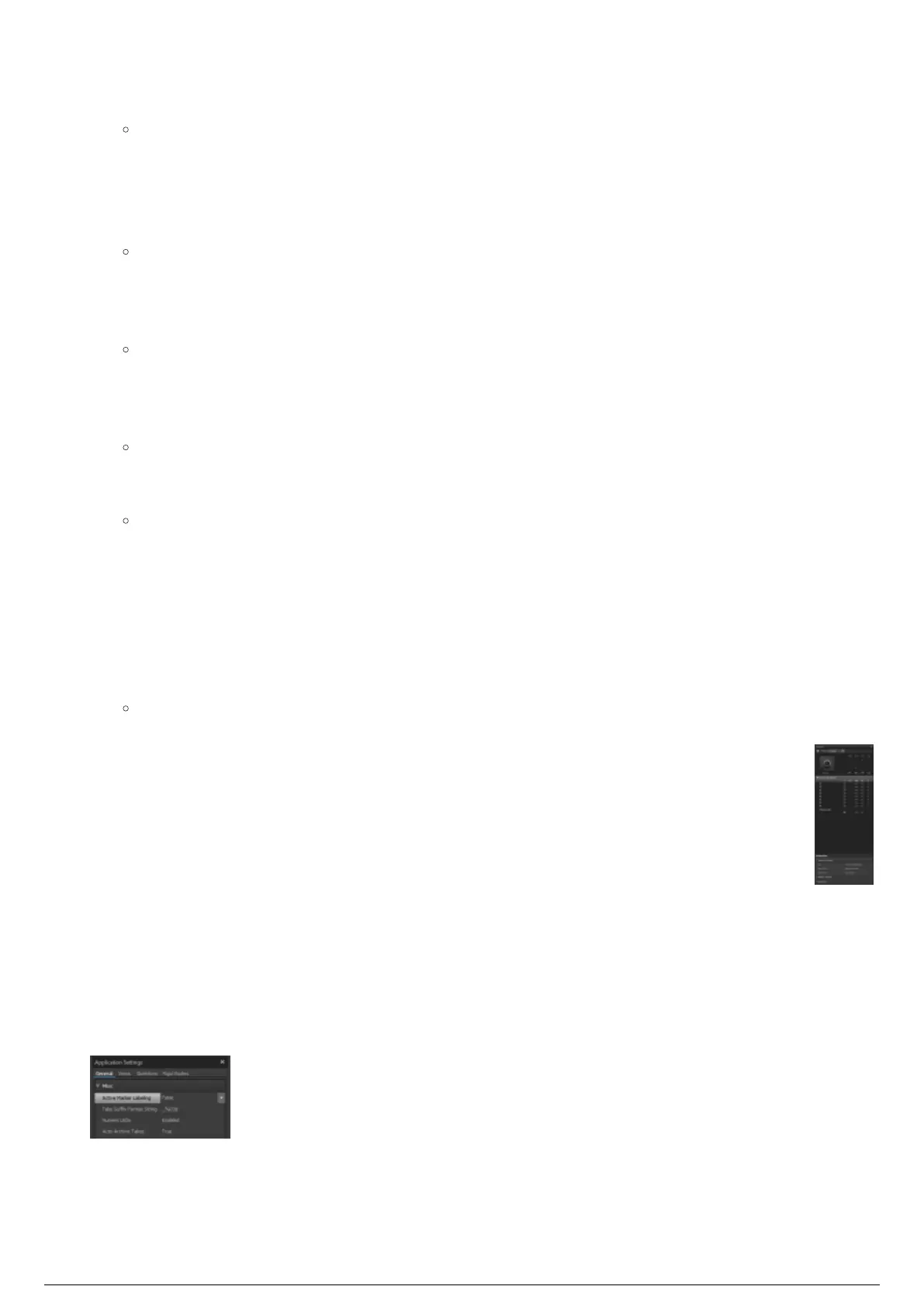
Go to the Application Settings window.6.
In the Application Settings window, in the Options tab, under the Application Options heading, set7.
the Active Marker Labeling field to False.
Close the Application Settings window.8.



 To Next Page