Beacons Section
The Beacons section in the System Configuration widget is where settings that affect Beacon reporting
and behavior within the system can be configured.
Beacons section
Beacons: Settings that affect the display of Beacon battery life.
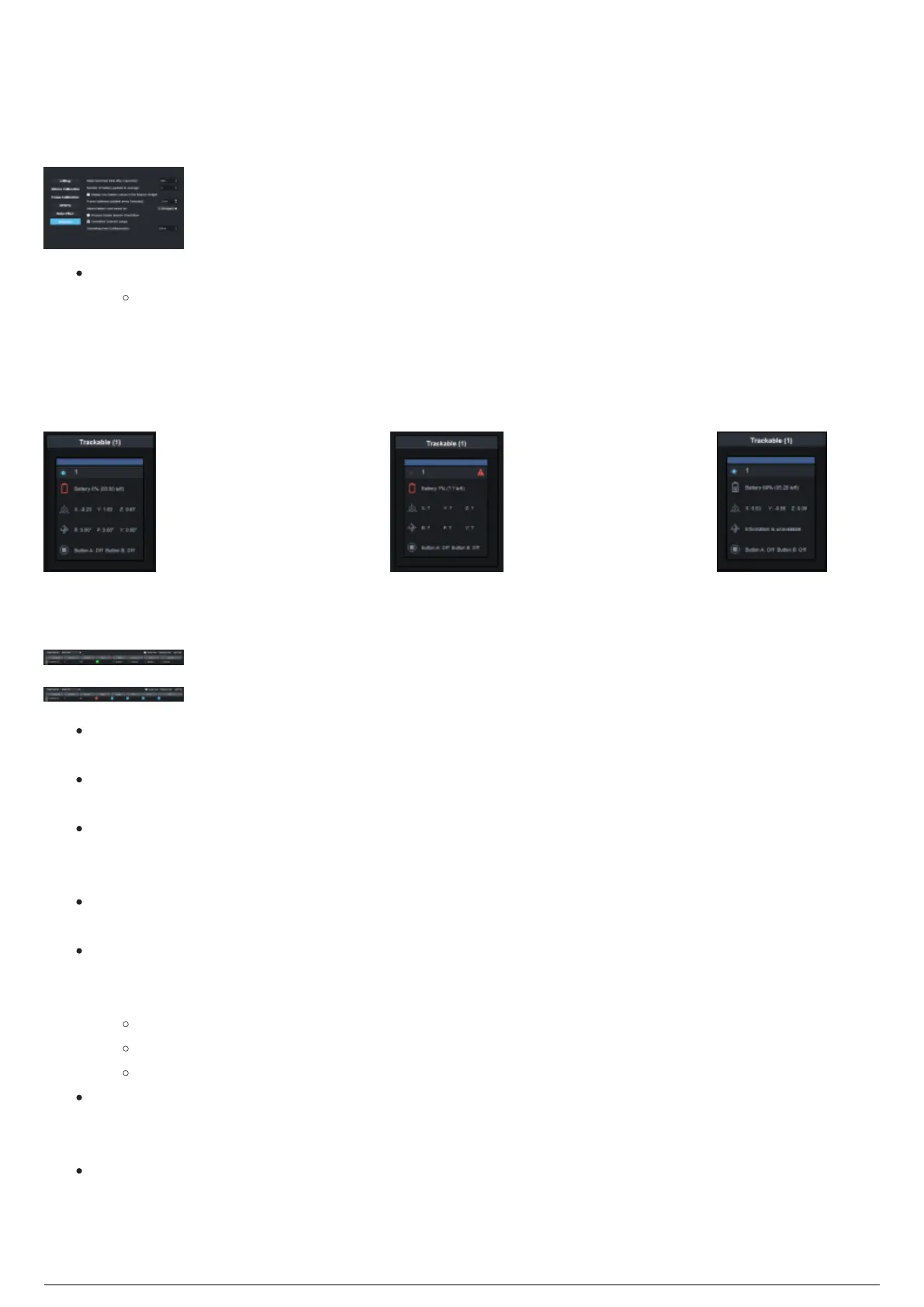
Radio becomes stale after (seconds): Click on this scroll box to set how long after a packet of
battery life data of the beacon is received (without receiving new packets) for the radio
indicator in Live View to turn red. The radio indicator is also visible in Table View via the
Radio column.
Live View:
Icon with Fresh data (Gray) Icon with Stale data (Red) Icon
with no orientation data
Table View:
Radio column with Fresh data (Green)
Radio column with Stale data (Red)
Number of battery packets to average: Click on this scroll box to set the number of times the
battery life information is collected to be averaged.
Display raw battery values in the Beacon Widget: Select this checkbox to display the raw battery
life percentage (non-averaged) as a separate column in the Beacons Widget.
Frame batteries updated every (minutes): Click on this scroll box to set (in minutes), how the
battery status of the beacons in rigid and soft body frames will update by displaying the lowest
beacon's battery when that timer runs out (and repeats).
Detect battery time based on: Select either 1 Stringer or 2 Stringers or 3 Stringers as the reference
for monitoring the battery life capacity.
Process Classic Beacon Orientation: By default, this checkbox is clear. This will prevent orientation
of Classic Beacons being reported once the Beacon has been patched to a Trackable. Therefore
Classic Beacon orientation will not affect:
Dynamic Zones
Avatar Rotation in BTWYG Live View
RTTrPM Outputs
Smoothed Centroid Jumps: Select this checkbox to enable the option of setting the timing of the
centroid updating when shifting from one calculated centroid to a newly calculated centroid. For
example, when a Stringer contributing to a centroid becomes hidden from BTSensor view.
Smoothing time (milliseconds): Click on this scroll box to set the time (in milliseconds) it takes for
the calculated centroid updating to complete when a Stringer contributing to a centroid becomes
hidden, or is visible again in the BTSensor view. The shift will be smoother (but takes more time to
complete) when the timing is longer.



 To Next Page