Edit Output
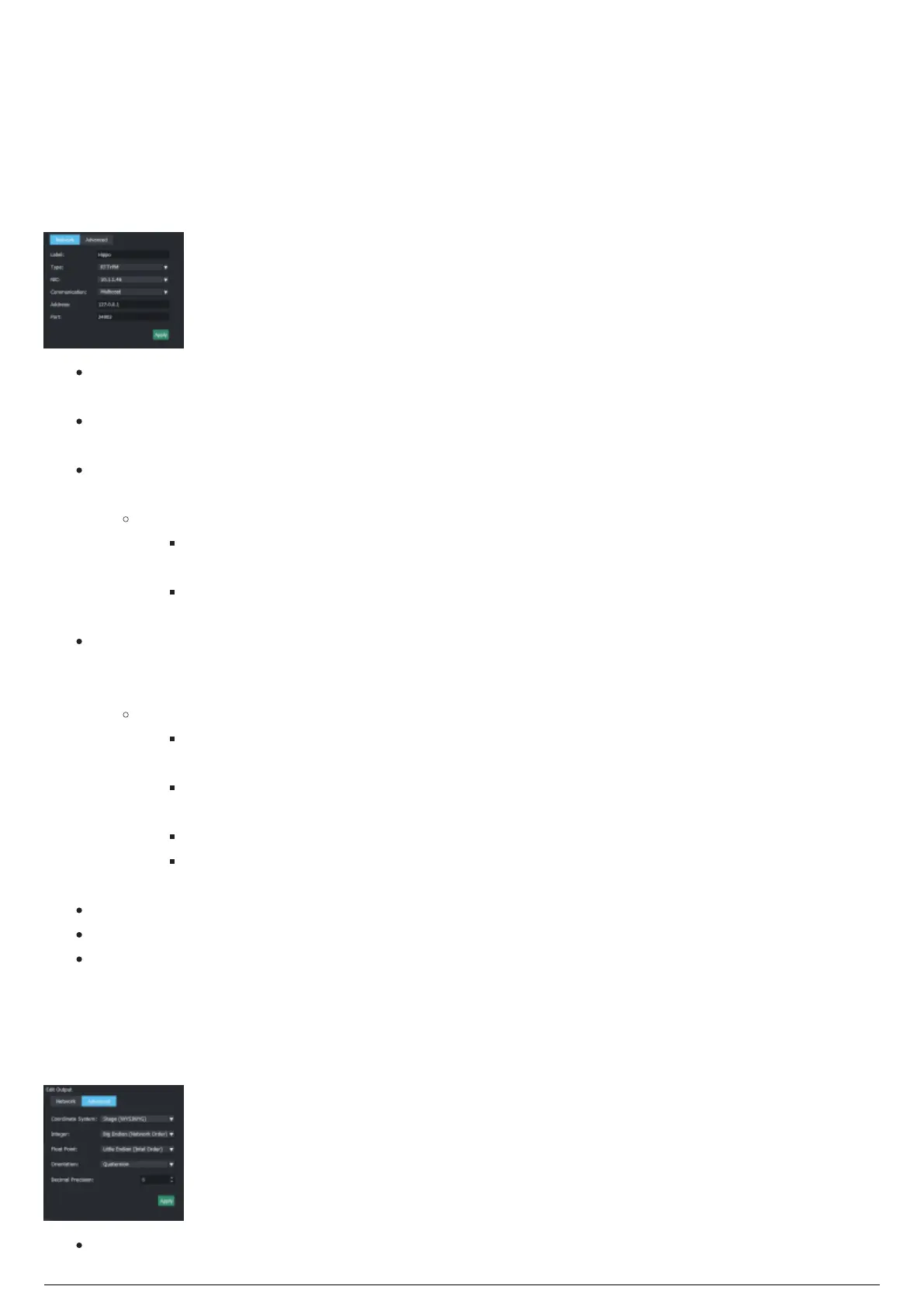
The Edit Output section is where you can set or change the network data of the output connection
module that is added to the Active Outputs section. You can configure RTTrPM outputs' parameters.
Network Tab
Network tab
Label: Type the unique name of the active connection module that is added to the Active Outputs
section.
Type: Click on this drop-down menu to select the type of data protocol being sent to the selected
active module.
NIC: Click on this drop-down menu to select the local IP address where the output data is being
sent through for the selected active module.
Notes:
When a project is opened in a server that is missing the saved NIC, BlackTrax will ask
what NIC you would like to use for each output.
When BlackTrax detects an IP change in Windows, the Messages dialog box will alert
you once to reboot BlackTrax to reload the settings.
Communication: Click on this drop-down menu to select the type of IP address in the connection,
such as multicast, unicast or broadcast. The default output address corresponding to multicast and
broadcast will be entered automatically according to the selected type.
Notes:
The default multicast output address for the selected output is entered automatically if
Multicast is selected.
The broadcast output address will be based off the selected NIC for the output and
entered automatically if Broadcast is selected.
The user must enter the unicast address if Unicast is selected.
Address and Port fields are editable per output, where applicable if user settings are
specified instead of the defaults.
Address: The target IP address where the output data will be sent to.
Port: The port number where the IP address for the output data is connected to.
Apply: Click to apply the settings.
Note: As a general rule, click Apply Changes to apply all changes that you set in Output Configuration.
Advanced Tab
Advanced tab
Coordinate System: Choose which type of coordinate system to use with positional data. Click on



 To Next Page