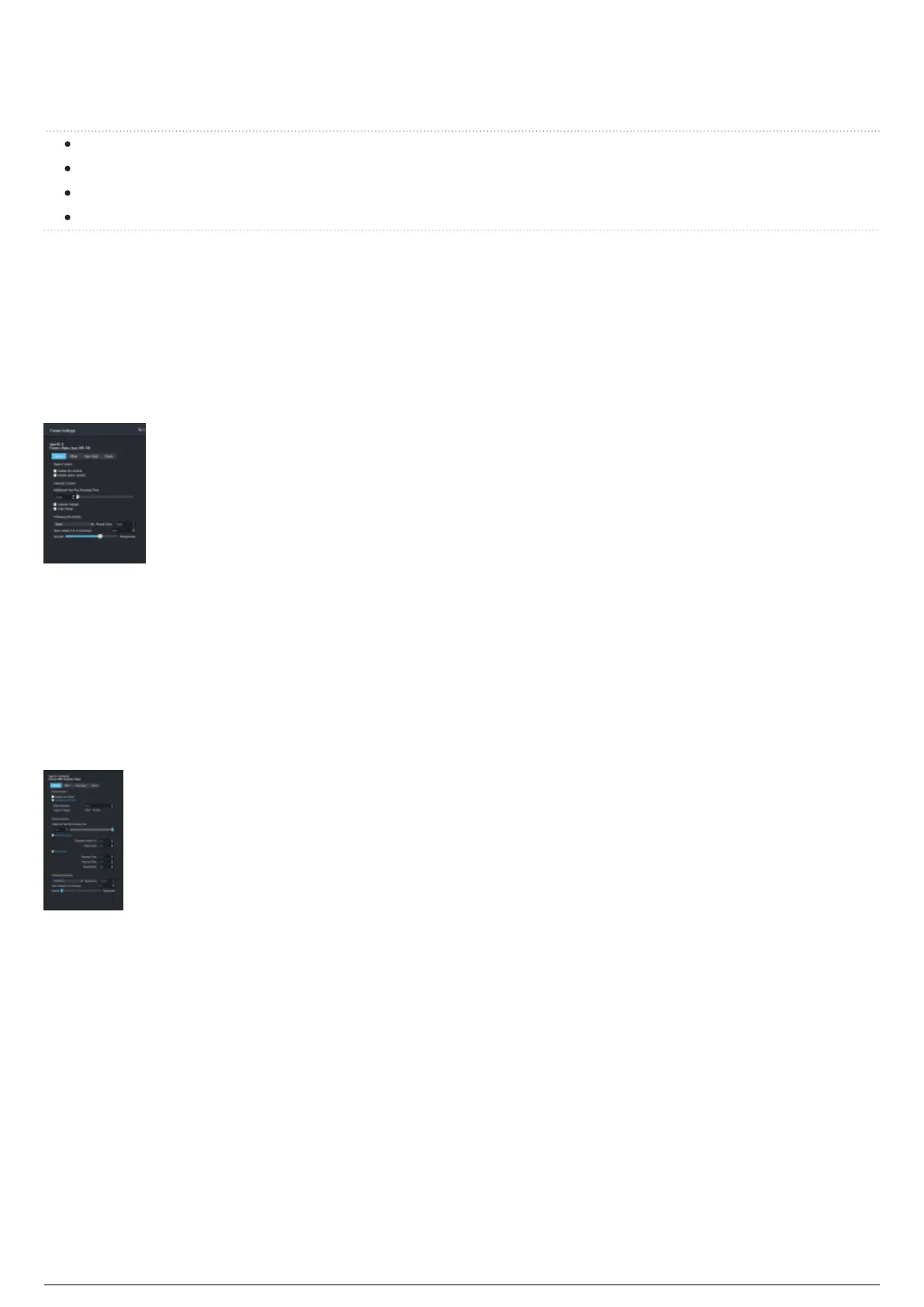
Fixture Settings Widget
Table of contents:
Basic Tab
Offset Tab
Auto Spot Tab
Zones Tab
Overview
The Fixture Settings widget is where you configure how fixtures interact with Trackables in a specific
chapter. Fixture Settings is separated into four tab sections: Basic, Offset, Auto Spot and Zones. The
tabs will be explained in detail in the following pages.
Fixture Settings - Basic tab
You can select a single fixture, or multiple fixtures in the center pane of Edit View to have Fixture
Settings display the collective settings. In multi-fixture selection, there is always an 'active' fixture, which
displays its current settings in the Fixture Settings widget. The active fixture is indicated by the name
and spot ID of the fixture at the top of the Fixture Settings widget.
When you select multiple fixtures, any differences between fixtures will be highlighted in blue. For
example: Spot 1 has a zoom setting of 1m and Spot 2 has a zoom setting of 2m. When you select both
fixtures, the text box will highlight blue to indicate a difference between the two selected fixtures.
Fixture settings - Basic tab (With multiple fixtures selected, differences highlighted and
Intensity Control features marked.)



 To Next Page