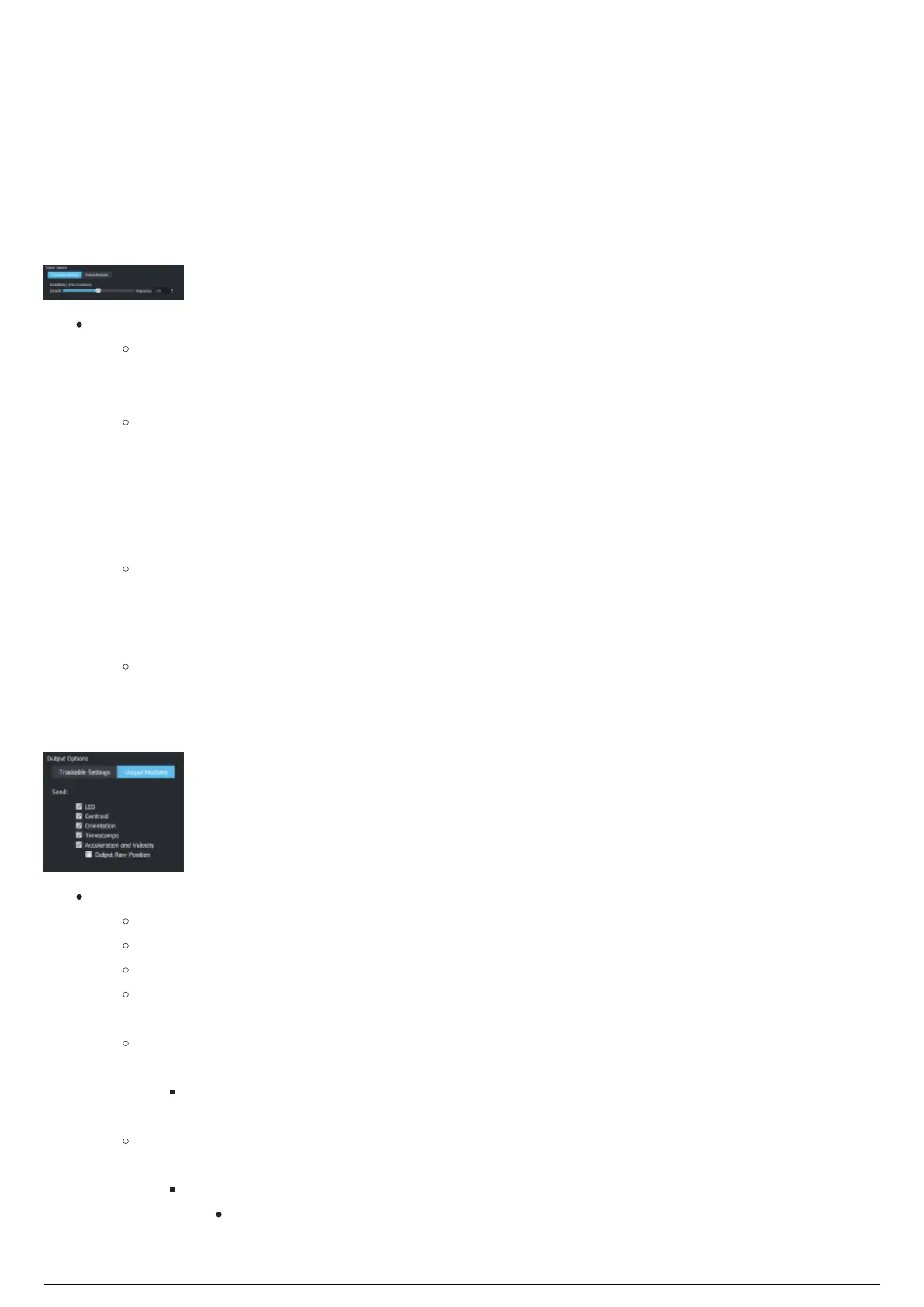
Output Options
The Output Options section is where Trackable data that is being sent can be altered.
Attention: The settings affect Output Modules that are sending data from BlackTrax, and applies to
RTTrPM outputs.
Trackable Settings tab: Set tracking smoothing response for a single or multiple trackables. The
Smoothing option is enabled when Acceleration and Velocity in the Output Modules is selected.
Trackable Settings tab
Smoothing: Set how fluid the XYZ values of the Trackable become.
Use the slider and the scroll box to adjust the range of fluidity from Smooth to Responsive, to
set the range between -4 to +2. Both slider and the scroll box correspond to the same
perimeter.
A more smoothed Trackable will result in less jitter going to the third party, and can help
smooth out less than ideal calibrated volumes, but it will introduce a slight delay as well.
To set the smoothing response of a selected trackable
On the Output Modules tab, select the Acceleration and Velocity checkbox and clear the Output1.
Raw Position checkbox.
Result: Smoothing is enabled on the Trackable Settings tab.
On the Sending Trackables section, select a single or multiple Trackable(s).2.
On the Trackable Settings tab, use the Smooth to Responsive slider or click the scroll box to set the3.
range of fluidity between -4 to +2.
Result: The smoothing range that was set is displayed in the Smoothing column of the
Sending Trackables section.
Output Modules tab: Select which data to send through the selected output module.
Output Modules tab
Send: Select the checkboxes to choose the output connection data that will be sent through.
LED: Select this checkbox to send BTBeacon LED data.
Centroid: Select this checkbox to send BTBeacon Centroid data.
Orientation: Select this checkbox to send BTBeacon orientation data.
Timestamps: When enabled, the Frame ID generated by the TimeKeeper is used as a time
stamp.
Acceleration and Velocity: Select this checkbox to send centroid and/or LED position
acceleration and velocity data.
Note: The Smoothing option on the Trackable Settings tab is enabled when
Acceleration and Velocity checkbox is selected.
Output Raw Position: Select this checkbox to turn off the filter that is used for the
acceleration and velocity data that was sent.
Notes:
Acceleration and velocity data is not 100% accurate due to inaccuracies that can
occur, such as BTSensor jitter, poor BTSensor calibration, reflections and IR



 To Next Page