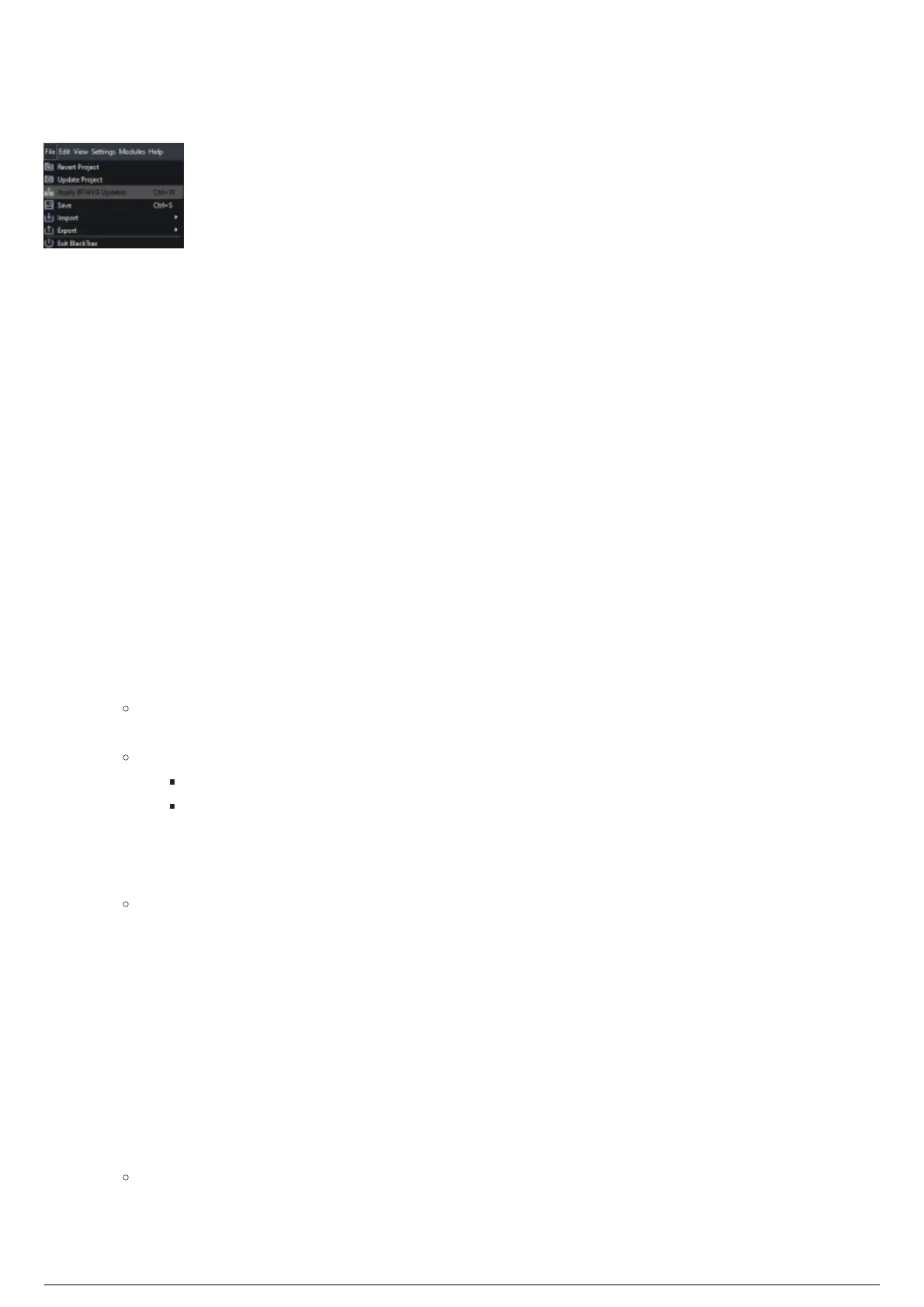
File Menu
BlackTrax File Menu
Introduction
The File menu is where you can save, update, revert BlackTrax Projects and create Motive Projects. You
can update a .btprj file with a .btx file from BTWYG, or via the Apply BTWYG Updates when new
BTWYG information is sent to BlackTrax.
Other features that are available are being able to import and export calibration data, as well as
exporting chapter programming data for reference as an .html file.
You can also exit BlackTrax from this menu.
Reverting to a Project History File
From the File menu, you can choose Revert Project to select and open a Project History file of the
BlackTrax Portfolio that is currently in use.
To revert to a BlackTrax history file
From the File menu, choose Revert Project.1.
Result: The Revert Project dialog box appears showing the menu list of the dates and times
of the saved Project History files.
Tip:
You may click on the Revert Project icon on the main toolbar.
You may click on the Backup Date and Time arrow in the Revert Project dialog box to
sort the list in ascending or descending order.
In the Revert Project dialog box, click on a Backup Date and Time.2.
Click Revert.3.
Result: The Project History backup file associated with the date and time displayed opens
and the currently opened project is saved and archived in Project History.
Updating BTX Projects
If a BTWYSIWYG file (.btx) has been edited since it was used to make a BlackTrax project file (.btprj),
Update BTX Projects can be used to update the BlackTrax project file. Any new .btx information will be
carried over to the existing .btprj while maintaining any work you have already done to the project.
To update a BlackTrax project with new information from BTWYSIWYG via a .btx file
From the File menu, choose Update Project.1.
Result: The Browse window appears.
In the Browse window, navigate to the edited .btx file location, and select the file.2.
Click Open.3.



 To Next Page