Using BTWYSIWYG as a Tracking
Visualizer
Tracking data can be visualized in BTWYSIWYG. Viewing tracking data is useful for troubleshooting.
Seeing fixtures and Trackables move in BTWYSIWYG based on the data helps determine if data is actually
being transmitted. There could be problems in the BTSystem connections if there is no activity
in BTWYSIWYG.
To visualize tracking data in BTWYSIWYG
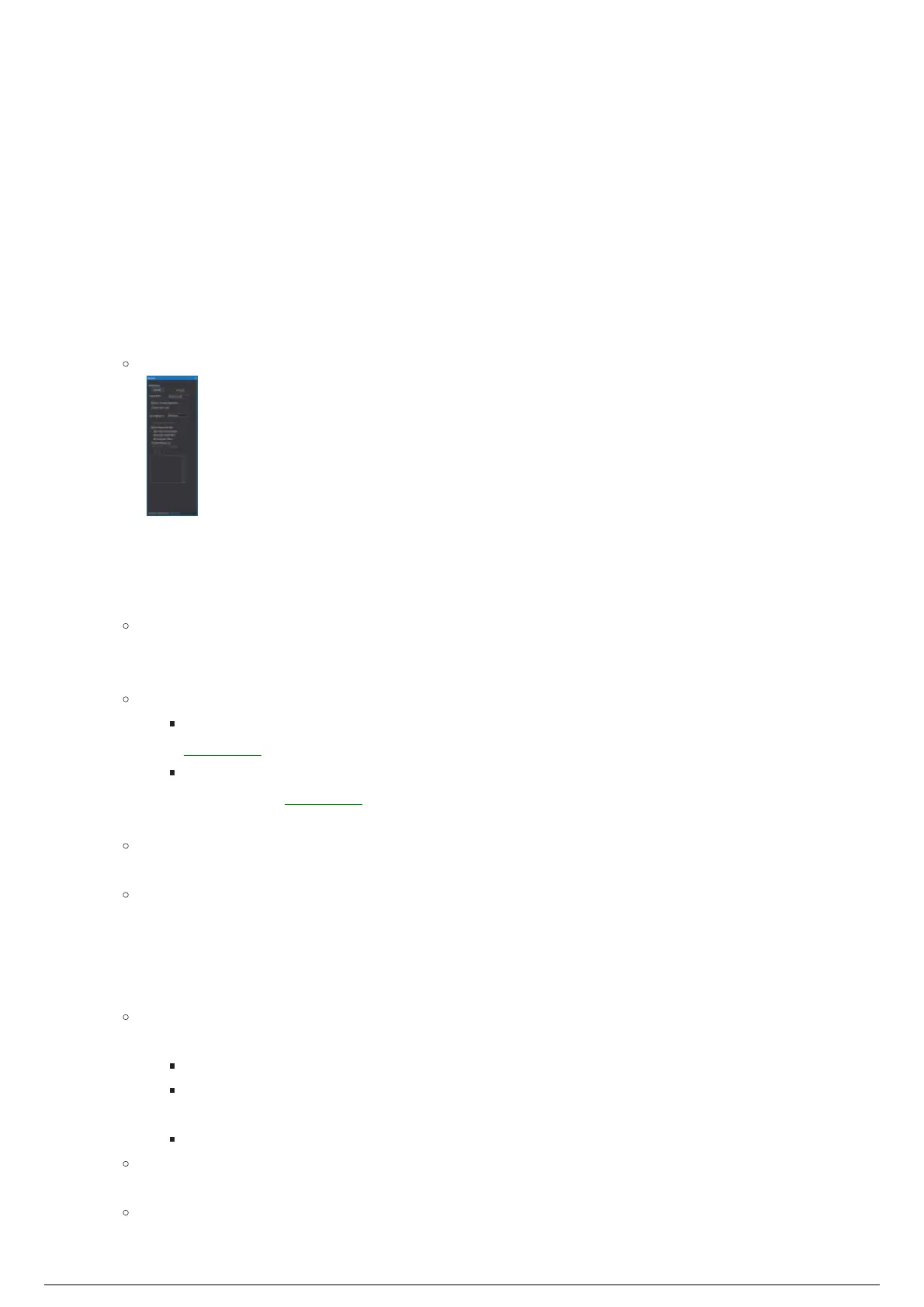
In BTWYSIWYG LIVE mode, from the Live menu, choose BlackTrax Panel to open the BlackTrax1.
panel.
Result: The BlackTrax panel appears on the right side of the BTWYSIWYG window.
In the BlackTrax panel, select the BTX Mode checkbox to enable the option to connect with2.
BlackTrax.
Click Connect to activate the connection with BlackTrax, or click Disconnect to deactivate the3.
connection to BlackTrax.
Note: The BlackTrax template file connects automatically to BlackTrax when opened.
To customize how you interact with Trackables within Shaded view, select from the following4.
options:
Display Mode: On this drop-down menu, select Beacon Focused or Trackable Focused.
Beacon Focused: Displays all LEDs and Centroids regardless of the Trackable patch in
BlackTrax. This mode hides all objects attached to Trackables in BTWYSIWYG.
Trackable Focused: Displays only LEDs and Centroids that are actively patched to a
Trackable in BlackTrax. This mode also displays objects attached to the Trackable in
BTWYSIWYG.
Select Trackable Objects Only: Select this checkbox to choose only Trackable objects in the
Shaded view of BTWYSIWYG.
Prefer Frame LEDS: Select this checkbox to display only Rigid or Soft Frame's LEDs and
Centroids. When enabled, Classic and Mini Beacons will not be displayed in the Shaded view
if they are currently assigned to a Rigid or Soft Frame.
To set how the fixtures and their beams are displayed and selected in Shaded view, select from the5.
following options:
Show Lighting For: On this drop-down menu, select which beams of the fixtures will be
displayed.
All Fixtures: Displays all the beams of the fixtures in the BlackTrax project.
Tracking Only: Displays only the beams of the fixtures that are currently following
Trackables.
No Fixtures: No beams of the fixtures will be displayed.
Calibrated Fixture Position: Select this checkbox to show the position of the fixture as
calibrated by BlackTrax instead of using the BTWYSIWYG drawn position.
Show Beams With Stick: Select this checkbox to display the beams of light produced by the
fixtures as stick beams with the corresponding colors indicating their tracking status.



 To Next Page