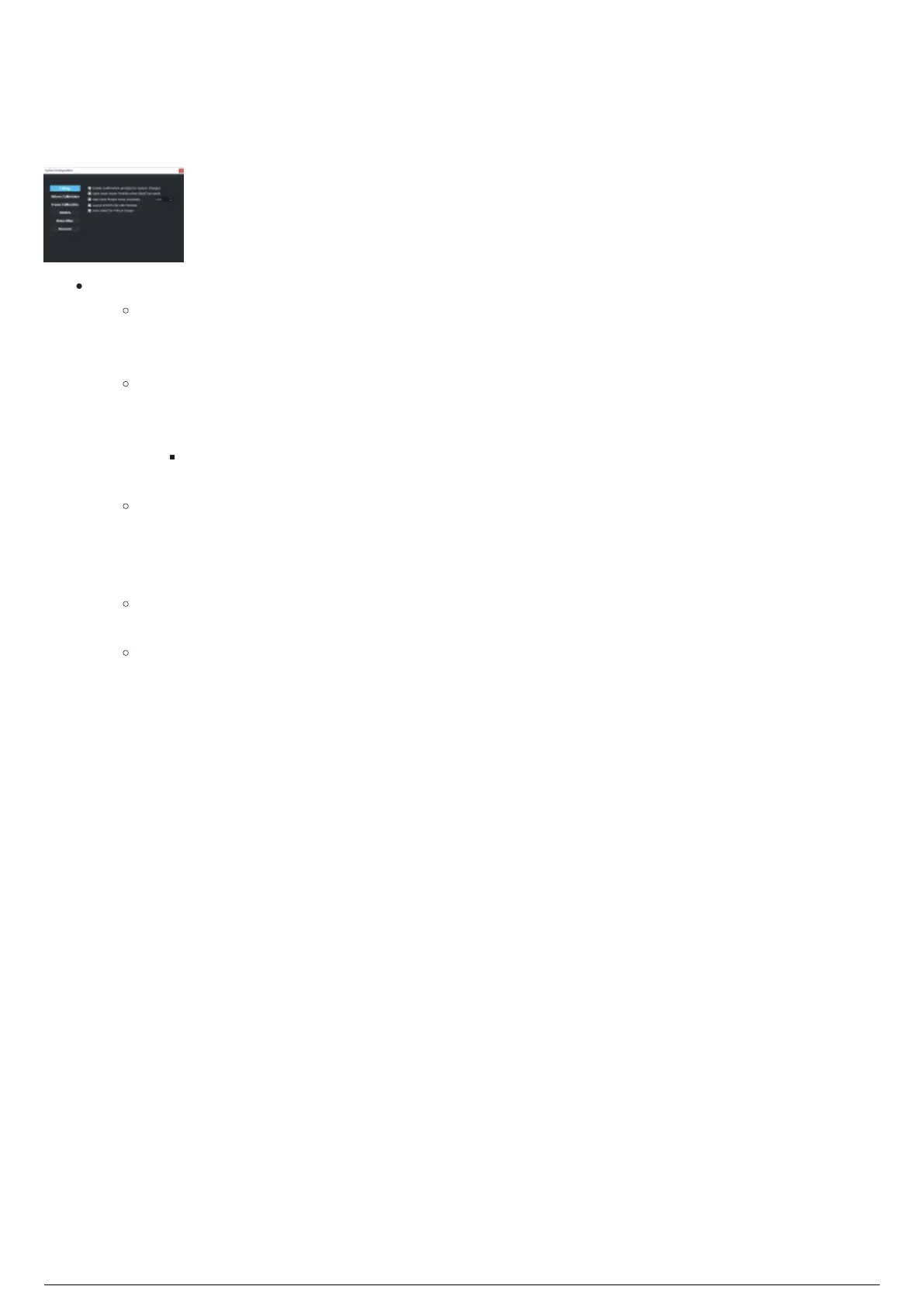
System Section
The System section in the System Configuration widget is where system prompts can be toggled On or
Off.
System section
System: Toggle system prompts.
Enable confirmation prompts for System Changes: Select this checkbox to display a dialog
box asking for confirmation to apply the changes you have made in BlackTrax after
clicking Apply Changes in Normal Mode and Fixture Calibration Mode.
Open most recent Portfolio when BlackTrax starts: Select this checkbox to open BlackTrax
with the last Portfolio that was opened, or clear this checkbox to open the Portfolio Manager
when opening BlackTrax.
Note: The Open most recent Portfolio when BlackTrax starts feature is disabled when a
license check fails while opening the Main GUI of BlackTrax.
Auto Save Project every (minutes): Select this checkbox to enable, and set the duration of
Auto Saving of the .btprj associated with a Portfolio. Auto Save can happen anywhere from 5
minute to 30 minute intervals, and the timer is activated by editing changes in the BlackTrax
GUI.
Launch BTWYG file with Portfolio: Select this checkbox to open the BTWYG file associated
with the launched Portfolio at time of launch.
Auto Select for Fixture Groups: Select this checkbox to have fixtures in a Fixture Group be
selected automatically in the Libraries Widget when selecting a group from the Group drop-
down list.



 To Next Page