Applying BTX information to BlackTrax
from BTWYSIWYG
After a project is created, modified and saved in BTWYSIWYG, the new information must be sent and
applied to the BlackTrax Project.
There are three methods for sending BTX information to BlackTrax from BTWYSIWYG:
BTX Apply in LIVE mode
BTX Export in CAD mode
BTX Apply in CAD mode
To send BTX information with BTX Apply in BTWYSIWYG LIVE mode
In BTWYSIWYG LIVE mode, open the BlackTrax window.1.
Ensure that the BlackTrax Portfolio is open, and BTWYSIWYG is connected to it.2.
In the BlackTrax window of BTWYSIWYG , click BTX Apply.3.
Result: BTWYSIWYG sends the BTX information to the BlackTrax Project.
To send BTX information with BTX Export in BTWYSIWYG CAD mode
In BTWYSIWYG CAD mode, from the BlackTrax menu, choose BTX Export.1.
Result: A Save as window appears.
In the window, navigate to where you want to save the project file.2.
In the File name field type in the name of the project.3.
Click Save.4.
Result: The BTX information from BTWYSIWYG is exported and saved as a separate file
which can be used to manually update your BlackTrax Project.
Note: If there are errors in the export, BTWYSIWYG will display the errors after the export is
completed.
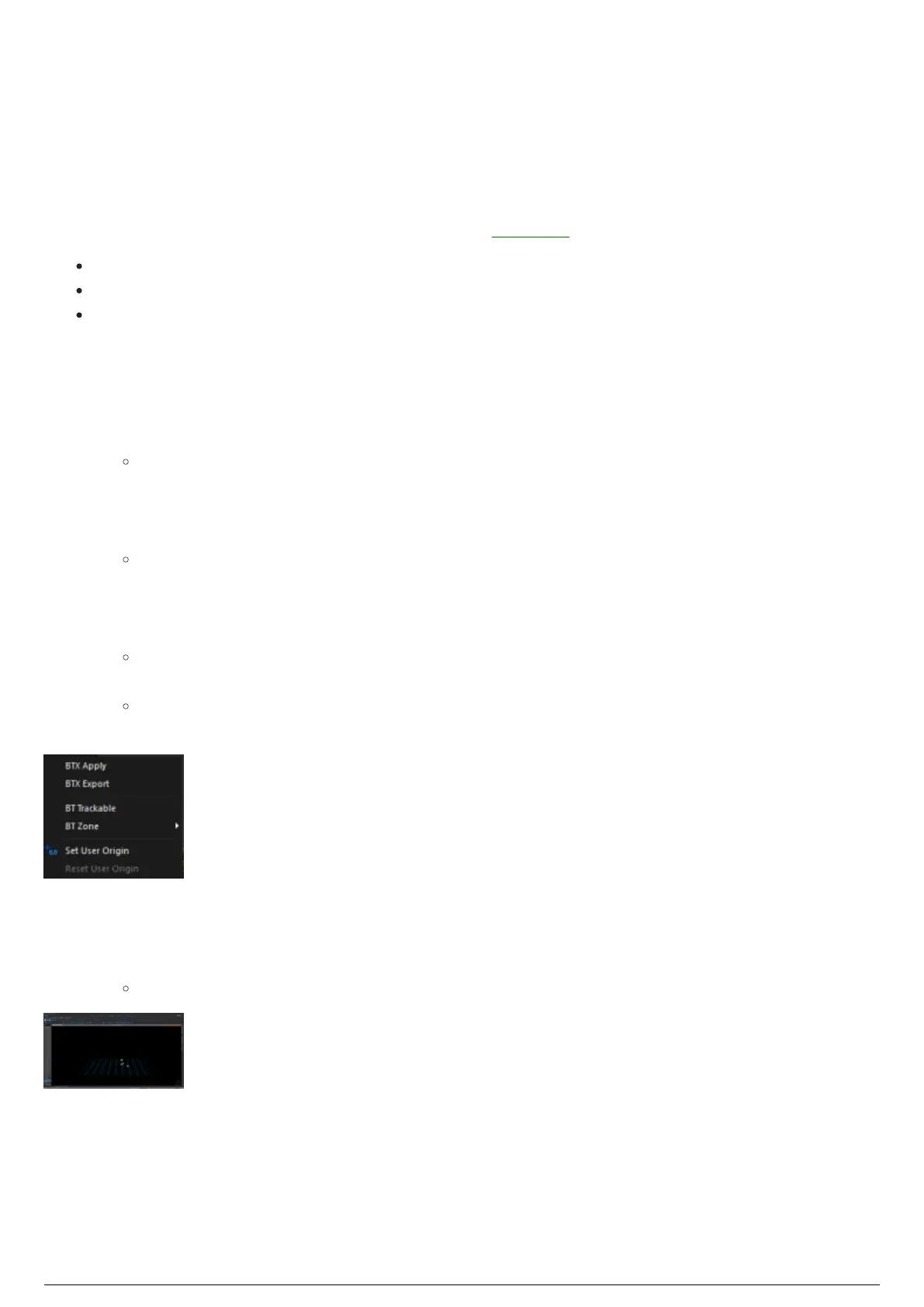
BlackTrax Menu found in CAD mode
To send BTX information with BTX Apply in BTWYSIWYG CAD mode
Ensure that the BlackTrax Portfolio is open, and BTWYSIWYG is connected to it.1.
In BTWYSIWYG CAD mode, from the BlackTrax menu, choose BTX Apply. 2.
Result: BTWYSIWYG sends the BTX information to the BlackTrax Project.
LIVE mode showing the BlackTrax panel with BTX Apply



 To Next Page