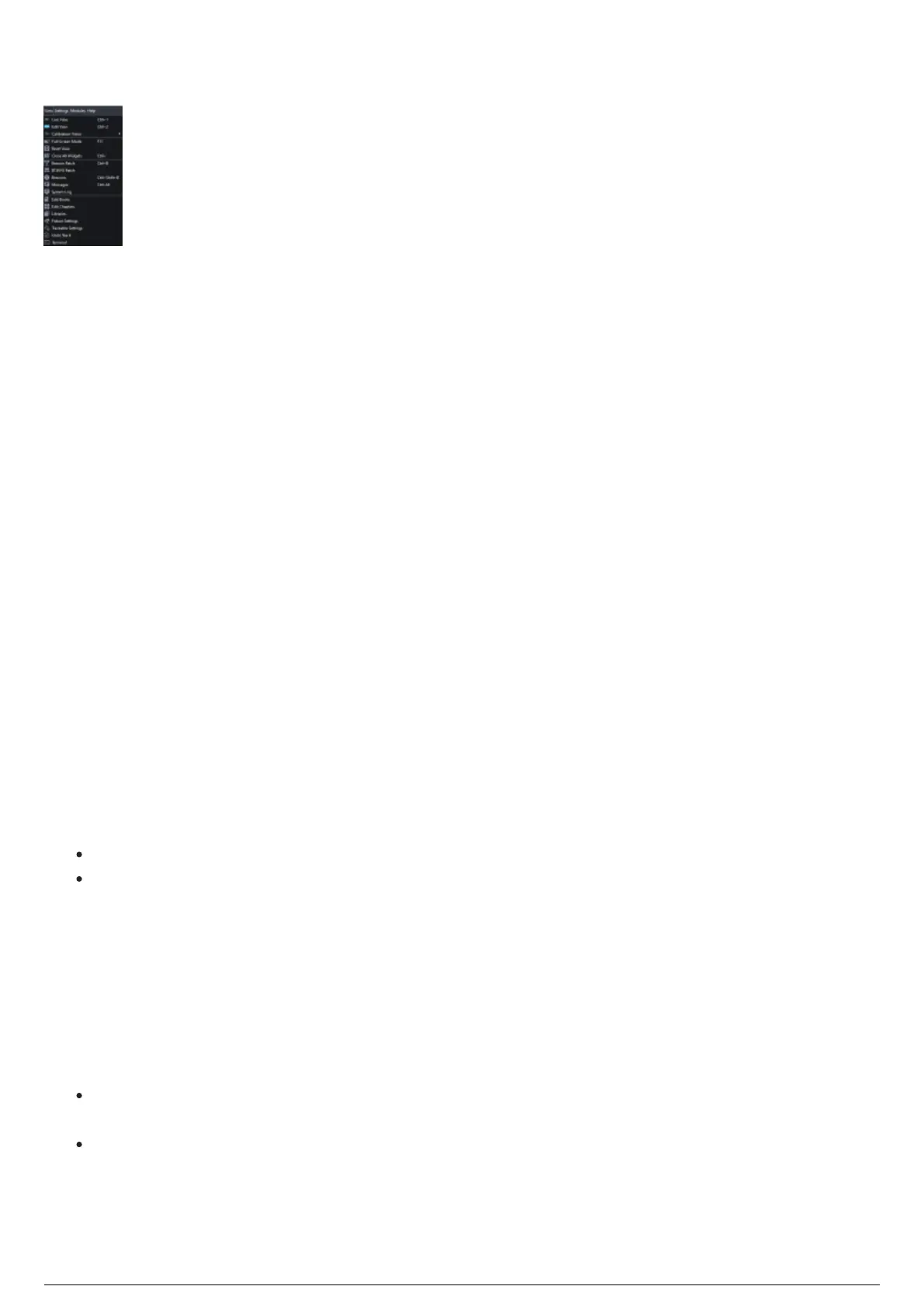
View Menu
View Menu
Introduction
The View menu contains all docking widgets, both global and per view, view shortcuts, and common
widget operations. If you are ever curious about what can be done/opened, the View menu should prove
helpful.
Top Section
The top section of the View menu contains you're three core views (Live View, Edit View, Calibration
Views), and Calibration Views' two sub-views (Fixture View and Frame Calibration View). Click on
each one will take you to the selected view and hovering over Calibration Views will give you access to
the two sub-views.
Upper Middle Section
This section contains commonly used widget functions.
Switching to Full Screen Mode
The BlackTrax GUI can be displayed in full screen mode. You can hide the Windows interface and work
directly on programming and tracking.
From the View menu, choose Full Screen Mode or Windowed.1.
Tip: You may click the Enter(Exit) Full Screen Mode icon on the main toolbar or click F11.
Result: BlackTrax GUI switches to full screen mode from the default windowed mode, or BlackTrax
GUI switches back to the default windowed mode from full screen.
Resetting All Views to Factory Defaults
If at any point you are not happy with the layout you have created, you may click Reset View to restore
the GUI's views back to factory default.
From the View menu, choose Reset View.1.
Result: Any custom views you have created (moved docking widgets, floated widgets to other
screens, or changes the sizing of widgets) will be reverted to factory defaults.
Note: This will affect all views and cannot be undone.
Closing All Widgets
If you want to close all open widgets and just focus on the center pane in the GUI, you may use the Close



 To Next Page