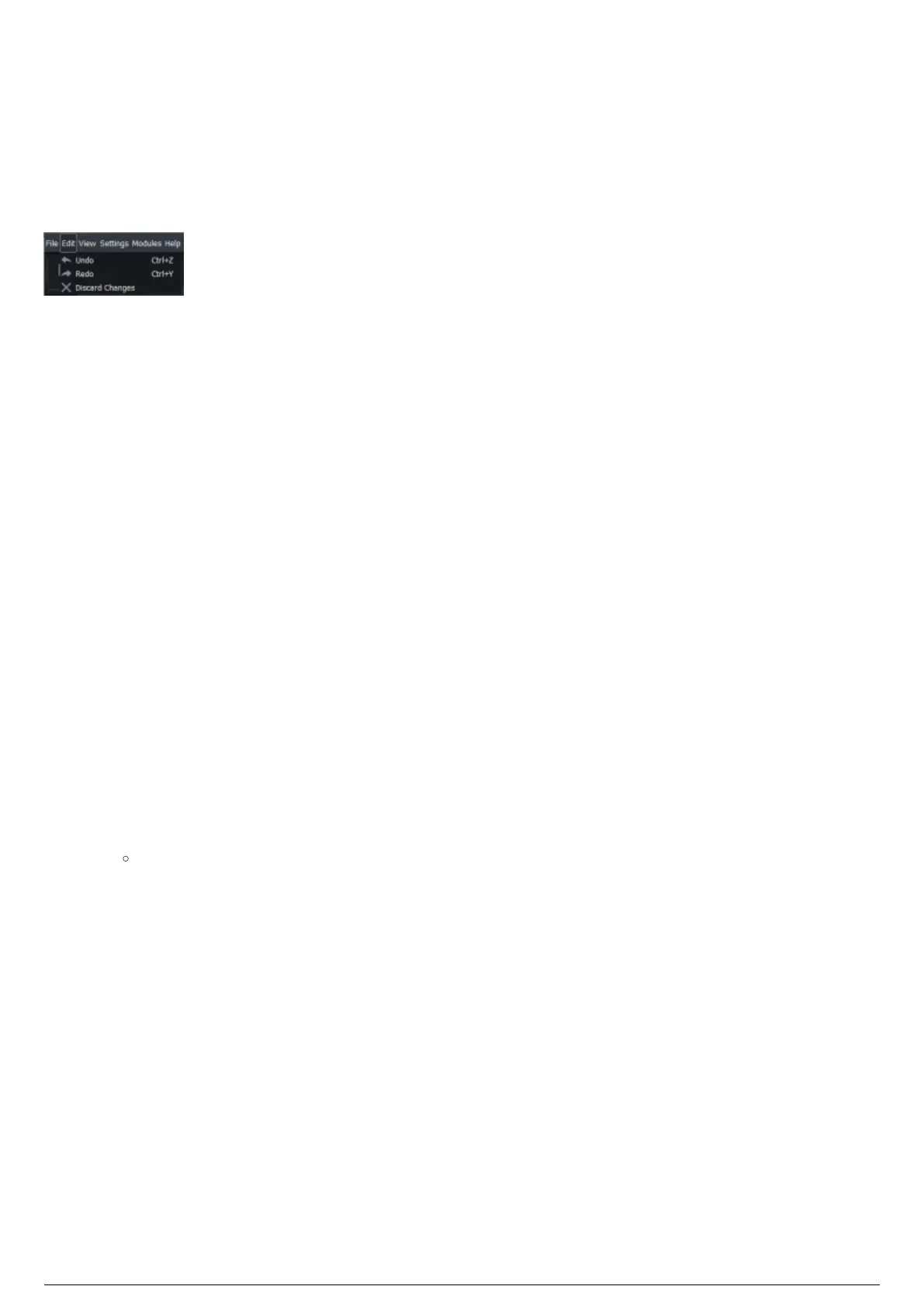
Edit Menu
Introduction
The Edit menu is where you can undo or redo your changes, or discard your changes and revert back to
the last time you hit the Apply Changes button.
Undo
If you want to reverse the last action you applied, you can easily reverse the action by using the Undo
tool available on the Edit menu.
Redo
If you did not want to reverse the previous undo action you applied, you can easily reverse the previous
undo action by using the Redo tool available on the Edit menu.
Discard Changes
Each time you click Apply Changes, a snapshot is created of the current editing and live space. As you
make changes, Changes: Blind will highlight in the status bar, alerting you that new changes have not
been made live. Normally, you would click on Apply Changes to apply your new edits live to the stage,
but in the event you wish to discard your changes and revert back to the last time you click Apply
Changes:
To discard your changes
From the Edit menu, choose Discard Changes.1.
Click Yes to confirm you wish to discard all changes.2.
Result: All changes are discarded back to the last time you clicked Apply Changes.



 To Next Page