UI Introduction
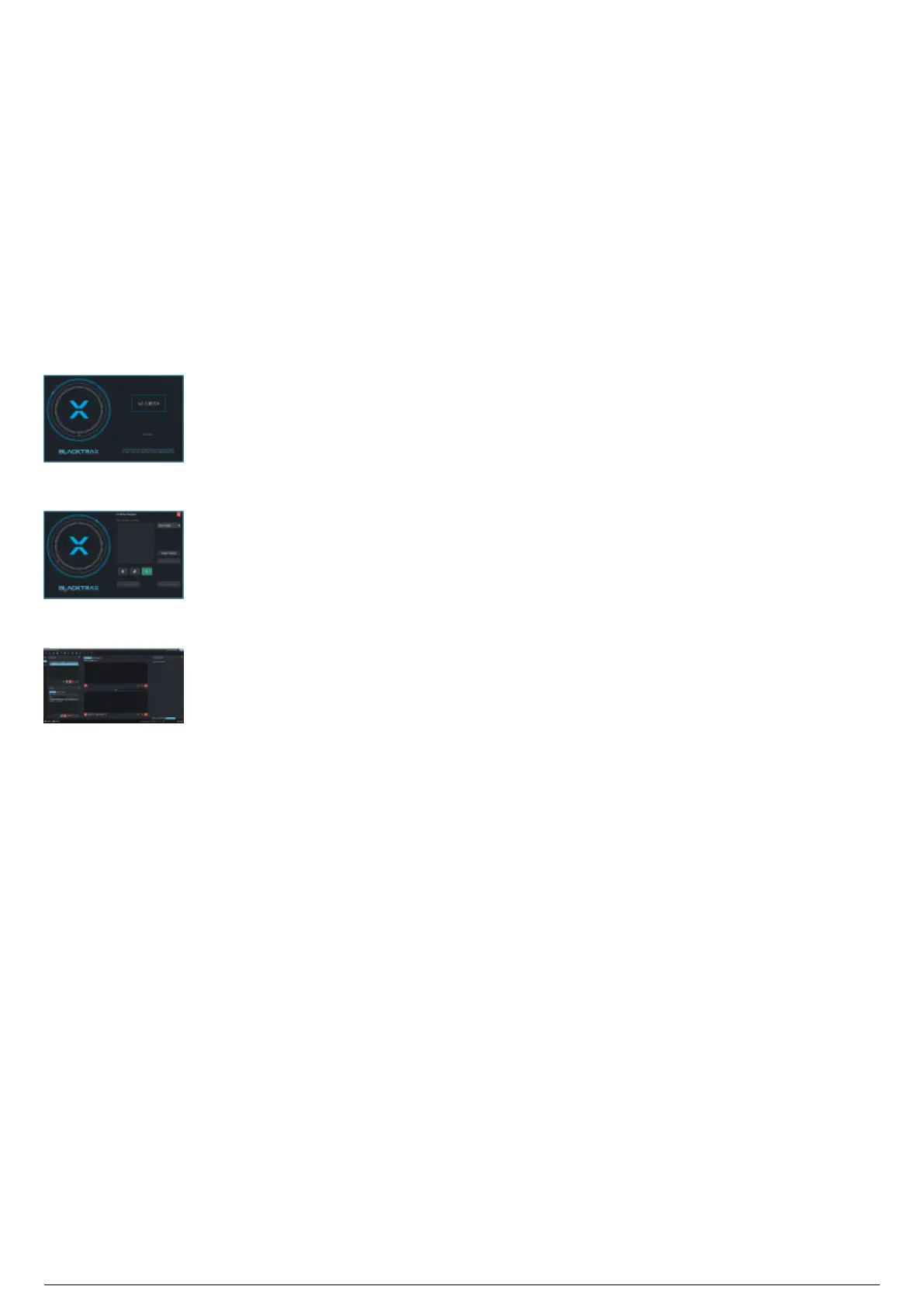
When BlackTrax launches for the first time, the BlackTrax Splash Screen appears while BlackTrax is
preparing to load, and then the Portfolio Manager window opens. In the Portfolio Manager window, you
can add a new portfolio which stores the BlackTrax, BTWYSIWYG and Project History backup files.
A project is launched from the Portfolio Manager and opens into Edit view. How the Portfolio Manager is
subsequently displayed at startup depends on the Open most recent Portfolio when BlackTrax starts
setting in the System section of System Configuration (enabled by default).
Before the Edit view and the other views of BlackTrax are explained, we will first define the options in
Portfolio Manager and describe the various parts of the user interface.
The Splash Screen upon launch of BlackTrax
The Portfolio Manager upon opening
The Default state of the BTGUI upon opening



 To Next Page