Note: The Delete Group button deletes the currently selected group (but not the Trackables
themselves).
Note: The current group selection does change the filtering of the Trackable tab.
Fixtures Tab
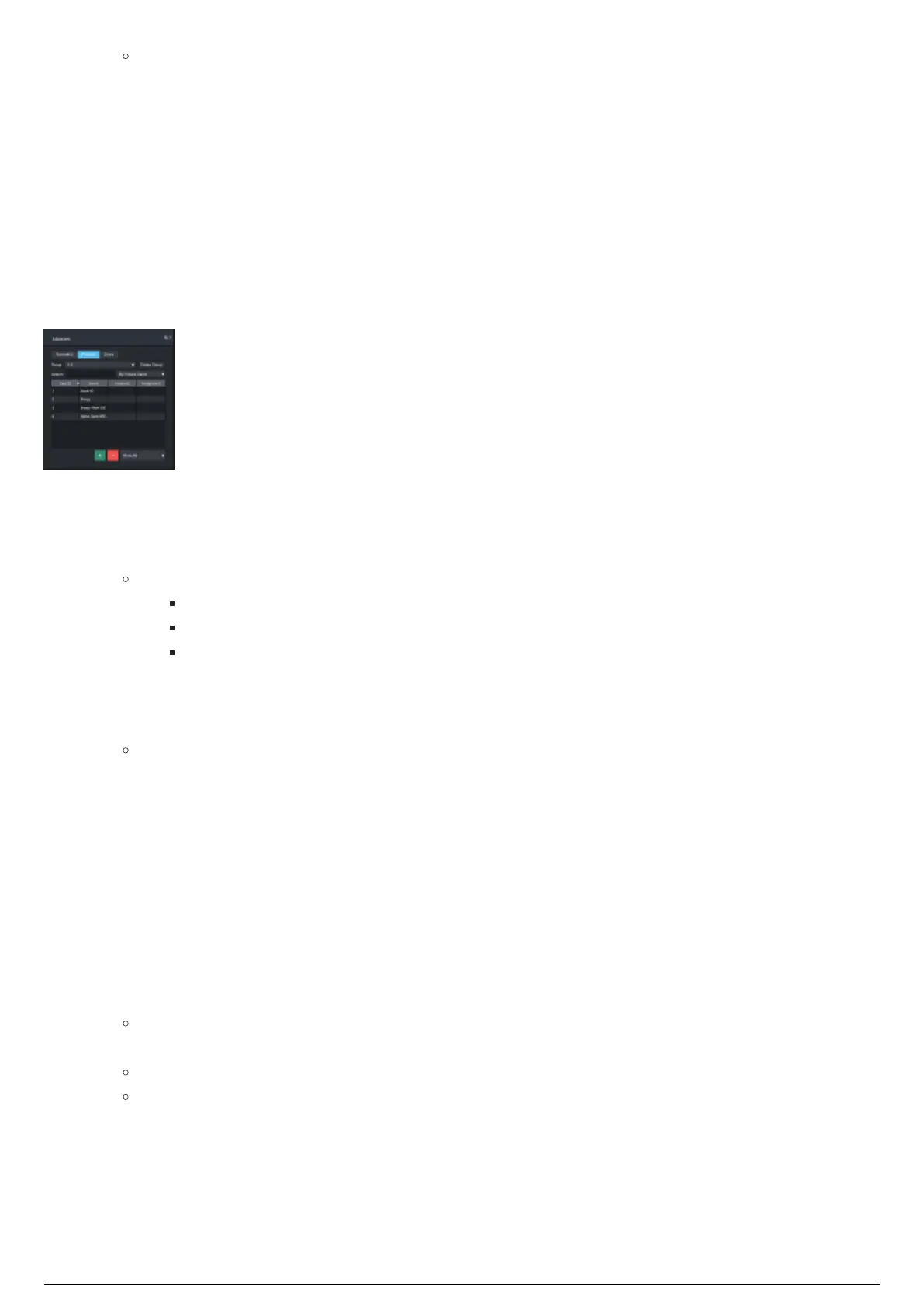
The Fixtures tab is organized in a table structure with columns for Spot ID, Fixture Name, whether or
not it is assigned, and which Trackables it is assigned to in the currently selected chapter.
Like Trackables, there is built-in search functionality to search by patch info, fixture name, or by WYG
Trackable assignment.
Libraries Widget viewing the Fixtures Tab
To search for a fixture
In the Fixtures section, select from the Search By... drop-down menu how you want to search for1.
Fixtures.
Note:
By Spot ID will search for Fixtures based on the ID assigned in BTWYSIWYG.
By Fixture Name will search for Fixtures based on how a Fixture is named in BlackTrax.
By Trackable will search for Fixtures currently assigned to a Trackable (in the selected
chapter) based on the BT Trackable name. (For example, if you search for Trackable
name Iron Man, all fixtures assigned to Iron Man will be displayed.)
In the Search Fixtures field, enter the name of the Fixture(s) you are looking for.2.
Result: The Fixture List will display only Fixtures that meet your search criteria.
Grouping Fixtures
The Group feature in this widget can be used to group selected fixtures together for programming.
Creating a fixture group will automatically select all fixtures in that group at the time of creation.
Selecting a fixture group will automatically select all fixtures in that group.
To group fixtures
From the list in the table, select the fixtures you would like to group together.1.
Click the Group drop-down menu and select New Group From Selected.2.
Result: The New Fixture Group dialog box appears.
Enter the group name in the Group Name field on the New Fixture Group dialog box.3.
Result: The group of Fixtures is created and appears in the Group drop-down menu.
Note: The Delete button deletes the currently selected group (but not the Fixtures
themselves).
Zones Tab
The Zones tab has three columns, the Zone Name, the Shape Type and Dynamic. The Dynamic
column for Zones indicates if the Zone is dynamic/assigned to a Trackable. You can search by the Zone



 To Next Page