Body Frames
Body Frames Widget
Overview
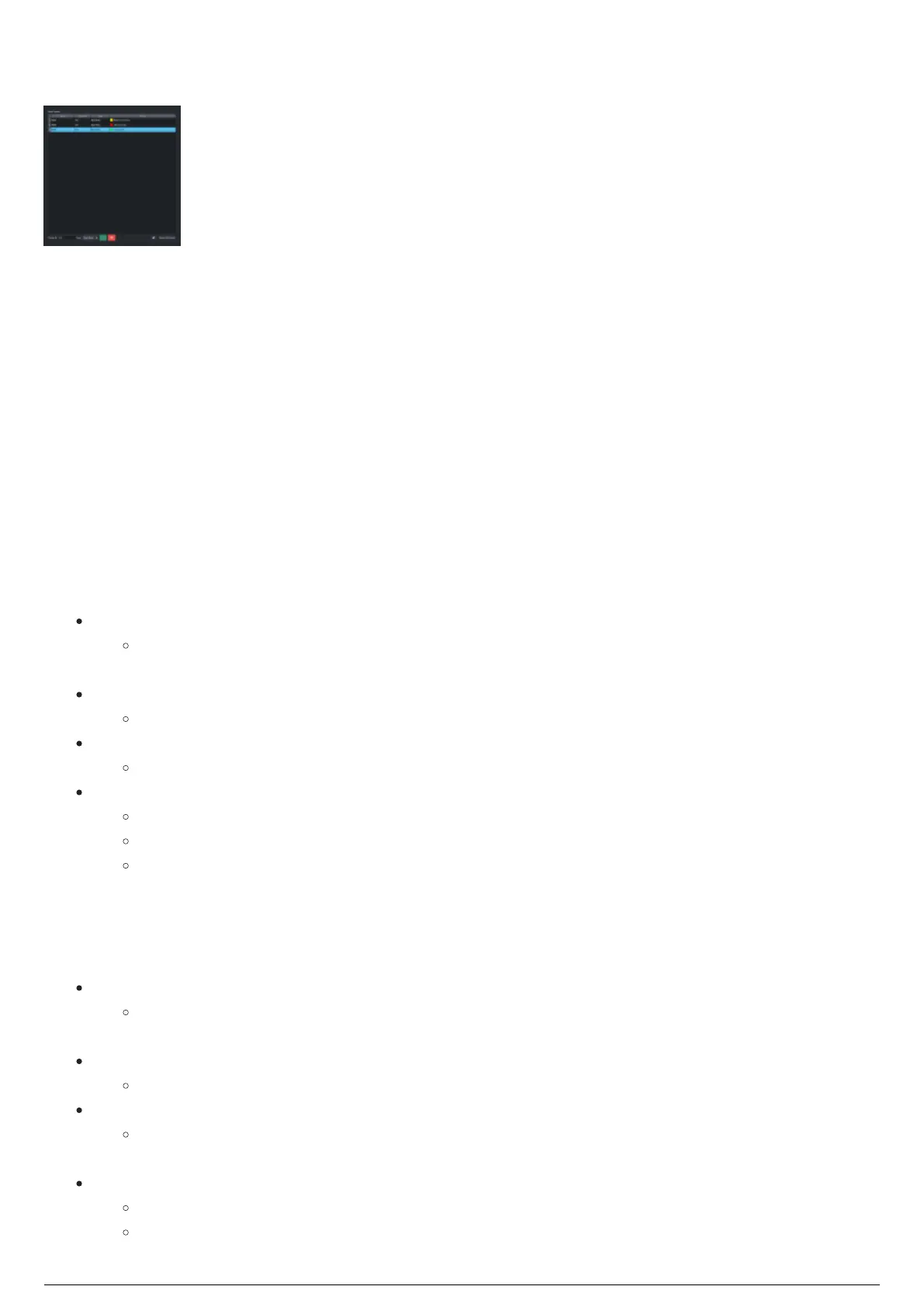
The Body Frames widget (or central widget) in the Frame Calibration View lists the Frames that have
been created. The widget presents a table view listing the Name, Frame ID, the type of Frame (Soft or
Rigid) and the Status of the Frame (LEDs not ready, Ready to Construct and Constructed). In the Body
Frames widget, you can create, clone and remove Rigid and Soft Frames as well as assign a numerical
name to a Frame, similar to a Beacon ID.
Usage
The Body Frames widget is a table of all Frames in the project. The Table is composed of four columns:
Name, Frame ID, Type, and Status; and at the bottom: the Frame ID box, Frame type drop-down, +/-
buttons, clone frame and reset buttons.
Name
The assigned name of the Frame, RF or SF (depending on the type of Frame), followed by the
ID assigned to the Frame when it was created
Frame ID
The ID assigned to the Frame when it was created
Type
The type of Frame (Rigid or Soft)
Status
Red: LEDs not ready.
Yellow: Ready to Construct.
Green: Constructed.
Note: Once the Frame has been constructed but the LEDs assigned to the Frame are not yet seen by the
system, the Frame's status will list out the LEDs that must be seen before it changes to the "Constructed"
status.
Frame ID:
At the bottom of the widget, a text entry field exists to enter the Frame ID, which can be any
number so long as it is not already taken by an existing beacon or Frame in the system.
Type:
The Type drop-down list specifies what type of Frame is being created (Rigid or Soft).
+ button:
The + button adds (create) a Frame to the list after the Frame ID and Type have been
specified.
Delete button:
The Delete button removes a Frame from the list.
Note: Click Yes or Cancel in the delete confirmation dialog that appears.



 To Next Page