Frame LEDs Widget
Frame LEDs widget
Overview
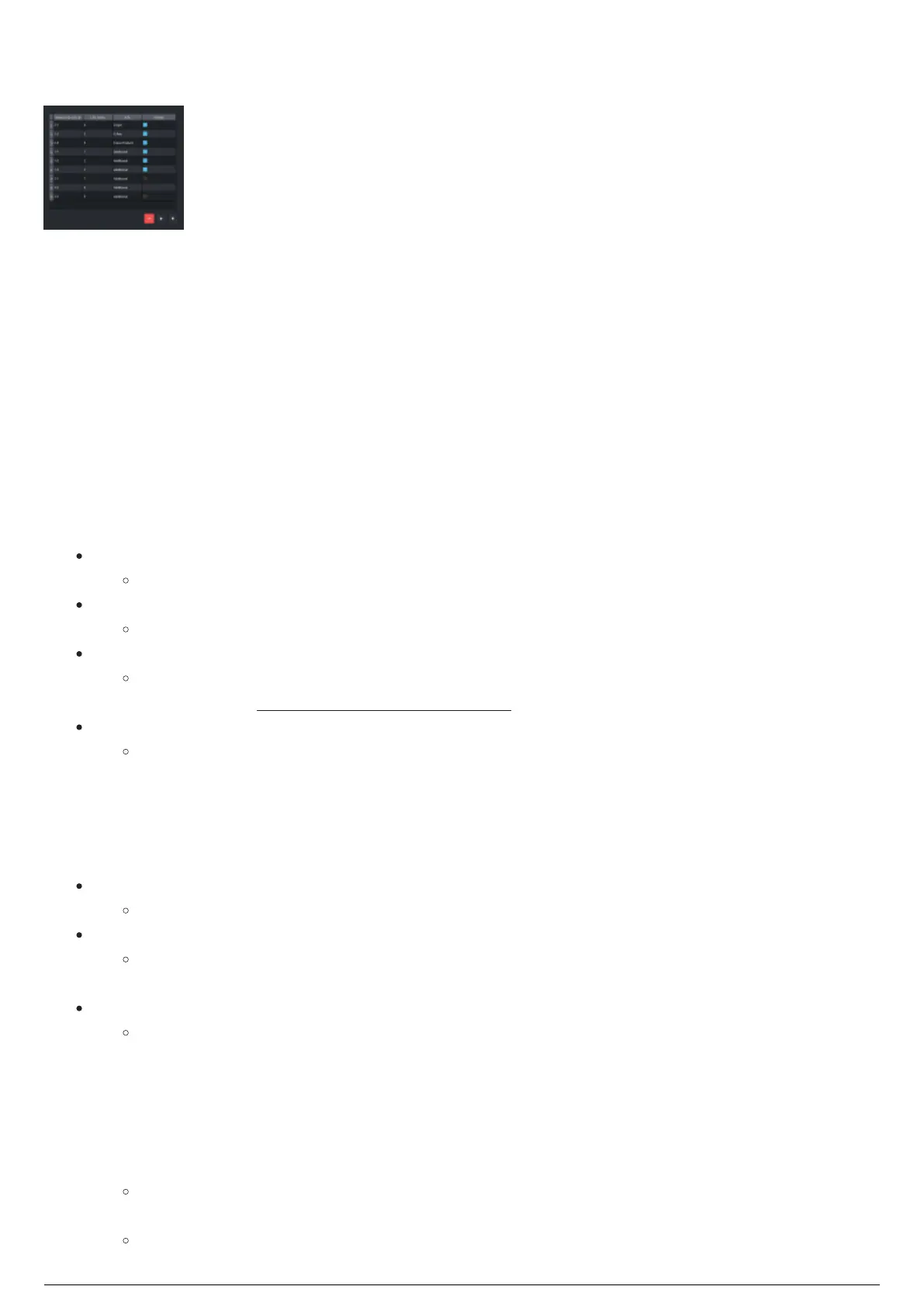
The Frame LEDs widget displays all the LEDs assigned to the currently selected Rigid or Soft Frame in the
Frame Calibration View . The widget lists the LEDs assigned in a table format. The columns listed are:
Beacon ID-LED ID, LED Index, Information on the LED placement order, and the Visibility status.
Usage
The Frame LEDs widget is used to assign Beacon LEDs to the currently selected frame in the Body
Frames widget. The widget lists all the LEDs currently assigned to the selected frame in a column format,
with the following columns:
Beacon ID-LED ID
Lists the Beacon ID and the LED ID (example 3-1 is Beacon 3, LED 1).
LED Index
The ID of the LED sorted in order of insertion (before re-ordering).
Info
Lists the information on the LED placement order: Origin, X-Axis, Cross-Product, Additional.
Please refer to Assigning LEDs to a Rigid Frame in Rigid Frames.
Visible
Shows the visibility status icon (Blue for visible, red for not visible, grey for inactive).
You can drag beacons from the global Beacons widget to add to the currently selected frame into this
widget to assign them to the frame.
There are also three buttons at the bottom of the widget:
Remove Selected LEDs
Removes the select LED from the frame.
Re-Order LED: Switch with Previous
Moves the currently selected LED and swaps it with the previous LED, if it is the first in the
list, it will not move.
Re-Order LED: Switch with Next
Moves the currently selected LED and swaps it with the next LED in the list, if it is the last in
the list, it will not move.
You can replace each of the beacons in the Frame LEDs widget.
To replace a beacon
In the Frame LEDs widget, right-click on a selected beacon in the table.1.
Result: The Replace Beacon tooltip is displayed.
Click on the Replace Beacon tooltip.2.
Result: The Replace Beacon dialog box appears.



 To Next Page