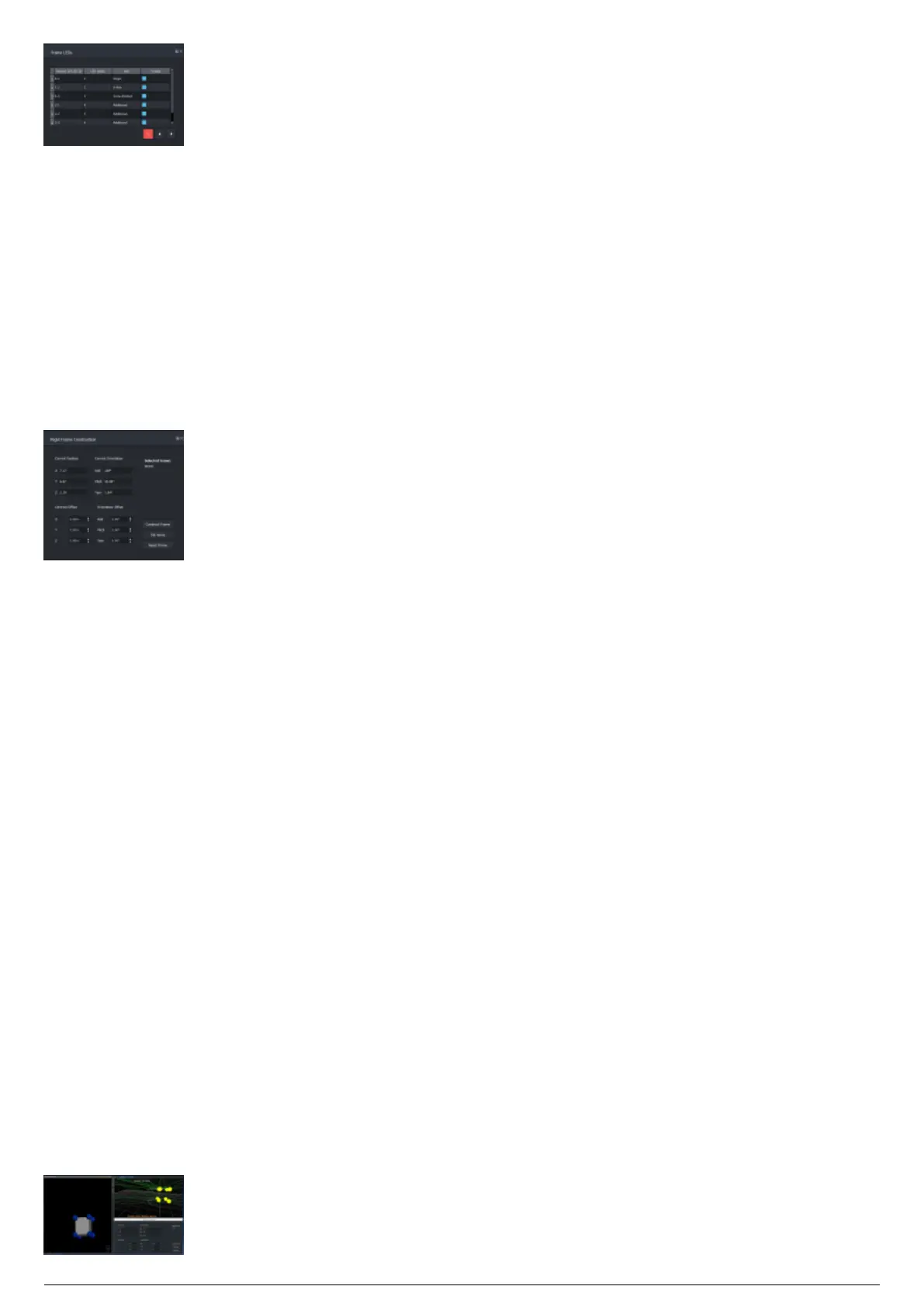
Constructing the Frame
Once the LEDs have been assigned, the frame can be initialized and the solution can be calculated. Click
Construct Frame in the Rigid Frame Construction widget to initialize and calculate the solution. If the
original solution of the rigid frame changes, BlackTrax will attempt to adjust the existing solution
accordingly. This will change the status of all current frames with LEDs assigned to them from "Done" to
a list of the LEDs that have not yet appeared (visible to the tracking system). Click the Apply
Changes button to send all ready frames to the global Beacons widget(s), and allow them to be assigned
to a trackable. Click the Reset All Frames button to remove the solution from all Frames, but not delete
them. You must click Apply Changes.
Set Home
In most situations, it is necessary to align the Rigid Frame's orientation to an acceptable 'home' position.
A home position is where the object will be 0,0,0 for the Roll, Pitch, and Yaw respectively. You can
manually perform this action, but it is much easier to let BlackTrax determine this for you.
To use the set home function
Align the real world object along the same plain as the world coordinate system (ensure your X, Y,1.
and Z directions match where you set the ground plane. An example is to set the front face of the
object facing -Y).
Select your desired Frame.2.
Click Set Home.3.
Result: Your object will now be orientated with Roll at 0, Pitch at 0, and Yaw at 0. The object will rotate
in the same way that the real world coordinate system would rotate.
Once the object is 'homed', it is easier to offset the centroid and orientation of the Rigid Frame (although
you may do this before you home the object, if desired). Enter the required values into the X, Y, and Z
fields for the centroid (in meters), and Roll, Pitch, and Yaw fields for Orientation (in degrees). These
settings will be applied automatically, based off the time set under System Configuration>Frame
Calibration>Updating offsets interval (seconds). By default, this is set to update 0.5 seconds after the
values are updated.
Note: You do not need to click Apply Changes when doing centroid and orientation offsets or setting the
home orientation.



 To Next Page