Technical / Programming Manual
FT128 Rev 2.2
157
20 Download SSD
Note: An EBLWin USB key must be used to communicate with the control panel and
download the SSD using EBLWin V2.x.x.
The Site Specific Data (SSD) for an installation is created (programmed) via the PC
program EBLWin, which is also used to download the SSD into the FT128, Web-server
and/or 1728 & 1736. The SSD will be saved in a file named xxxxx.EBLWin.
The EBLWin key is a protection USB device required to log on to the Control Unit, it has a
unique number. The EBLWin key identification number will be registered in the control
panel event log with the date and time stamp for every SSD download performed in the
control panel.
When the installation is ready, i.e. all units connected and the power is turned on, the SSD
download can take place.
The PC has to be connected to the RS232 port "J3" in FT128. Start EBLWin and open the
required installation. Log on to the control unit via the PC (EBLWin).
Note: No password / access code is required to log on to the control unit, instead an
EBLWin key (5094) is required. This key is plugged in a USB-port in your PC.
In EBLWin (menu "Tools" | "Download SSD..."), select Control unit "0". SSD can also be
downloaded to the Web-server and connected Display Units if the checkbox "Download
display units" and "Download Webserver SSD" respectively, is marked.
After the SSD download the control unit will restart. A number of faults might then be
generated, e.g. due to not connected units.
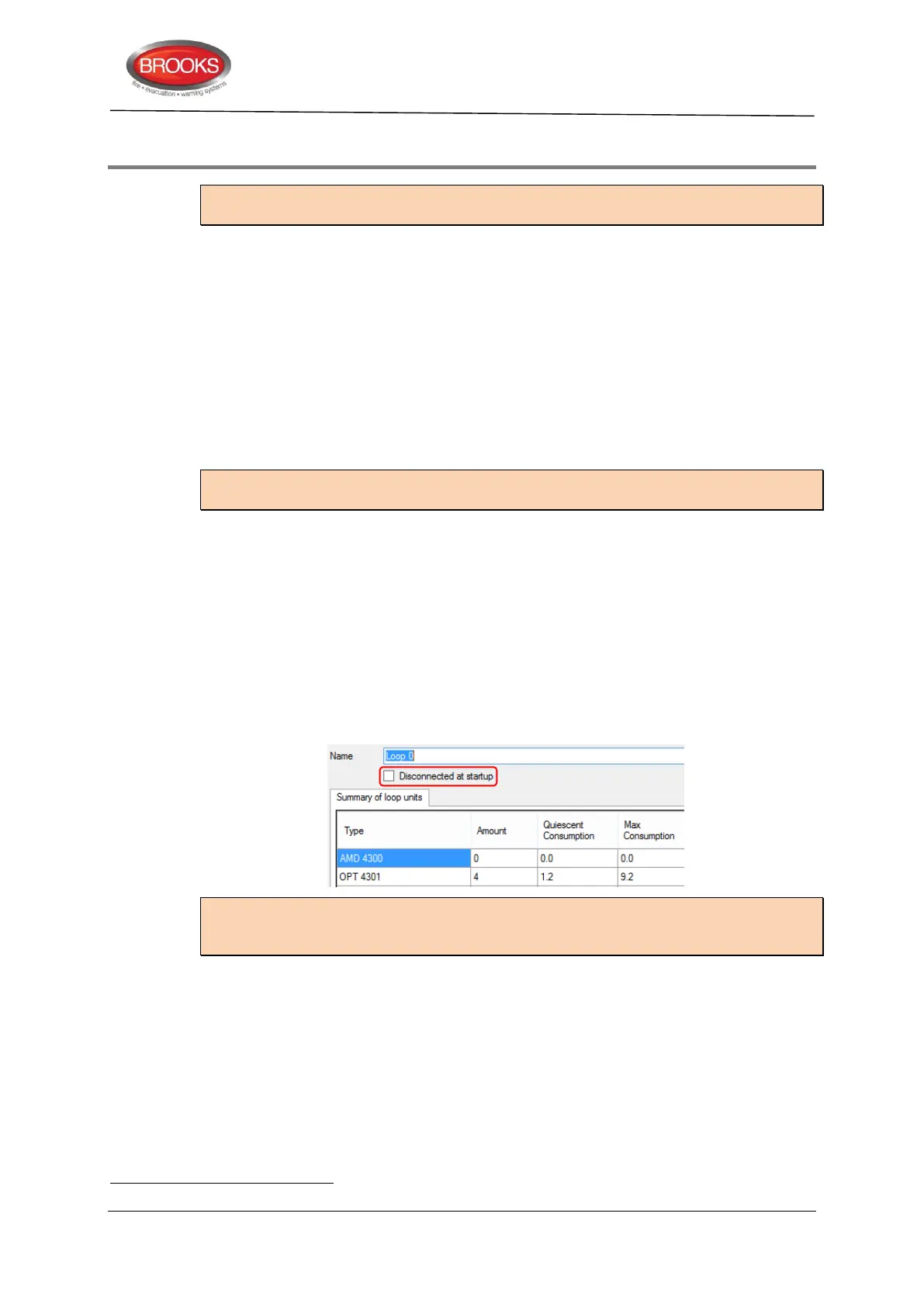
Disconnected at start-up
Normally this function is not used in FT128 since this control unit has only one COM loop.
In the COM loop Properties dialog box it is possible to select the option "Disconnected at
start-up". The COM loop will then be disabled directly after the download restart and
therefore, no faults will be generated.
Note: A COM loop "Disconnected at start-up" can be re-connected via menu H8/S1 but
it will then be disconnected again after next restart. Finally the SSD for that control unit
has to be downloaded again with the option "Disconnected at start-up" not selected.
20.1 COM loop menu
20.1.1 Check Loop
In the EBLWin COM loop icon pop-up menu, select "Check Loop". This function can be
used after (or before) the download of SSD. The function is as follows:
The control unit will find all units connected on the COM loop. If there is a break (cut-off) or
short circuit on the loop, only the units in the A-direction will be found and shown, i.e. an
indication where the break (cut-off) or short circuit is located.
xxxxx = A suitable name of the installation.



 To Next Page