Technical / Programming Manual
FT128 Rev 2.2
158
For all units, the address (1-255) and the type of unit will be reported to EBLWin. All
differences compared to the installation (SSD) that is opened in EBLWin will be listed in
EBLWin and can be saved and/or printed out.
"Unknown device" means that the type cannot be identified, e.g. faulty unit.
"Several reply" means that more than one unit have the same address or due to bad COM
loop communication.
Note: During this check, the COM loop will be disconnected (disabled) and no alarms or
faults can be activated. Disconnected COM loop is indicated by the LED "Disablements"
(L8) on the CIE display.
20.1.2 Auto generate SSD
If you are on site, the Auto generate function can be used to create the SSD. Open a new
installation in EBLWin, connect the PC to the RS232 connector J3 in FT128 (on the main
board) and log on.
Right click on the COM loop and select "Auto generate…". The COM
loop units
connected on the COM loop will now be identified and listed in EBLWin, i.e.
the SSD will be auto generated with default settings for all units (01-01, 01-02, 01-03, etc.),
save the installation (SSD). The SSD can now be downloaded (see below) to FT128 directly
or be edited before the download.
20.2 SSD download to the Control Unit
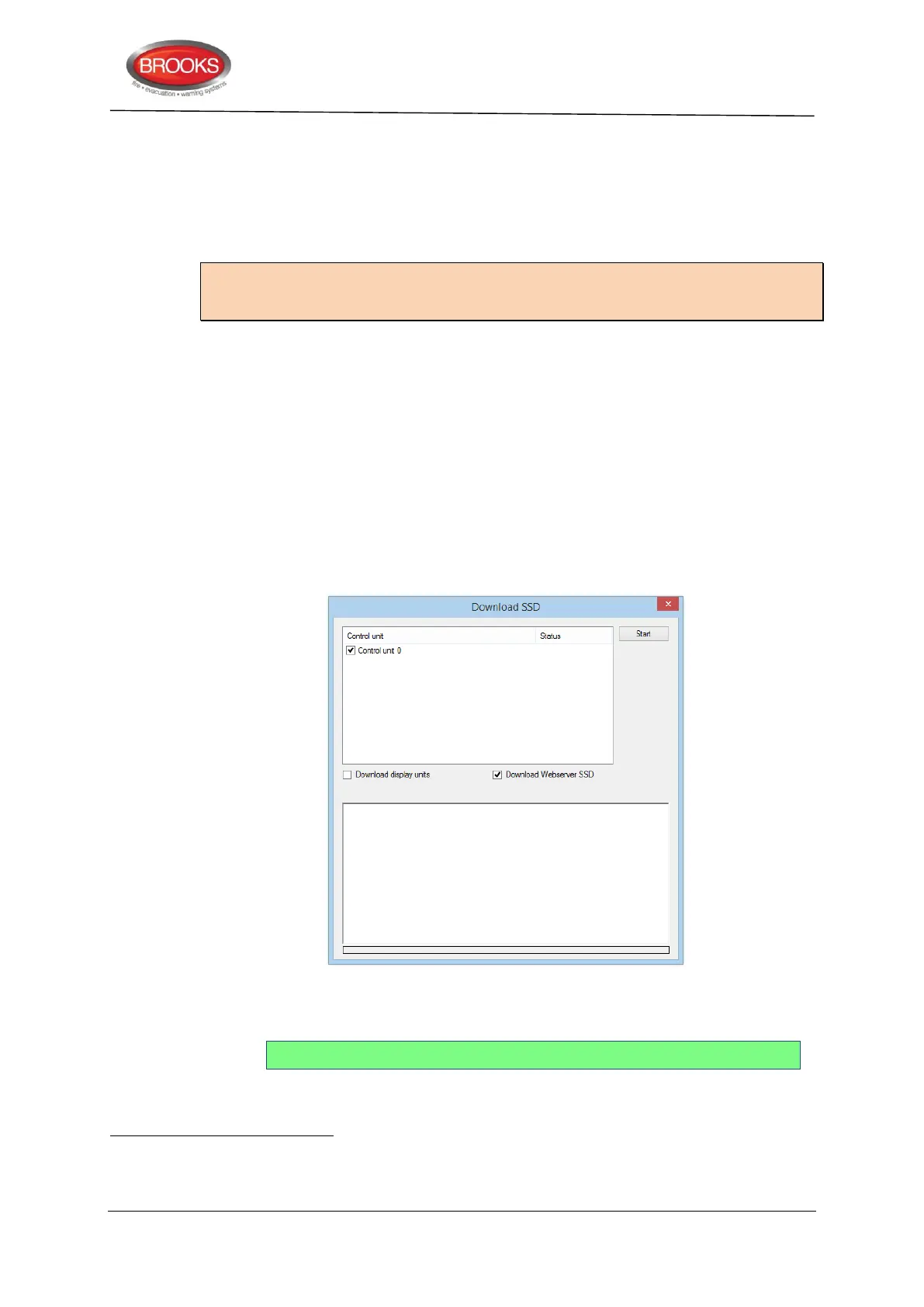
Open the required installation (xxxxx.EBLWin) and log on to FT128.151 In "Tools" menu
select "Download SSD…" to open the dialog box.
Mark the required check box(es), click “Start”. Information will be shown in the "Status"
coulomb and in the large white field. There is a progress bar in the dialog box as well as in
the FT128 display:
Downloading in progress…...
▓ ▓ ▓ "Progress bar……"
An EBLWin key 5094 (a hardware key) is required, i.e. plugged in a USB port in the PC.
Each unit have to be running i.e. be connected, power supplied and the address, mode etc. have to be set. NOTE: During
this check, the COM loop will be disconnected (disabled) and no alarms or faults can be activated. Disconnected COM loop
is indicated by the LED "Disablements" (L8).



 To Next Page